Using the Messenger (Mobile)
Message home overview
Channel list
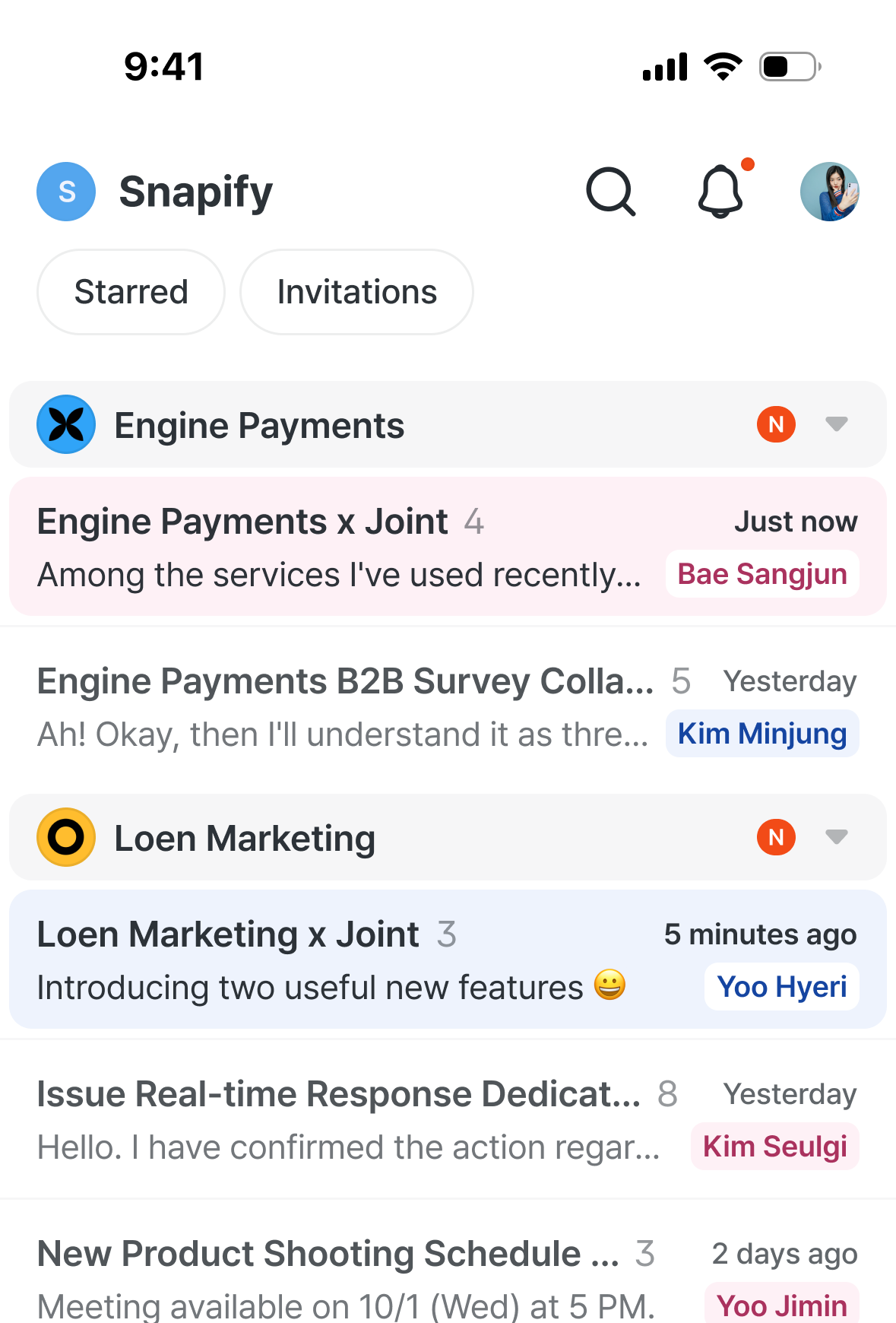
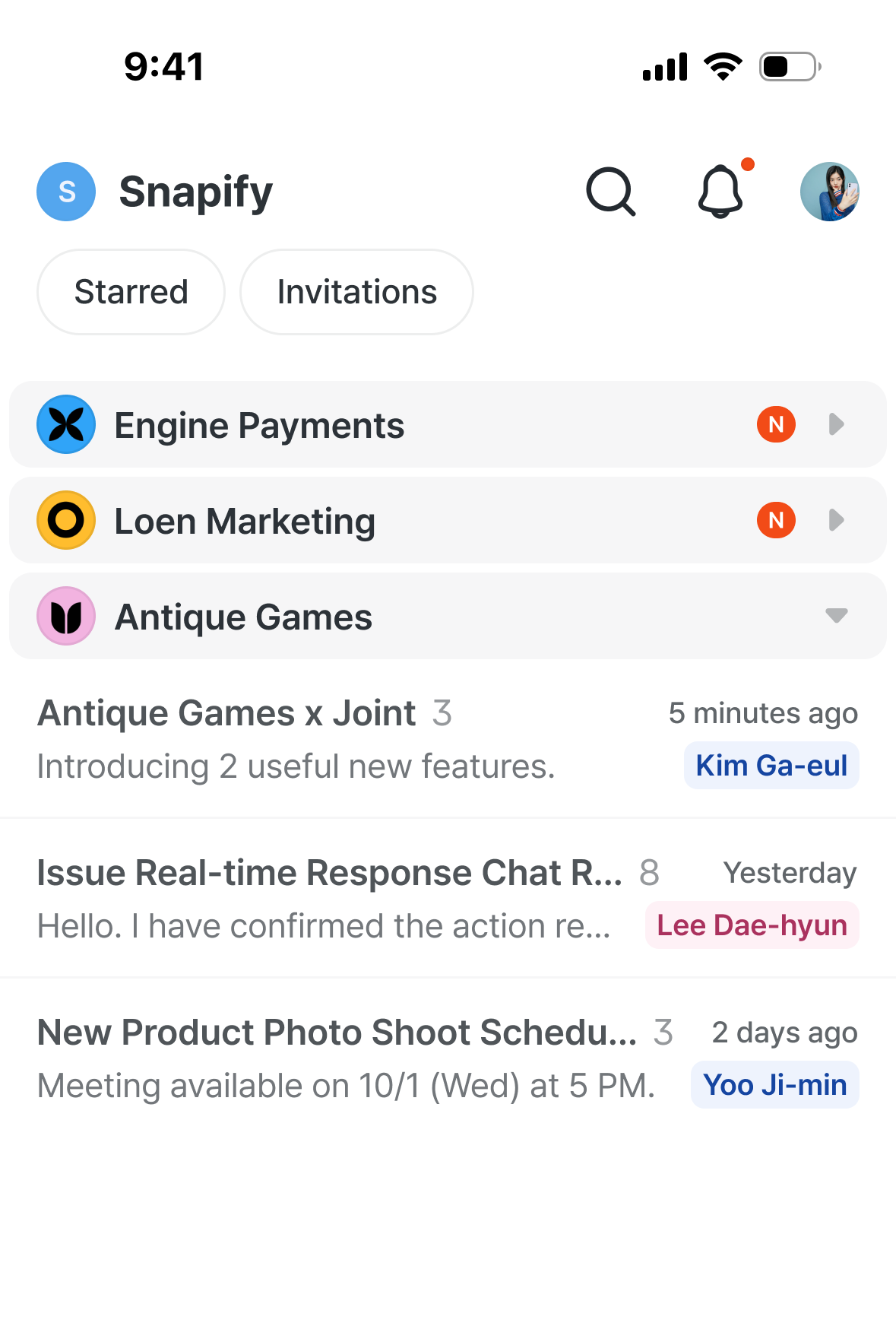
- See a list of channels grouped by account, including both channels you participate in and channels for accounts you manage.
- If a single account has multiple channels, you can collapse the list to keep things tidy.
Channel screen layout
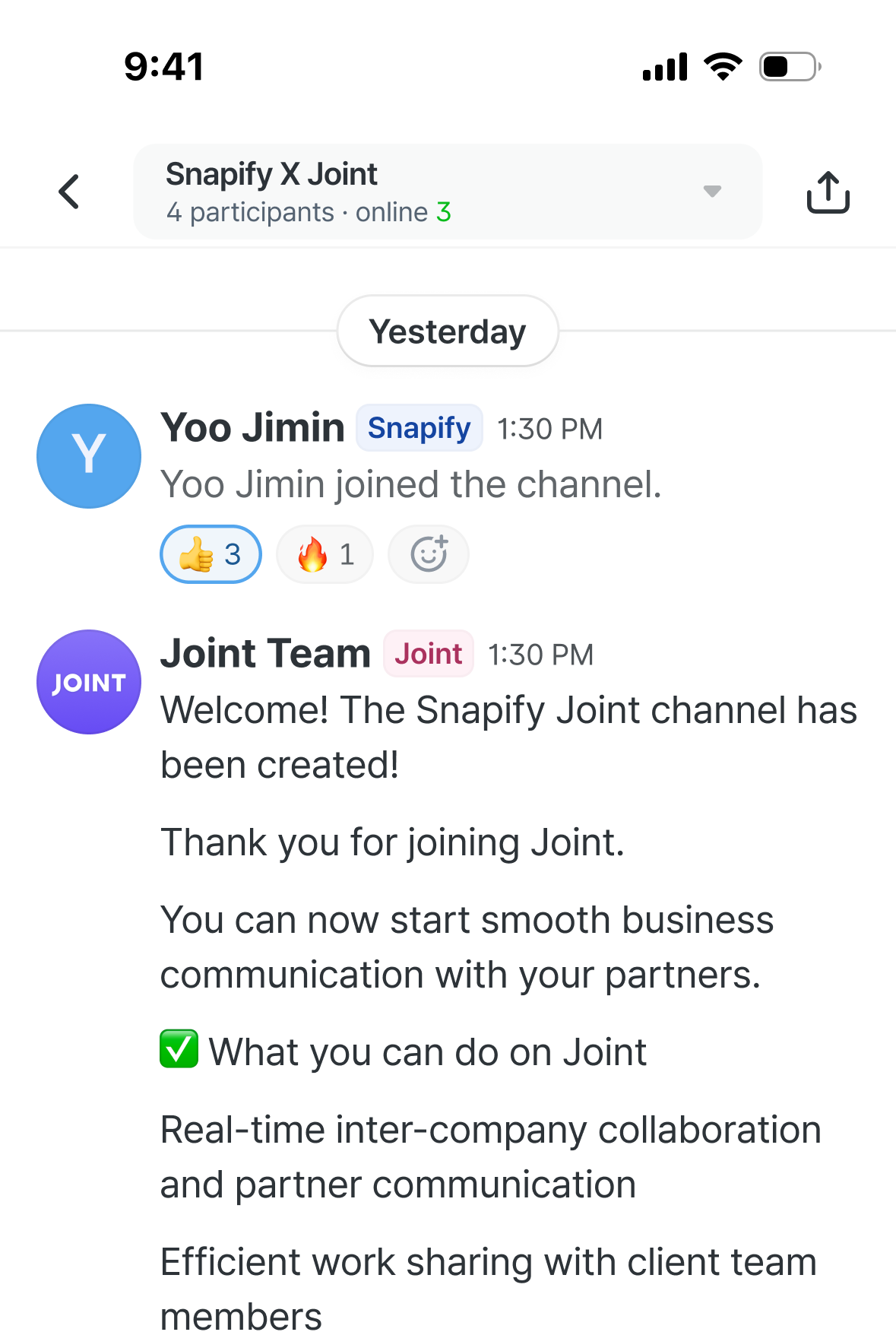
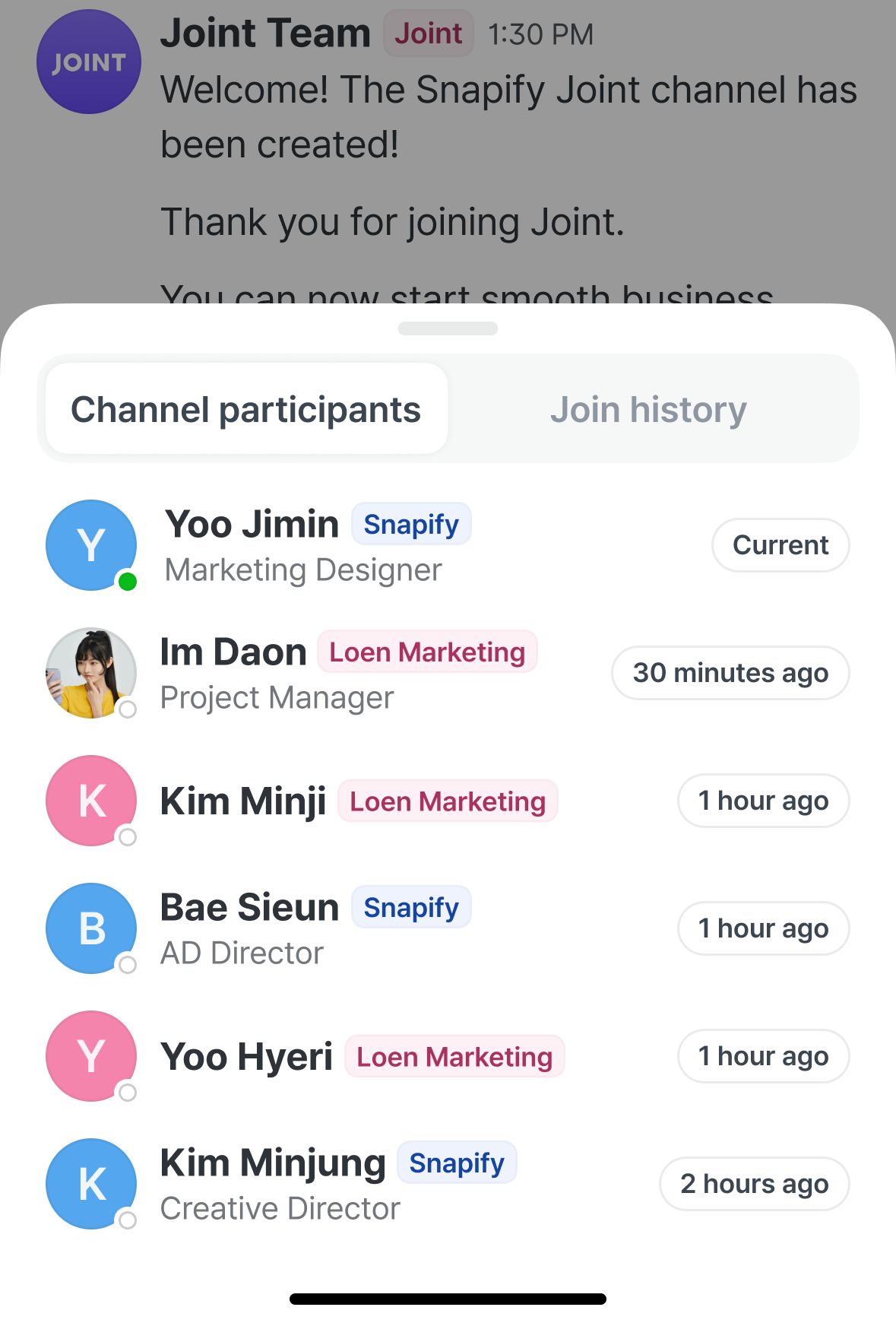
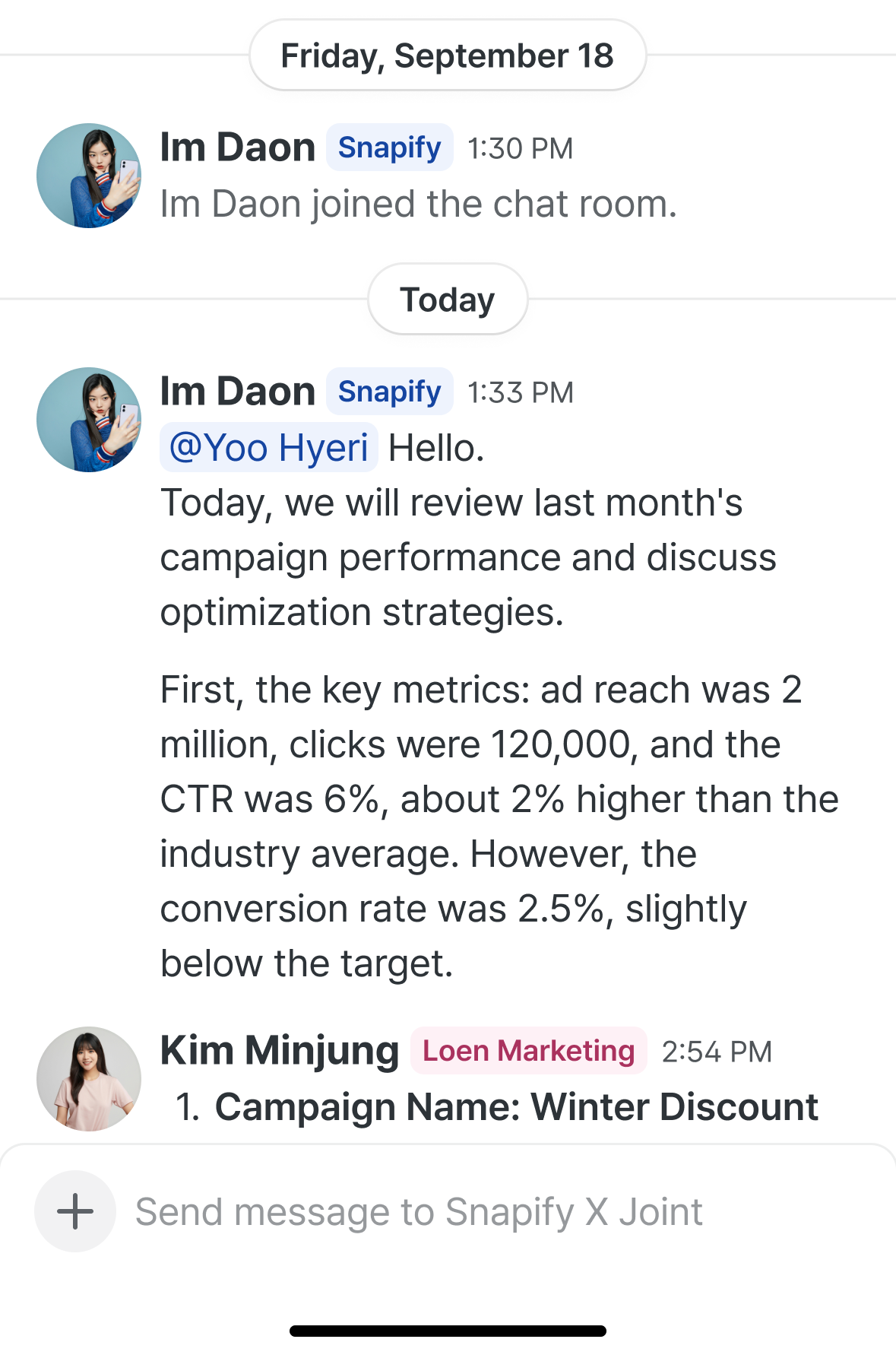
This is the layout when you enter a channel.
-
Tap the channel title at the top to see:
- Workspaces and participant list from both companies
- Recent channel activity (who entered, when)
-
Message panel
- Message input field
- Sent messages, with author and timestamp
- Threads
- User mentions
- Private chat
- Copy channel link
Basic messaging
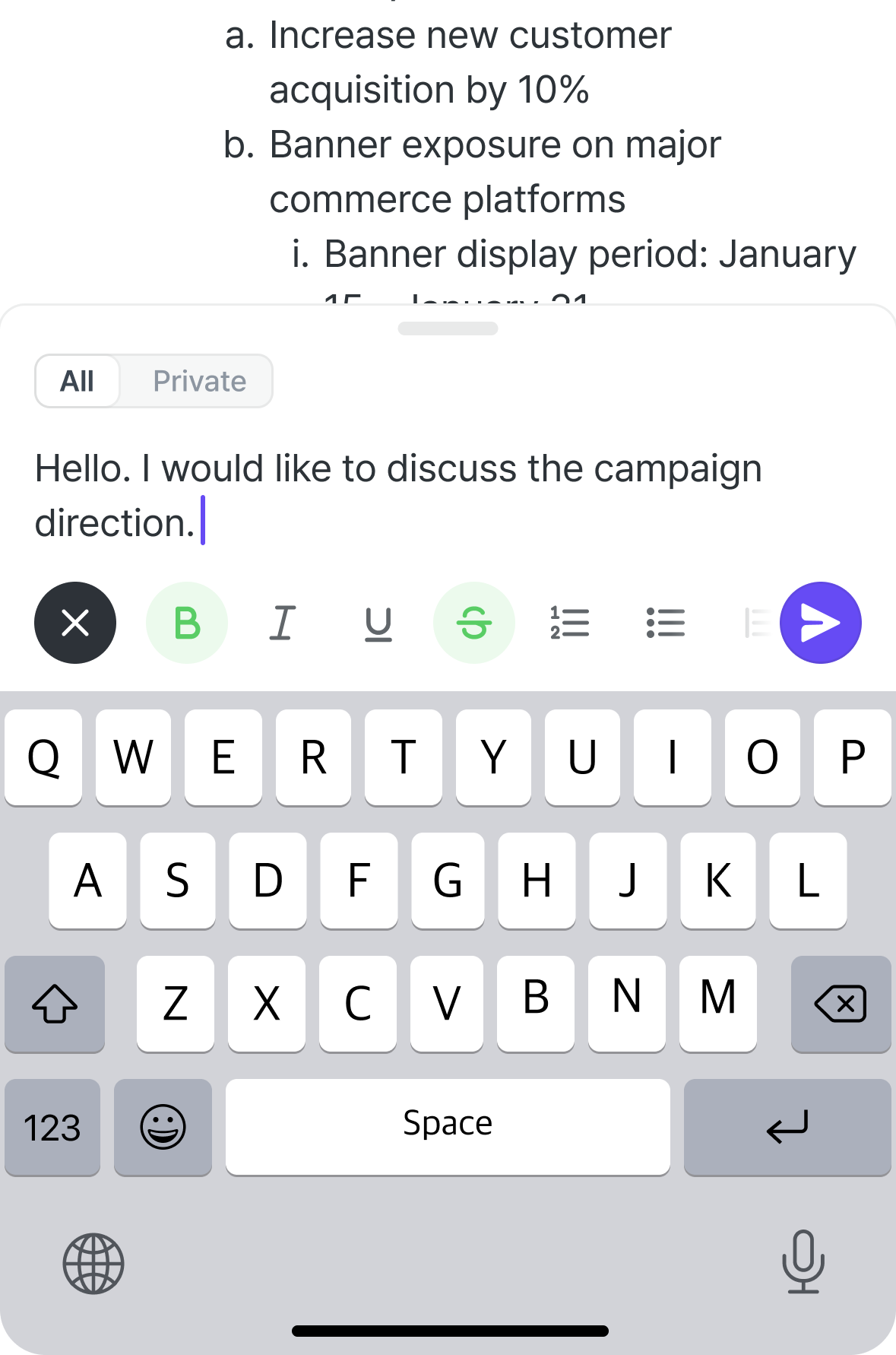
Writing messages and applying styles
- You can write messages at the bottom of the channel.
- Apply a range of styles — bold, underline, strikethrough, bullet points, blockquotes, emoji, and more.
Using threads (replies)
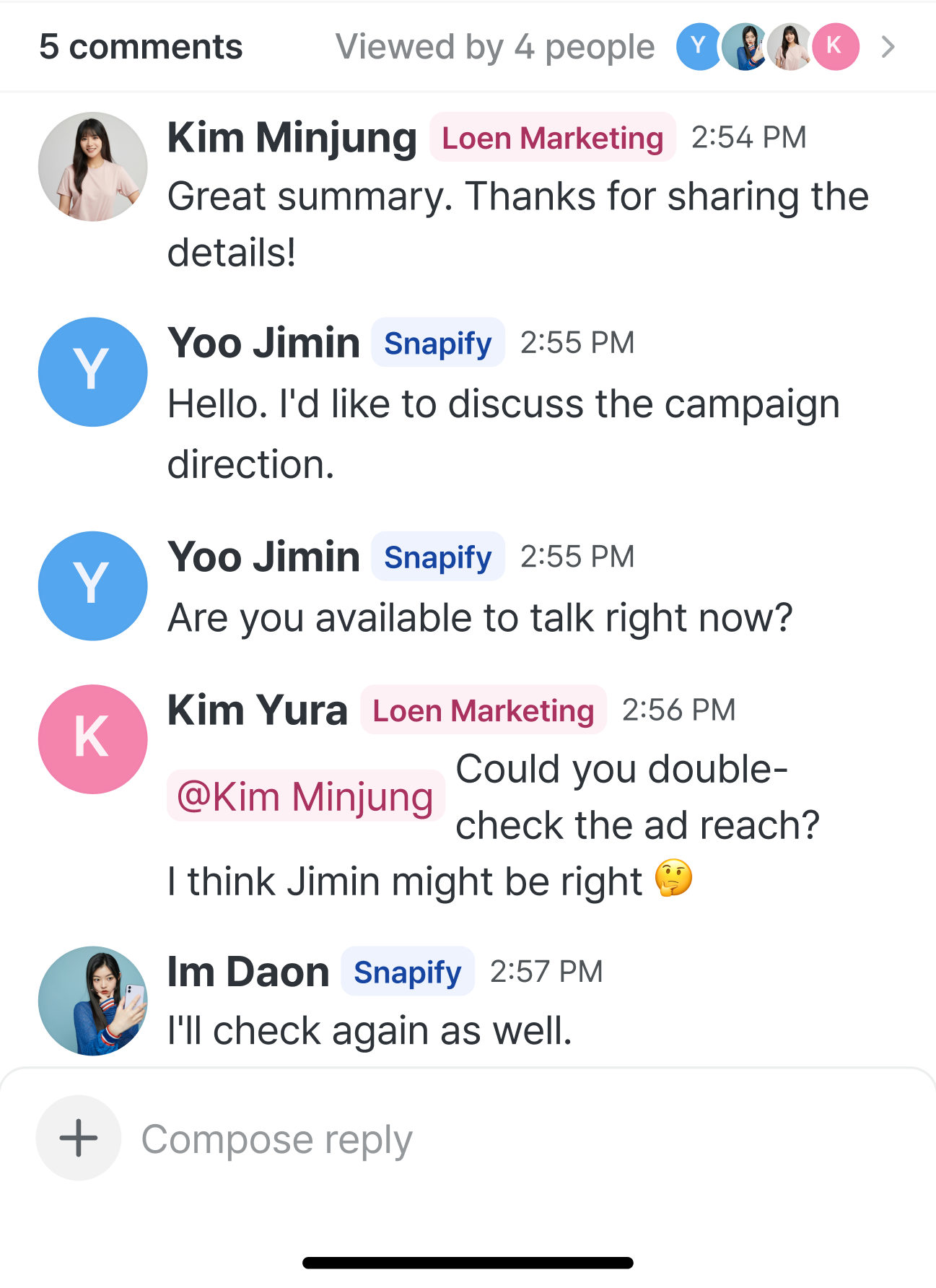
- Add replies to any message for deeper, more focused conversations.
- You can use emoji in replies too, and copy a share link for any individual message.
Reacting with emoji
👍
3
4
💔
5
6
👾
8
9
🔥
10
11
🤔
7
8
🥳2
🤬4
🐙6
🌪9
🥃5
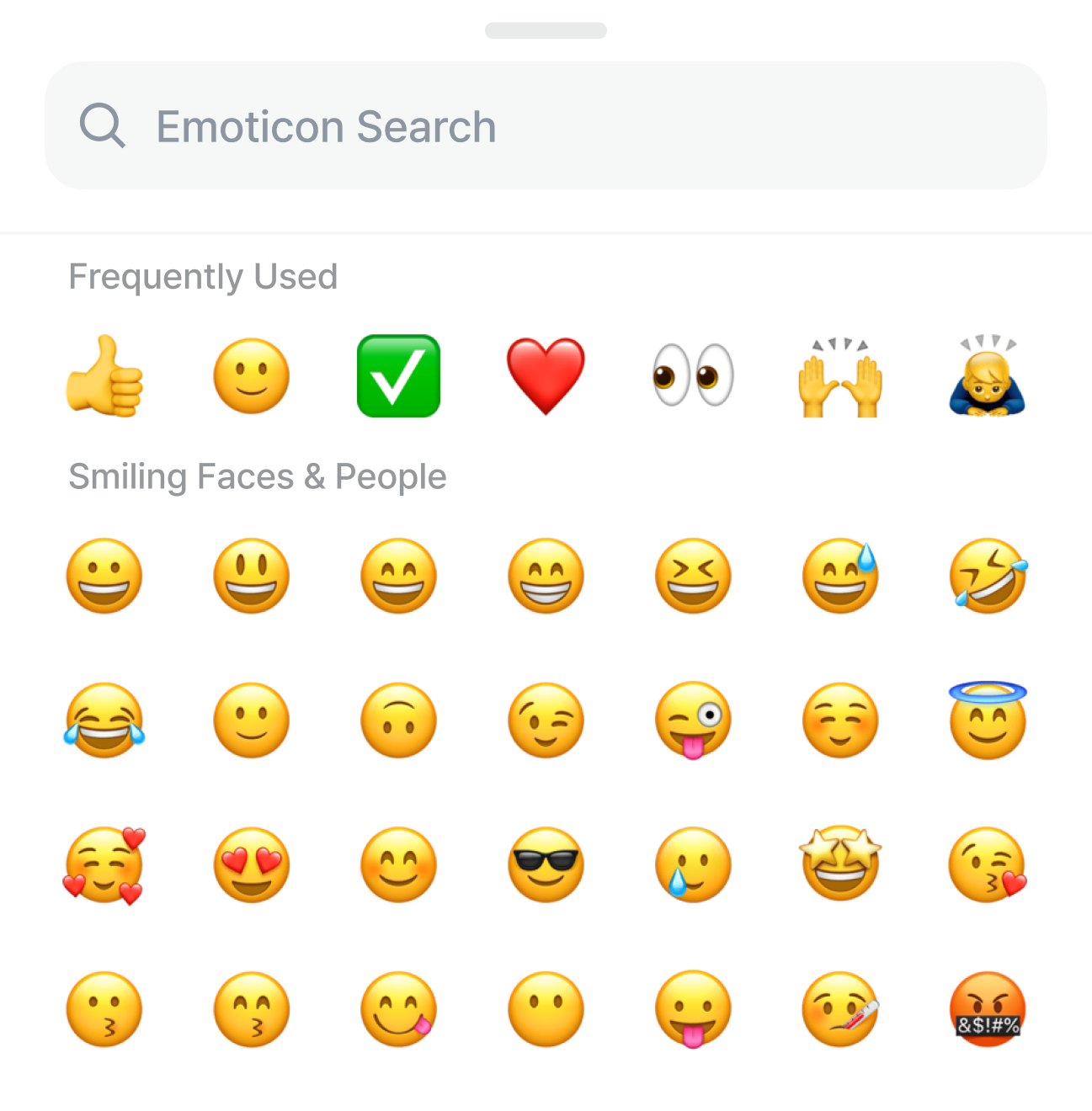
Use a variety of emoji to respond to messages in a way that’s appropriate, expressive, and a little fun.
Advanced messaging
Sharing files
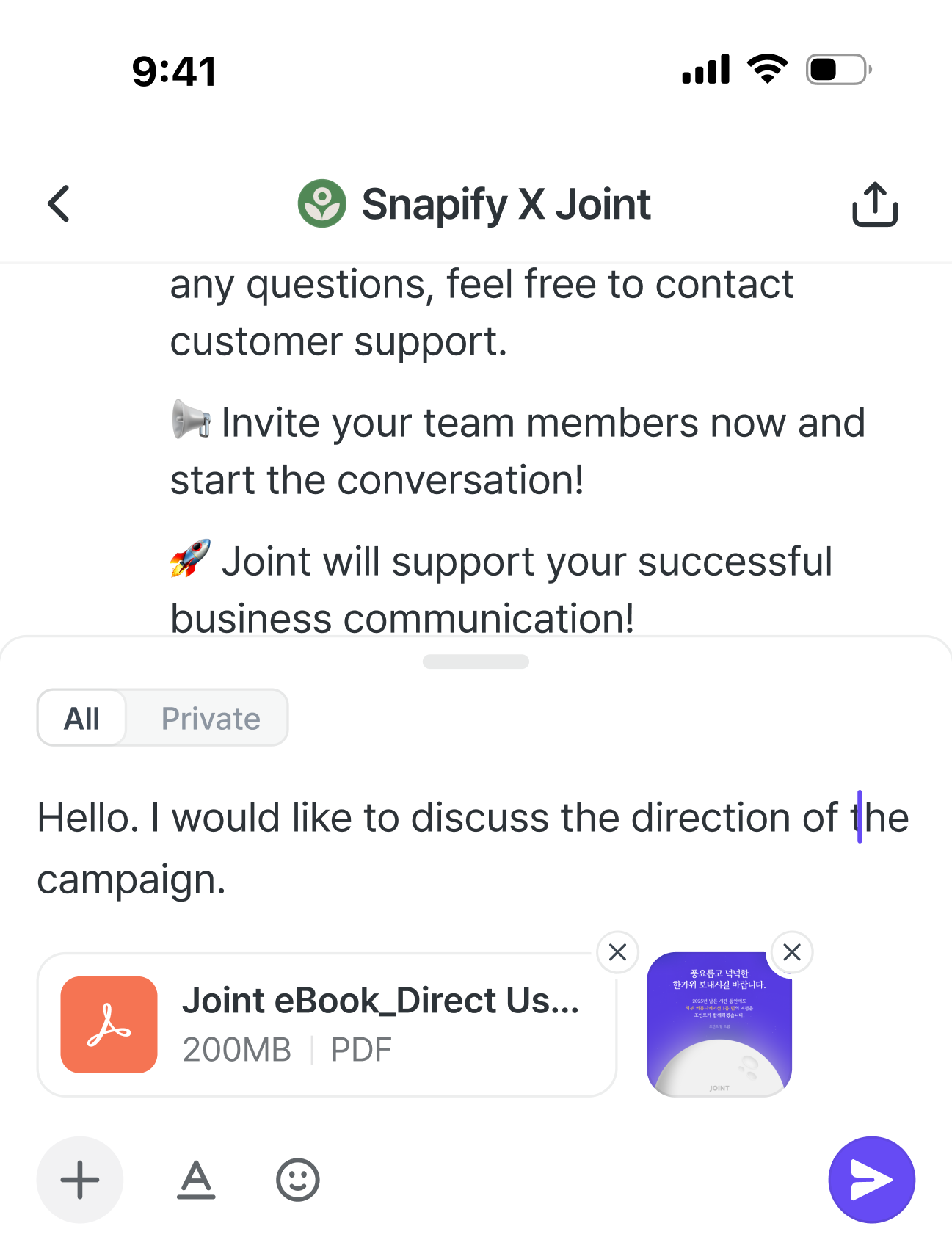
- Upload and download any type of file — documents, images, you name it.
- Select a file to preview its contents without downloading it (except PPT).
- You can upload multiple files of different types at once.
- Maximum size per file is 200MB, and up to 10 files at a time.
- There is currently no limit on the total number of files you can upload.
Private chat
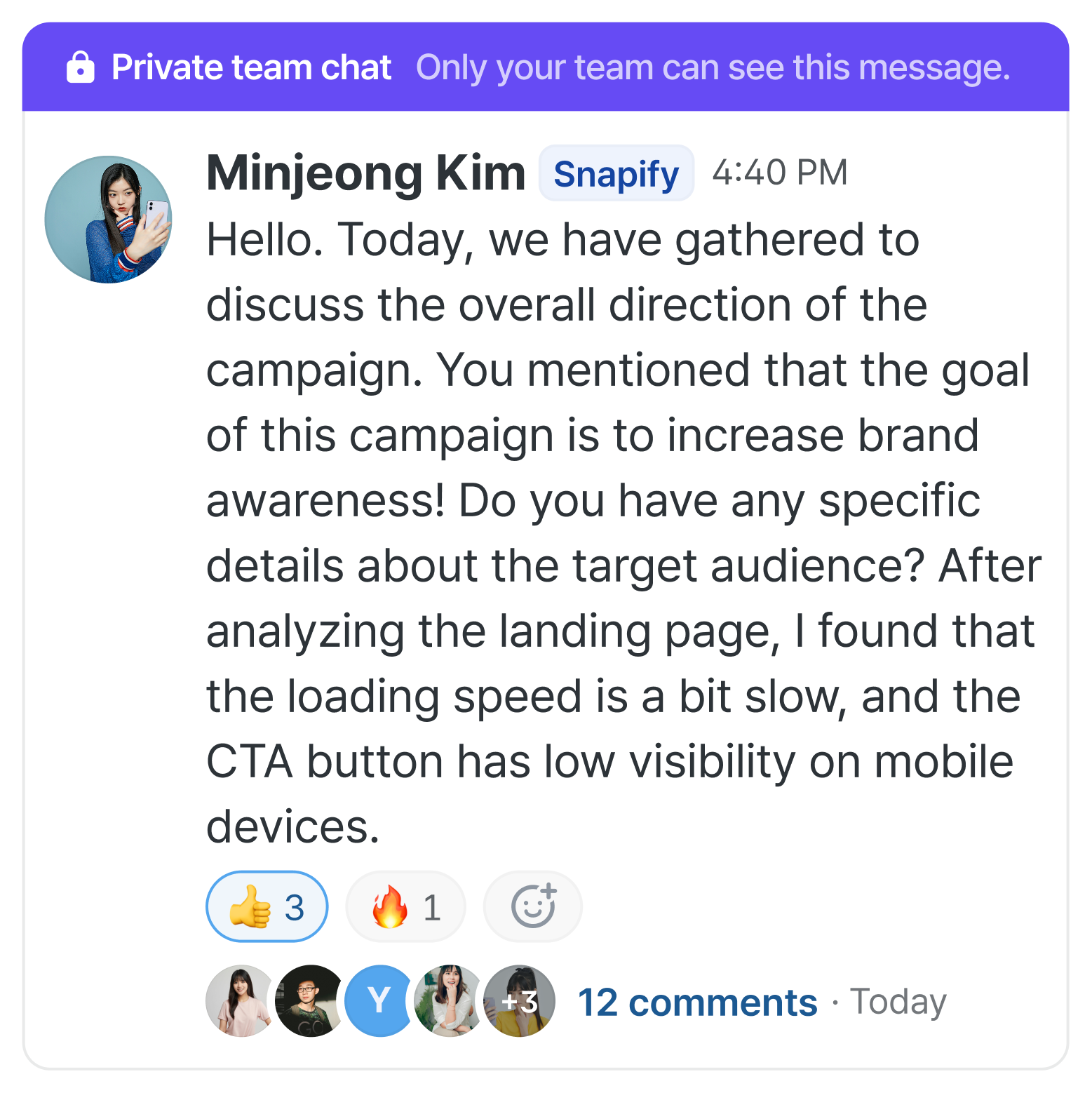
- Have a private chat with team members from your own company within the channel.
- Account contacts can’t see the private chat or its contents.
Starred messages
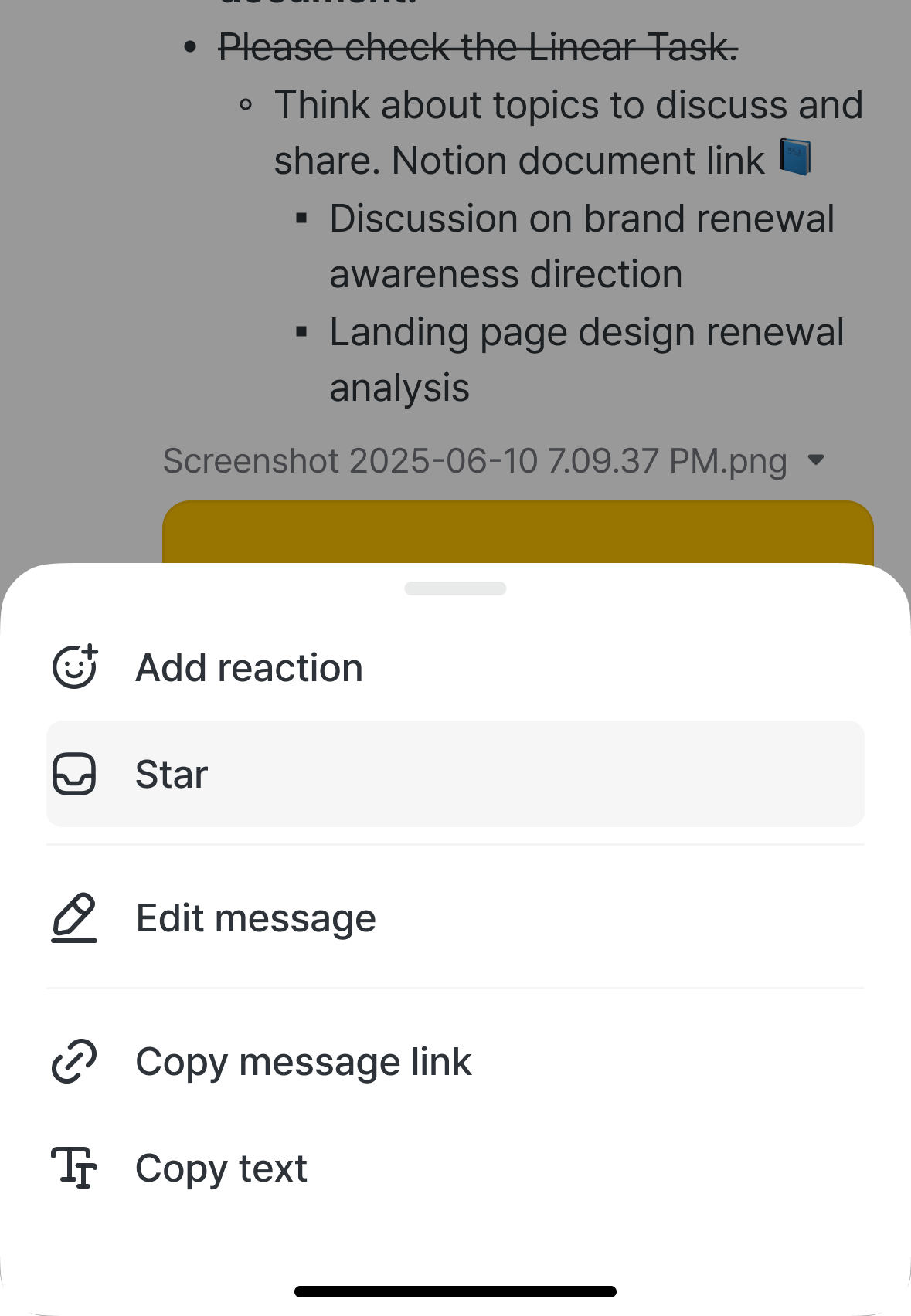

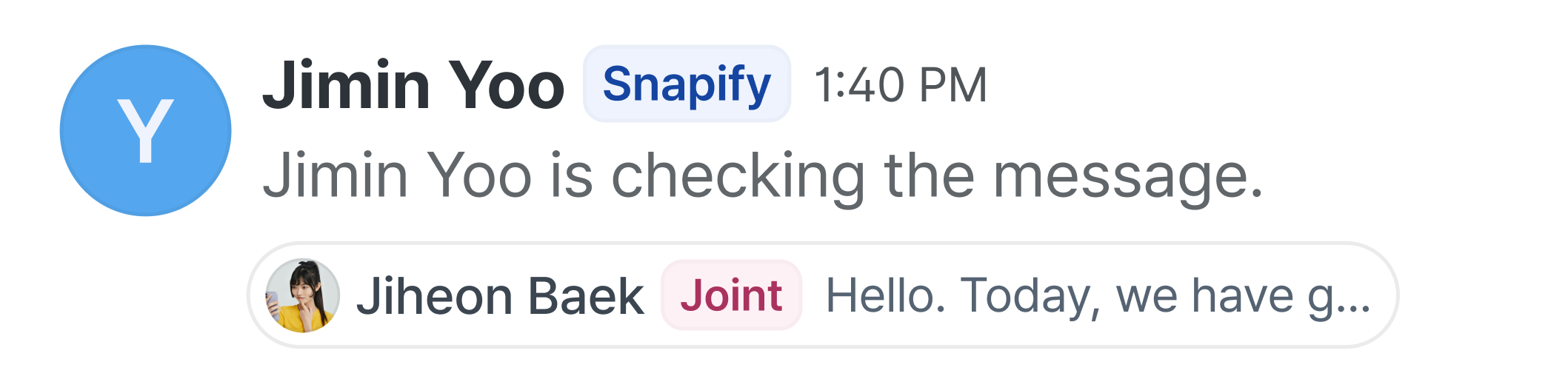

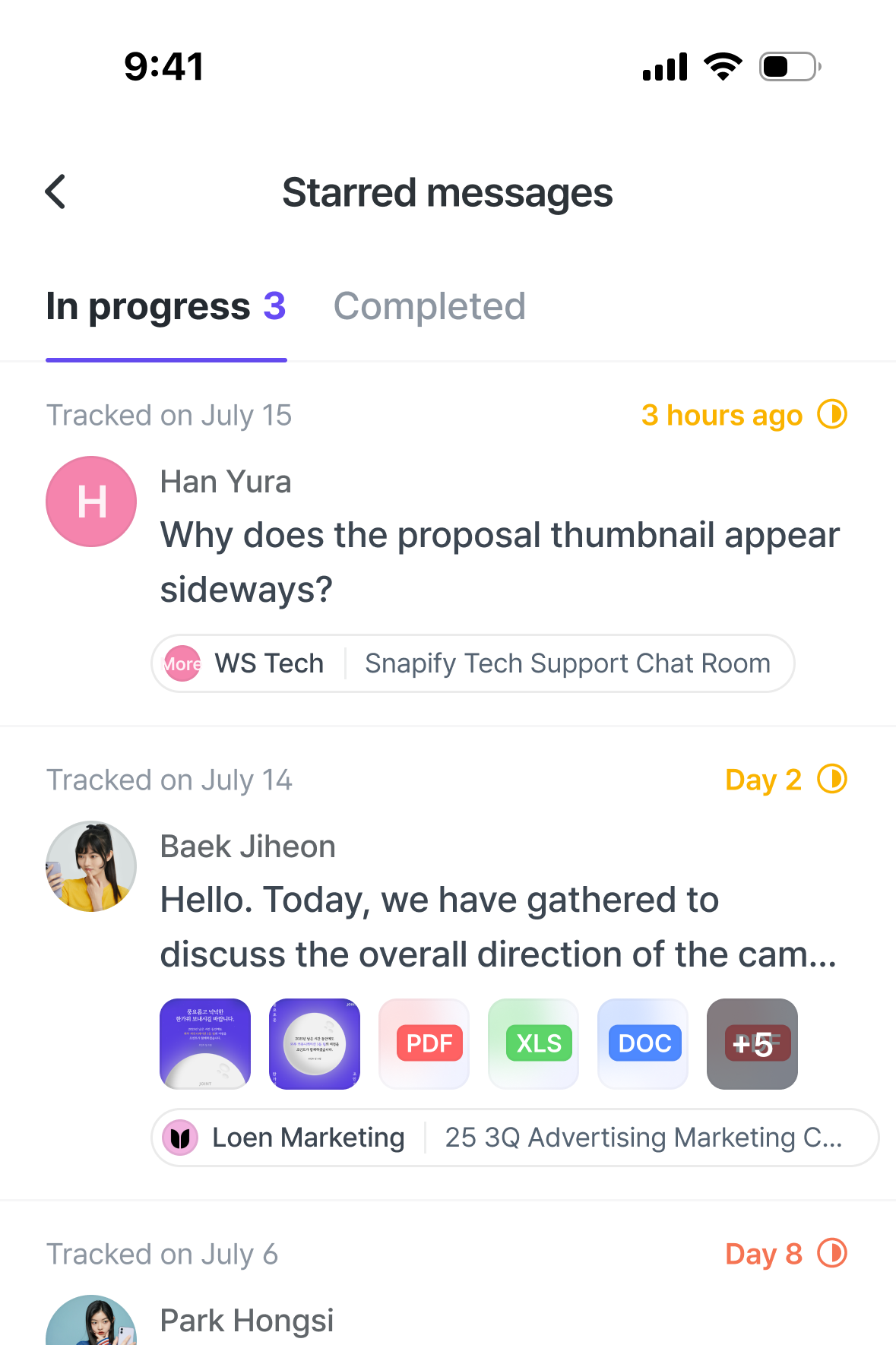
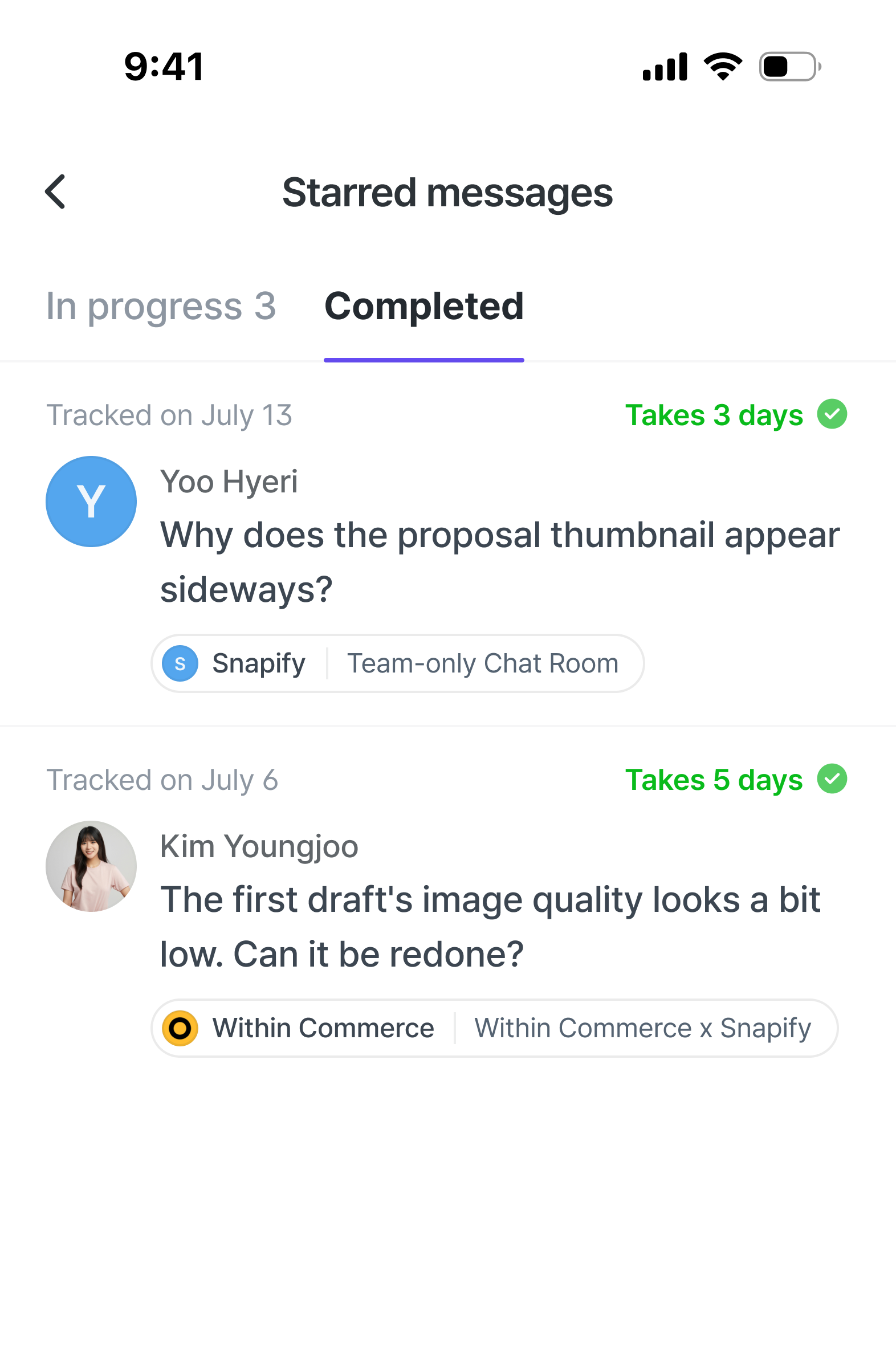

- You can mark a message as starred when it needs attention or action.
- Other channel participants are automatically notified about who starred what.
- From the [Starred messages] menu on the home screen, you can see your In progress and Completed lists separately.
Notifications
Message notifications
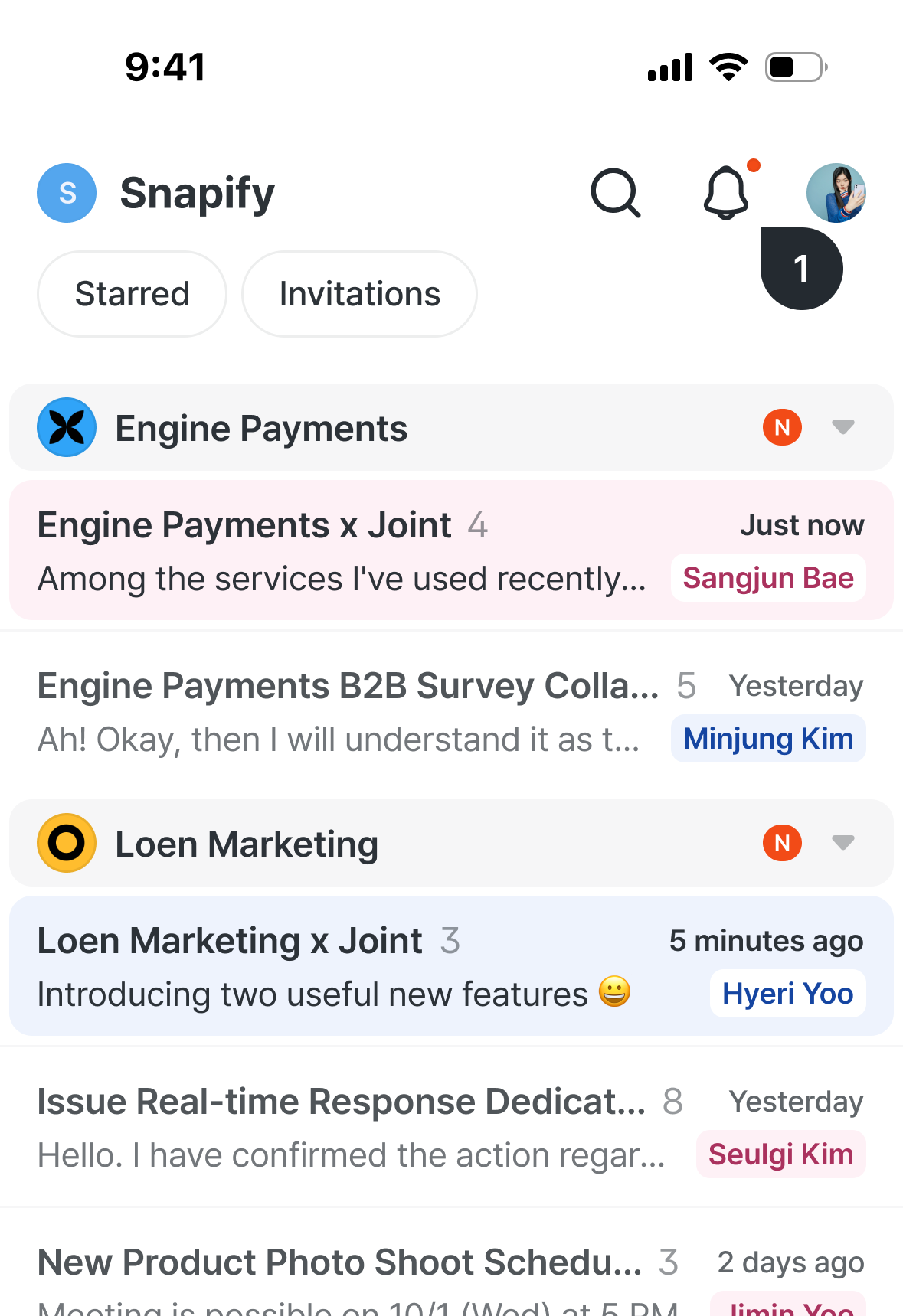
-
Tap the [🔔] icon button on the home screen to see new replies posted in
channels you participate in.
If there are unread replies, a red badge [🔴] appears on the [🔔] icon.
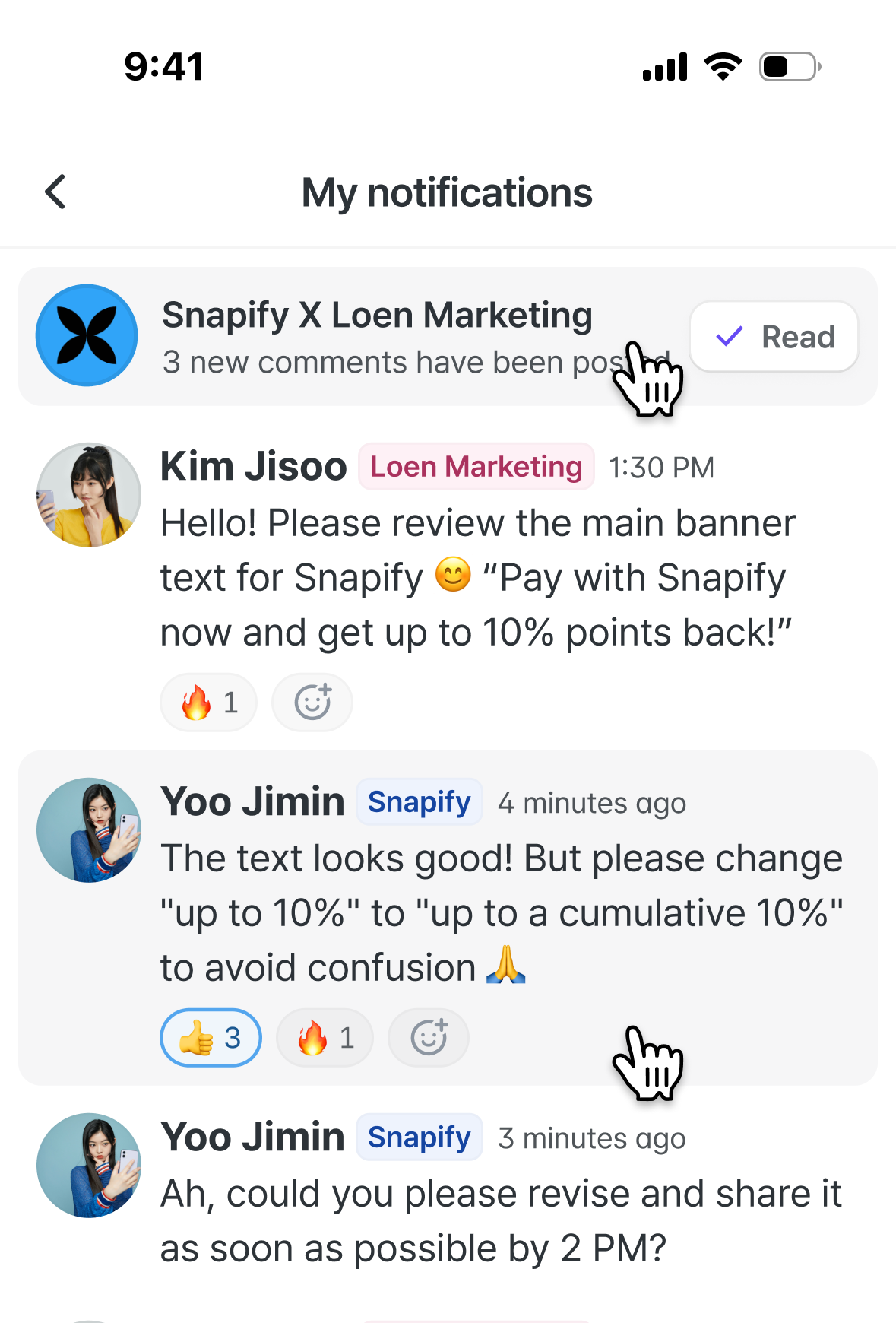
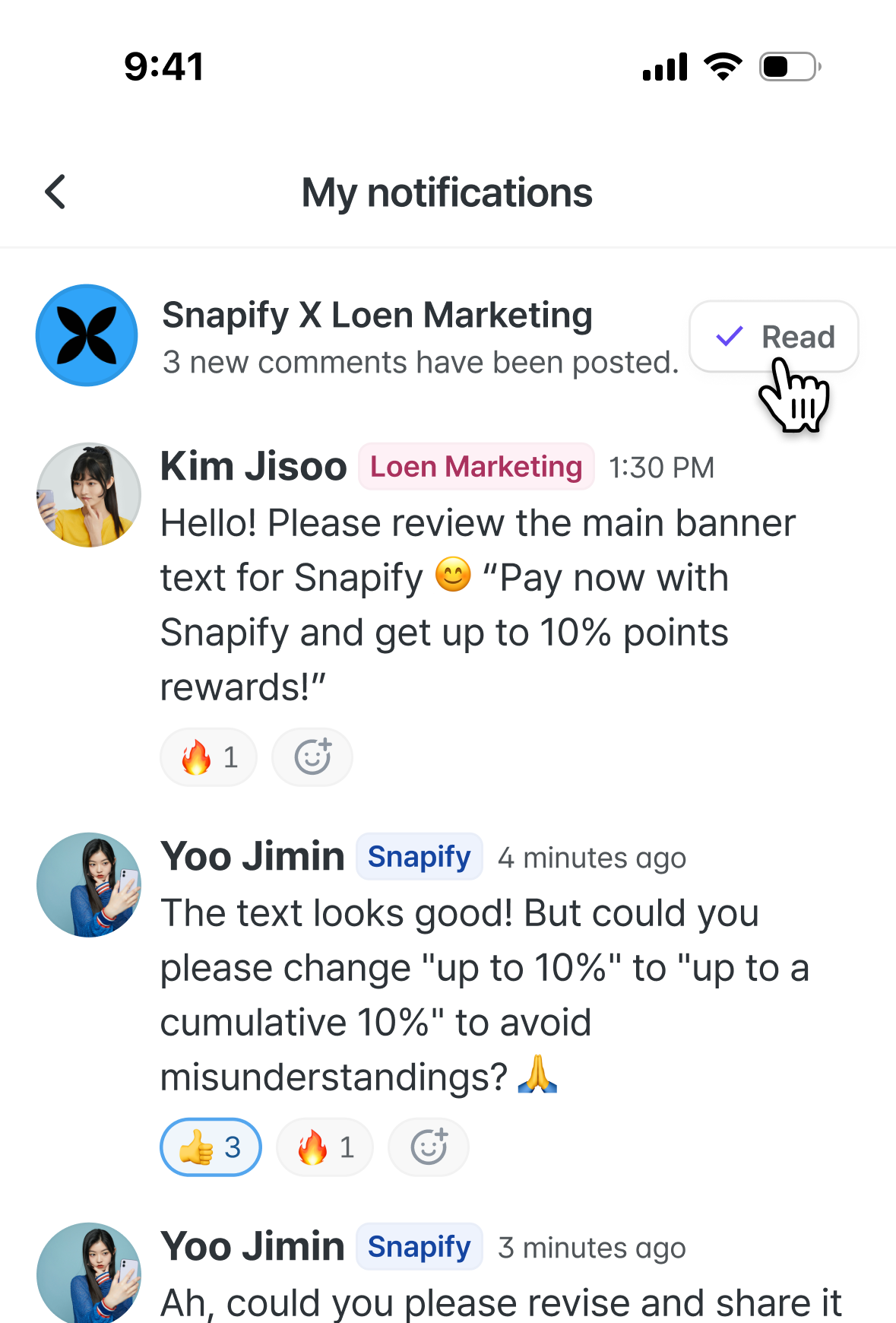

-
Tap the channel name to jump to that channel.
Tap a message or reply to jump directly to that conversation. - Use the [Mark read] button to mark a conversation as read. Until you either mark it as read or navigate to it, it stays flagged as a new reply in your notifications.
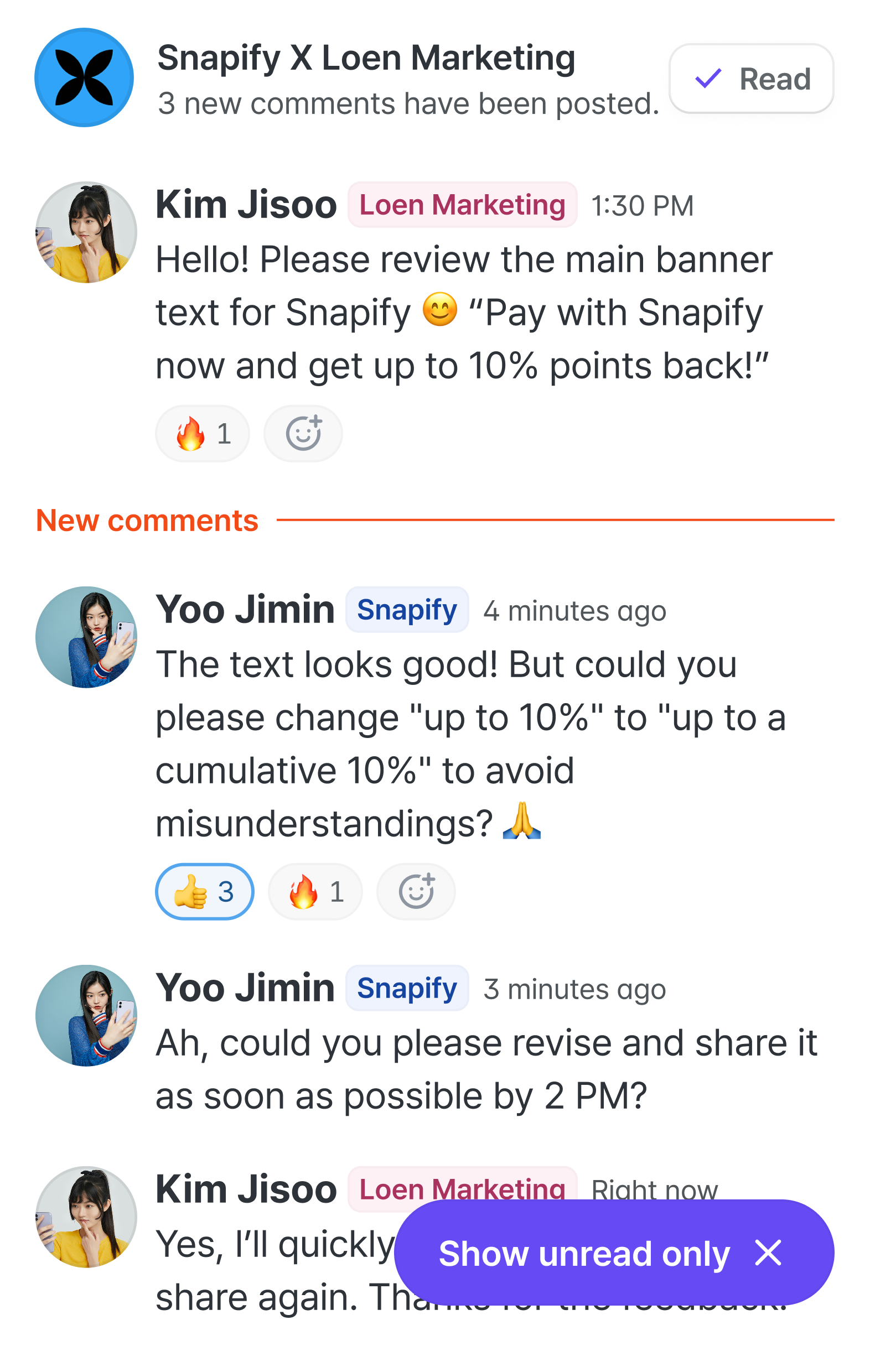

- Turn on the [Show unread only] toggle to show only conversations with new replies.
Starred message notifications
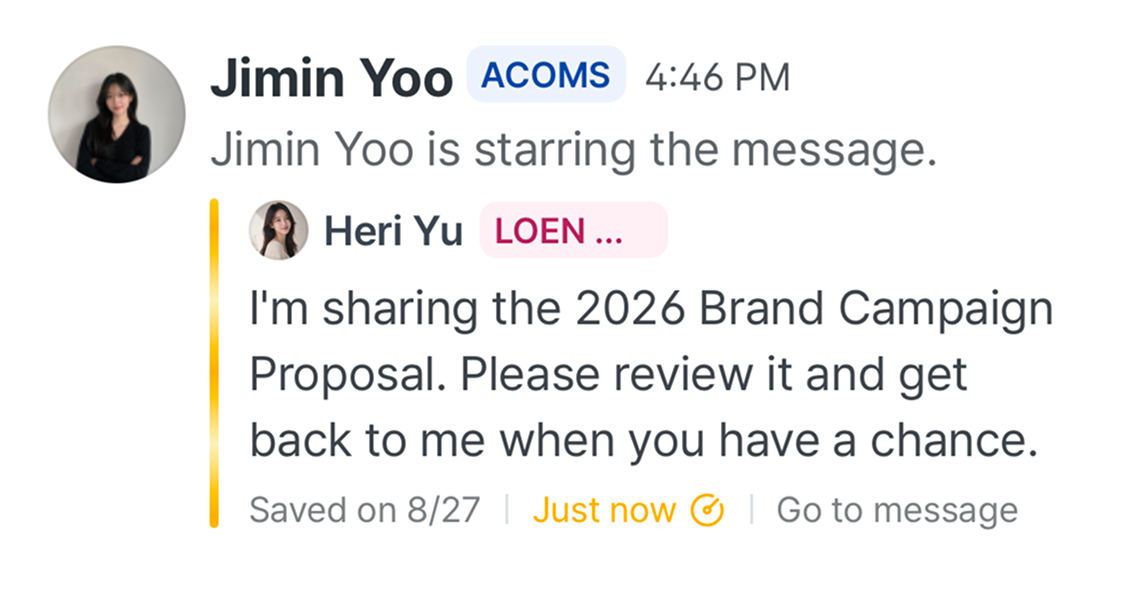
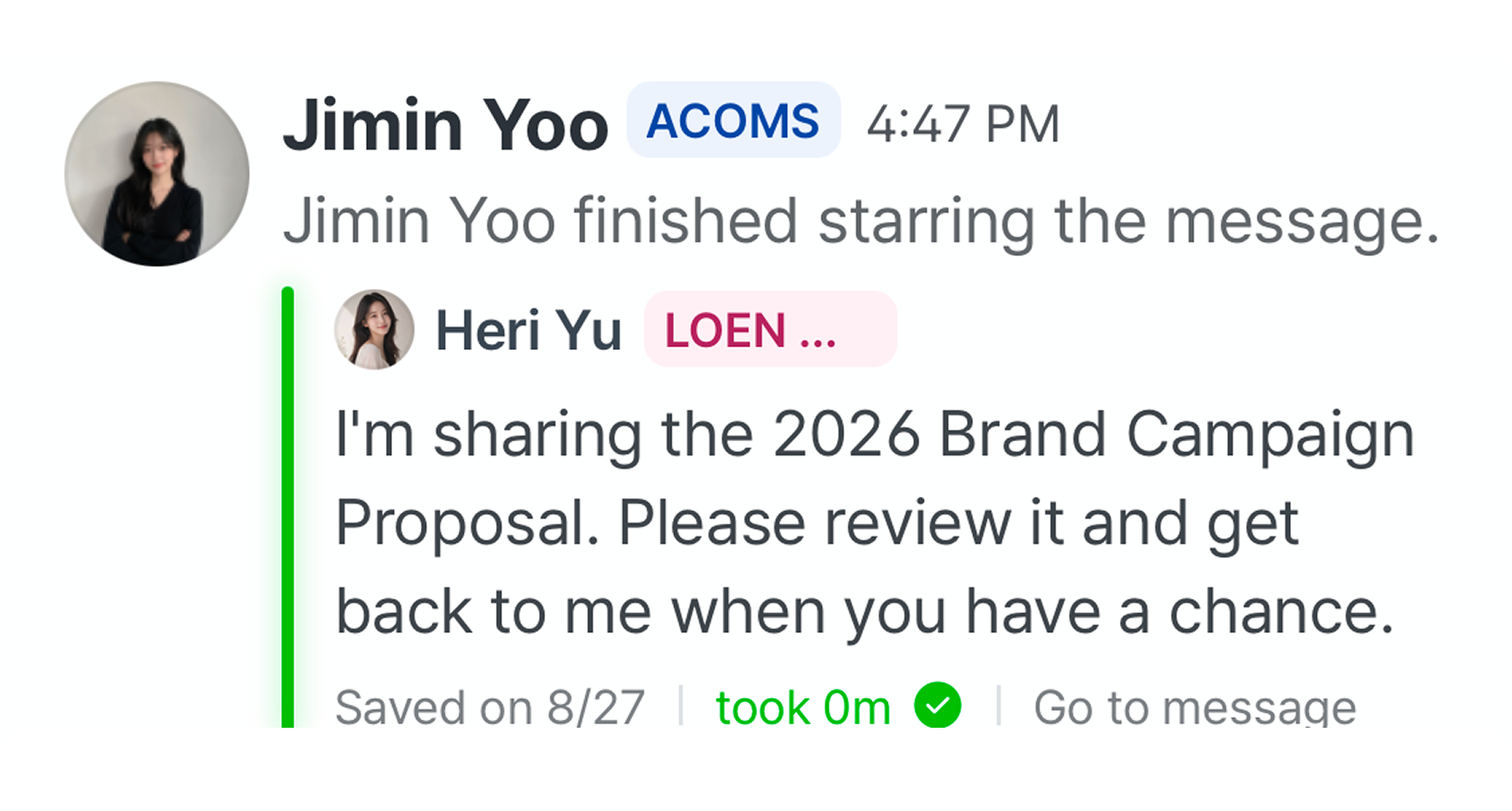

- When a message is starred or its status changes, a system message appears in the channel.
- System messages are visible to all channel participants.
- Tap a system message to view or edit the starred message details.
-
Registered or set to in progress:
OOO is starring the message. -
Set to completed:
OOO finished starring the message. -
Cancelled:
OOO cancelled starring the message.
Accepting channel invitations
Accepting channel invitations
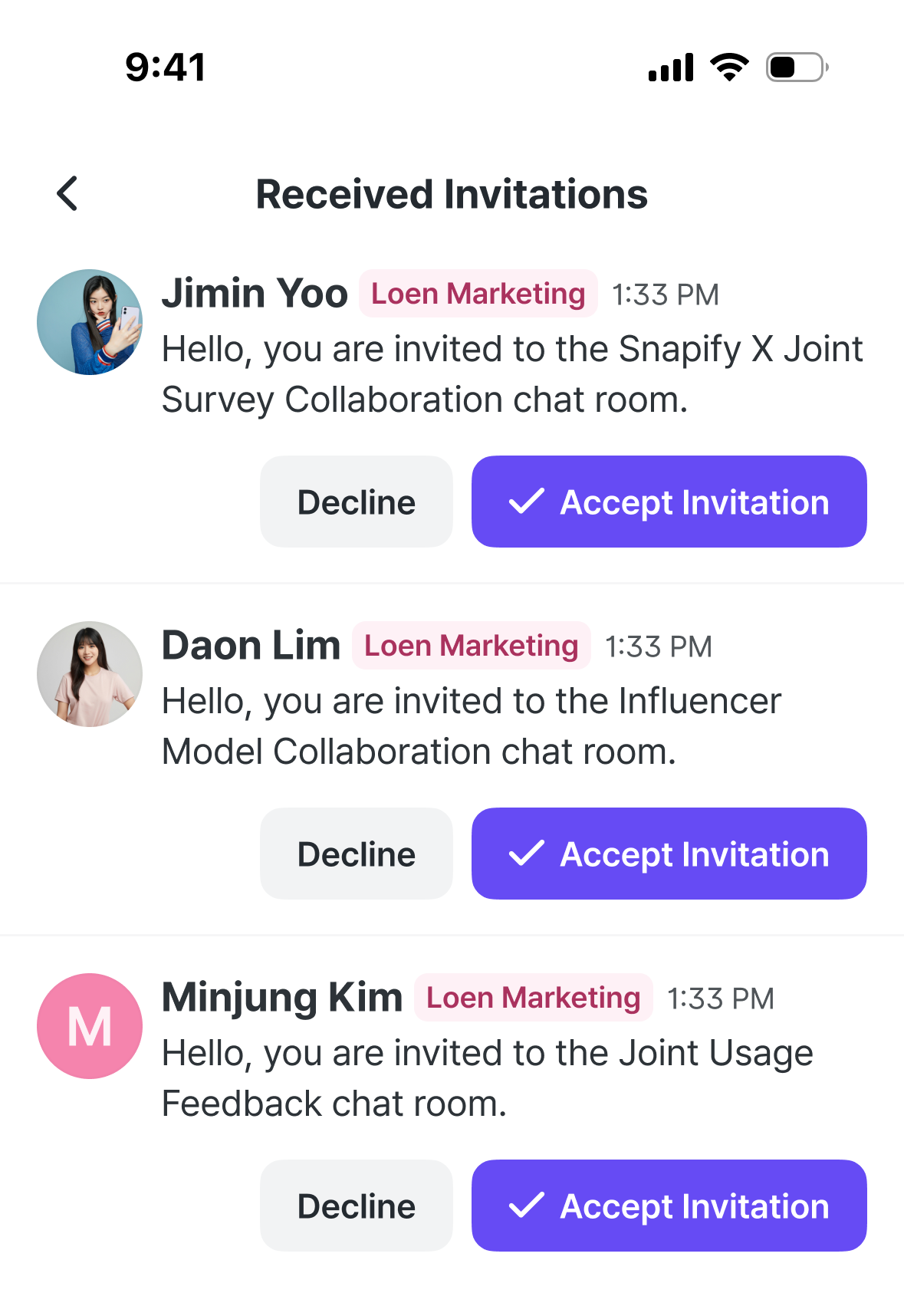
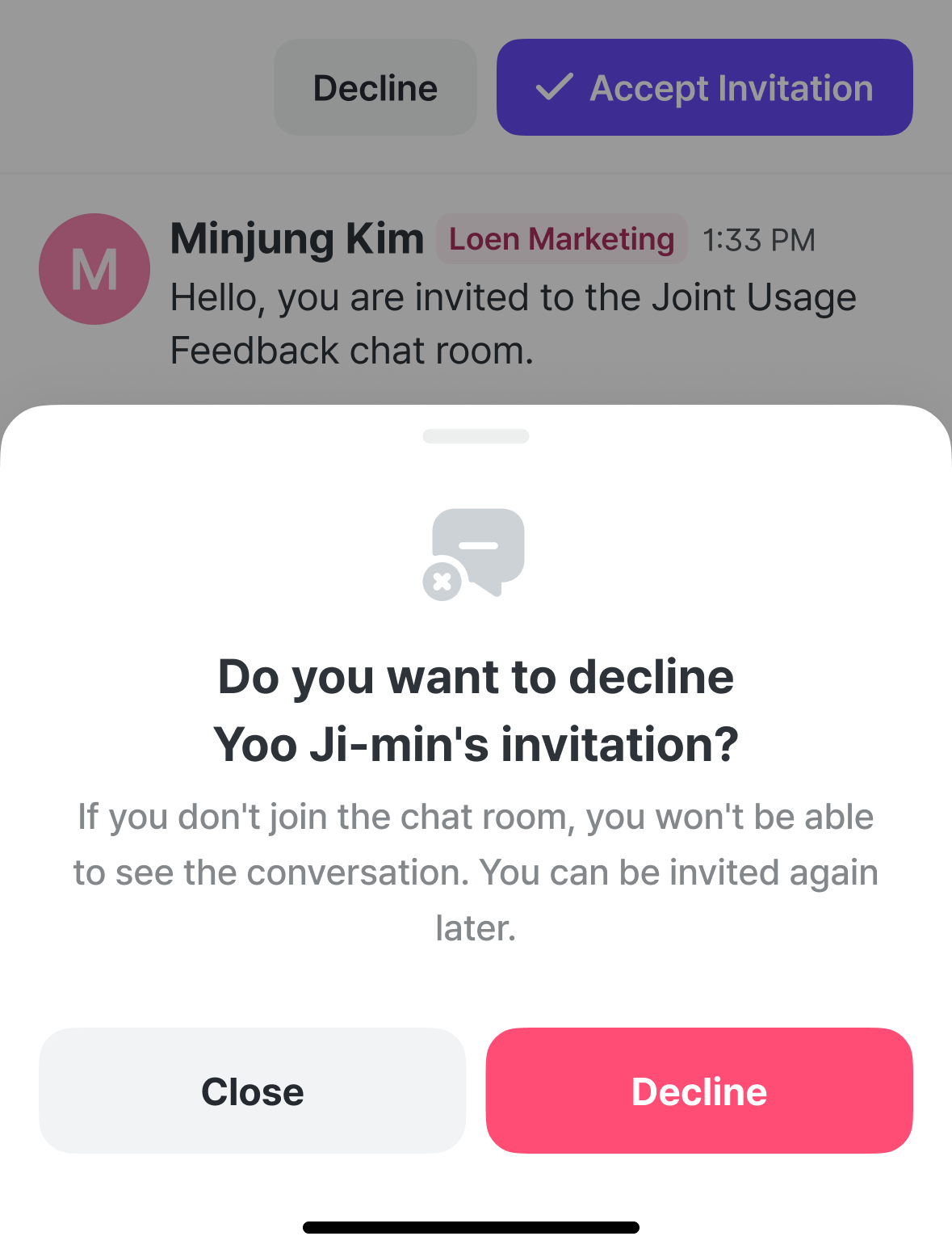
- From the [Received invitations] menu at the top left of the home screen, you can see invitations sent by accounts.
- You can accept or decline each invitation directly. Invitations from team members in your own company are joined automatically without separate approval.