Team Management
Team management is currently available on desktop only.
Viewing the team member list
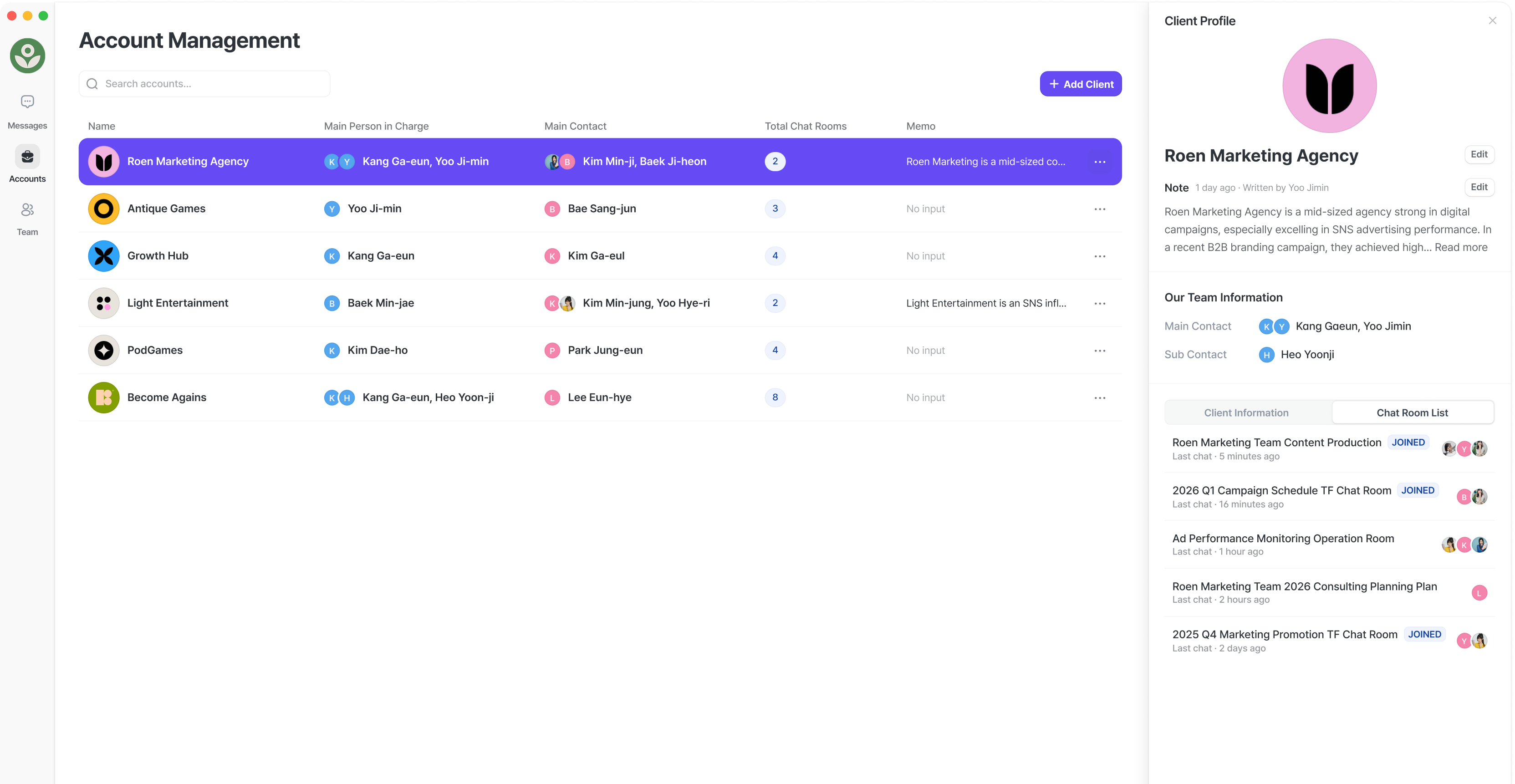
- See the complete list of active team members and pending team members (those who haven’t accepted their invitation yet).
- For each team member, you can see how many accounts they’re managing or actively communicating with — and how those numbers are trending.
Workspace statistics

See workspace-wide statistics:
- Number of registered accounts and channels, with trends over time
- Total messages exchanged across all account channels, including how many came from your team members
- Number of emoji reactions your team has used in account channels
Viewing team member details

See the details each team member has set in their profile:
- Profile image
- Name
- Role
- Bio
- Phone number
You can also see each team member’s current online/offline status.
Viewing a team member’s channels
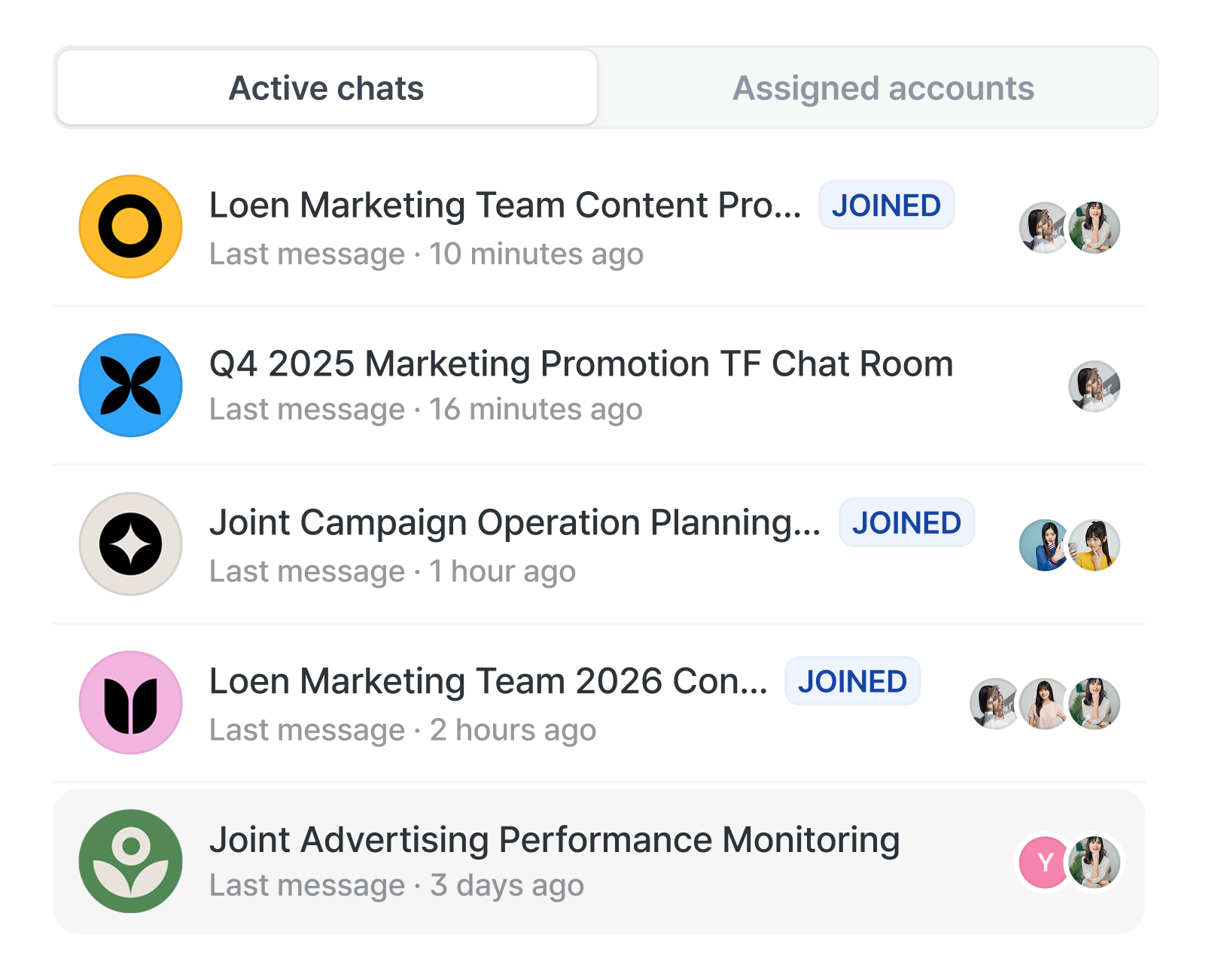

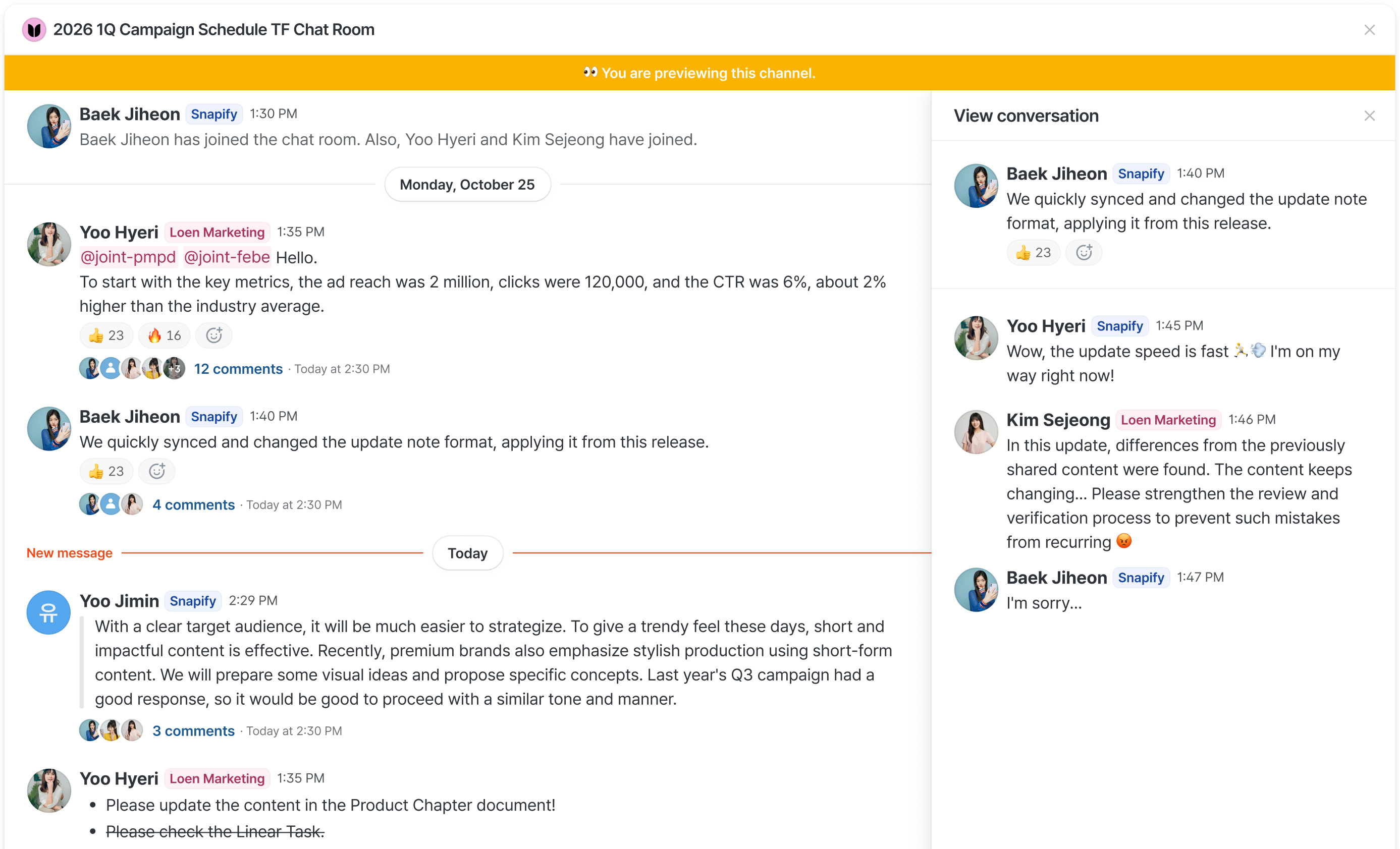

- See all channels a team member is participating in, along with the list of accounts they’re assigned to.
- Click any channel to preview its contents without entering — works for both channels you participate in and ones you don’t.
Inviting team members
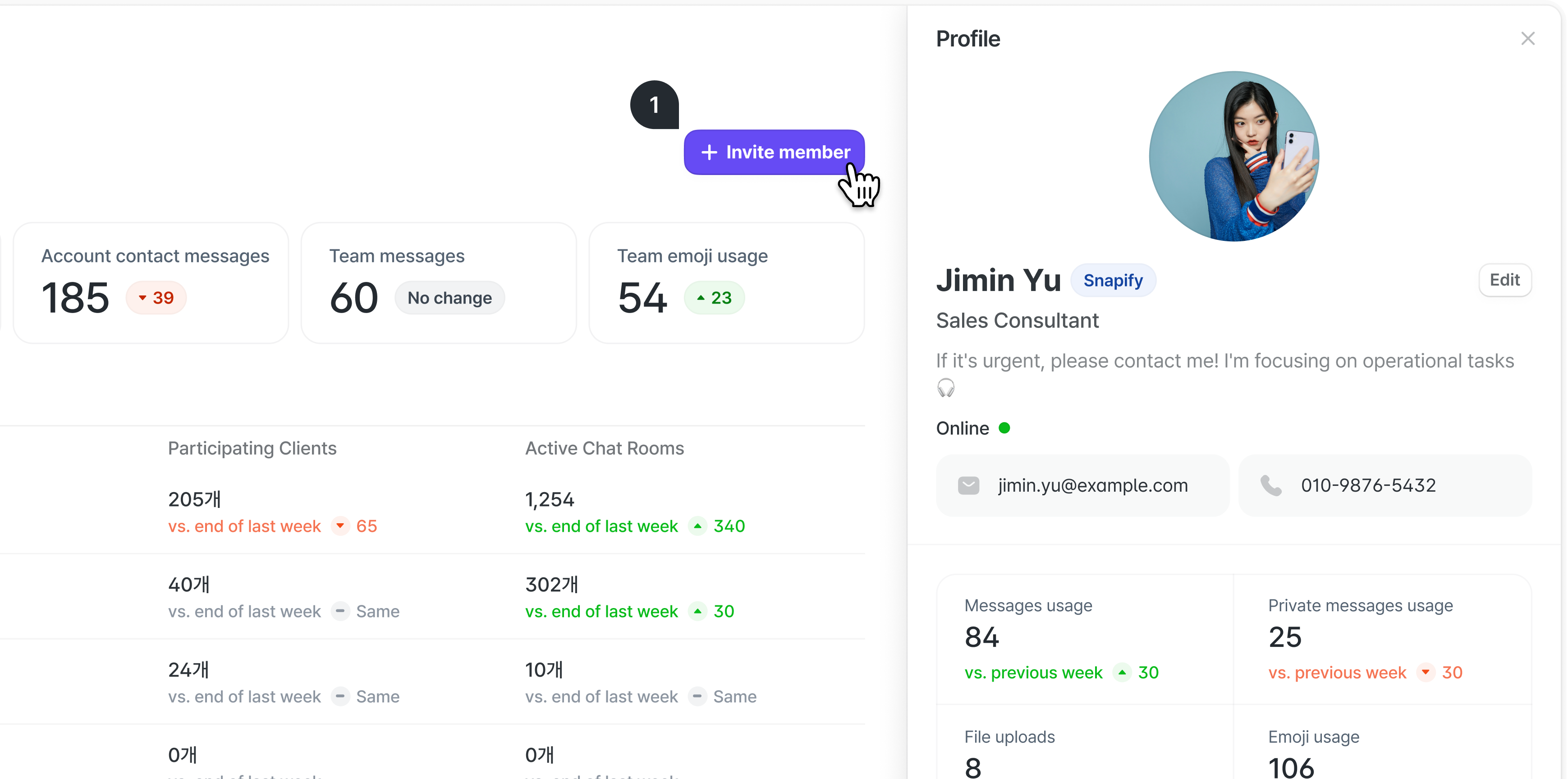
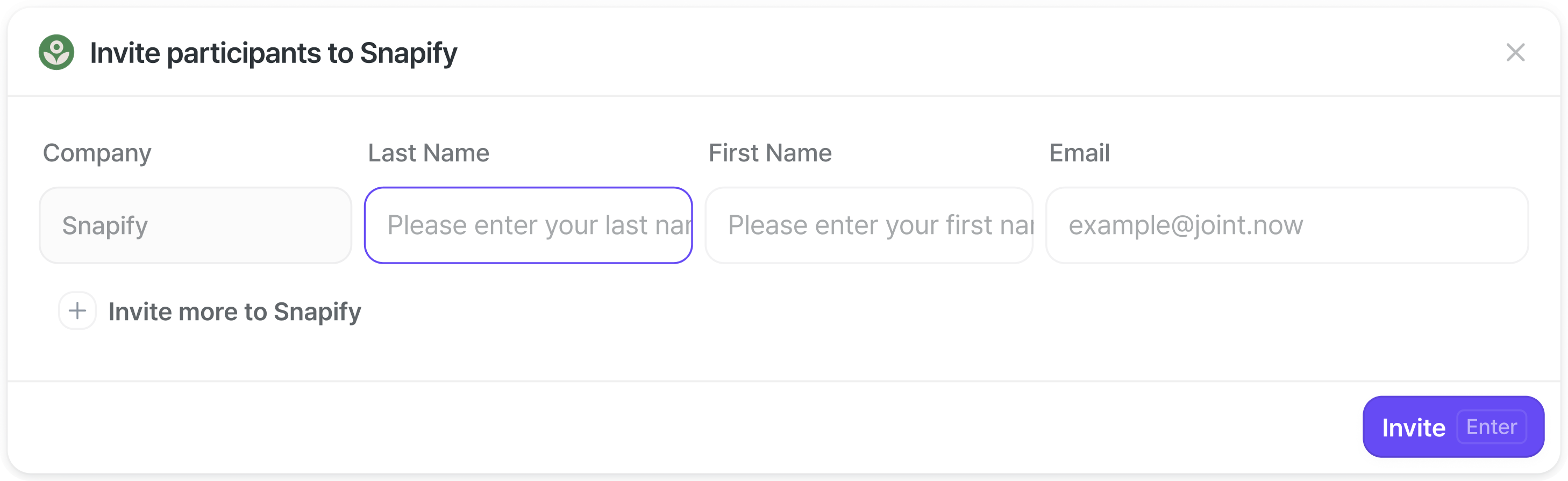

- Click the [+ Invite member] button to add a colleague to your workspace.
- Enter their name and email address to send the invitation.
- You can also see your pending team members list — these are colleagues who’ve been invited but haven’t completed sign-up yet.
Cancelling a team member invitation
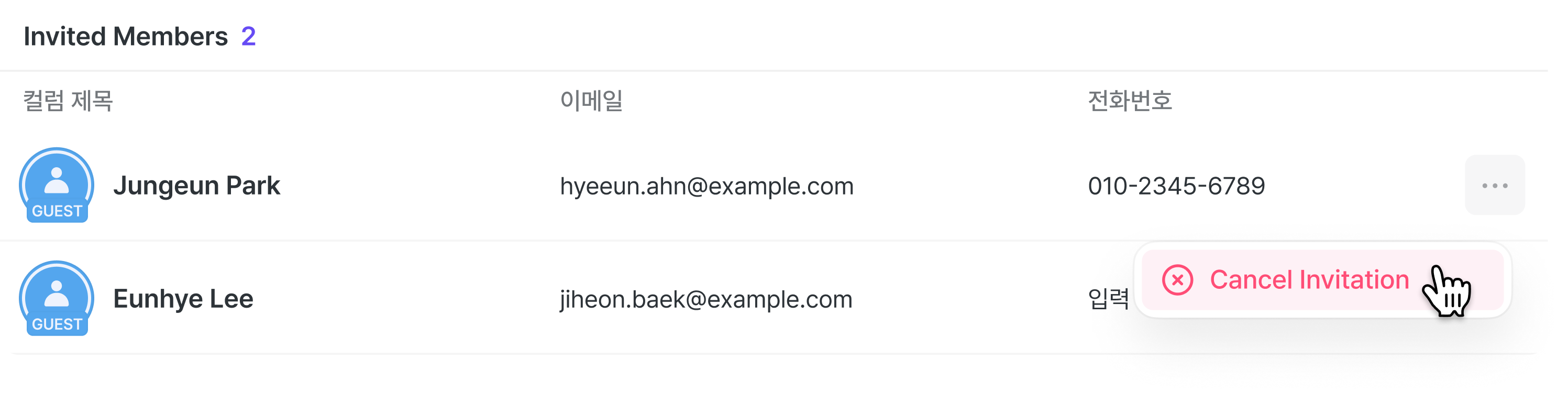

For team members who haven’t completed sign-up yet, you can cancel their invitation.