Install on Desktop and Mobile
Desktop app installation
Download the app for your computer
On your computer, open the app download page. The main button matches your operating system. JOINT is available for both Windows and macOS.
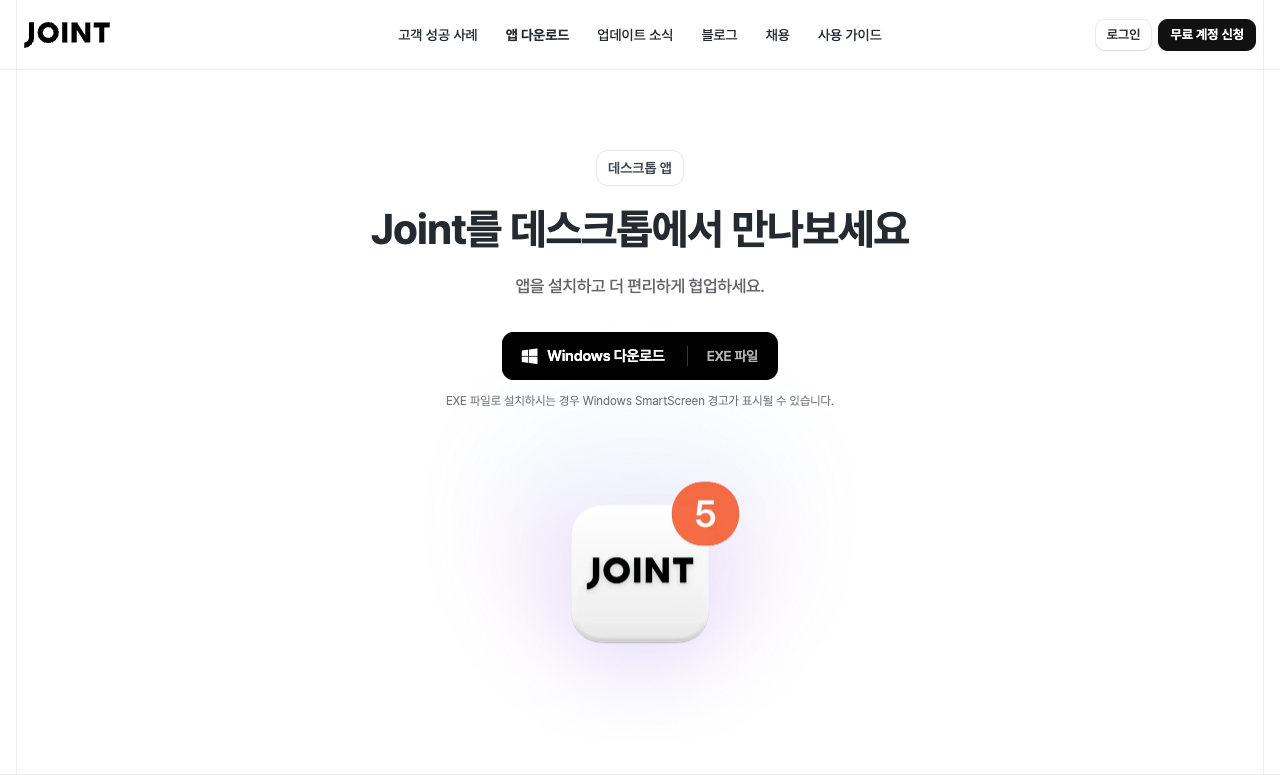
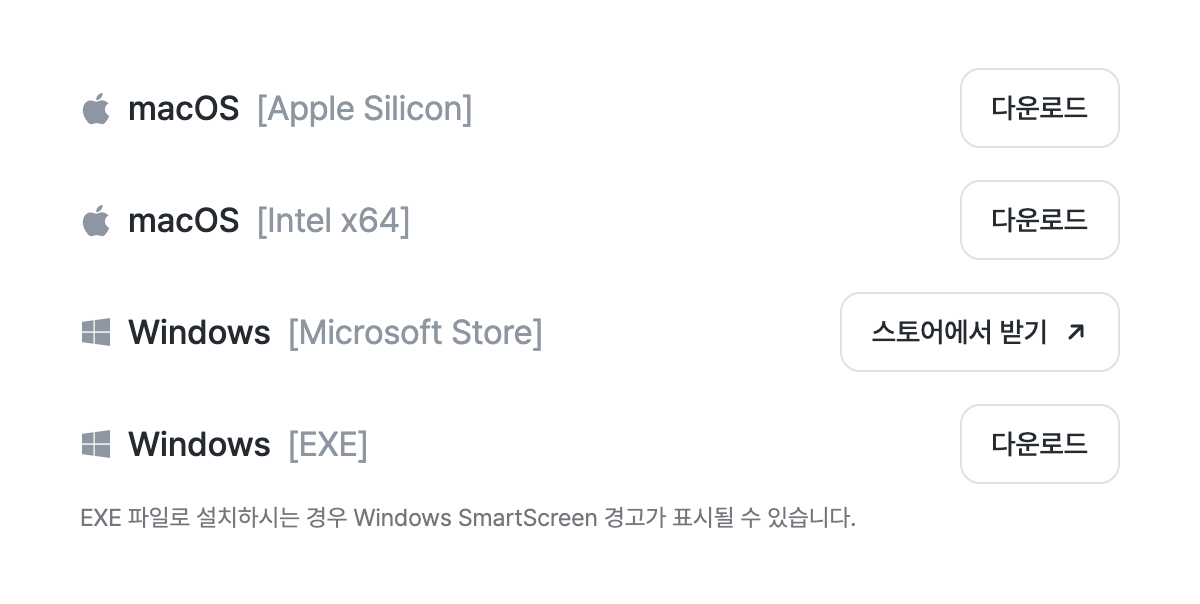
For another installation method or another operating system, choose an option from the Desktop app list on the app download page.
Follow the instructions for Microsoft Store, Windows installer, or Mac below. Click any image to view it at full size.
Windows: Install from Microsoft Store
Microsoft Store is the app store for Windows.
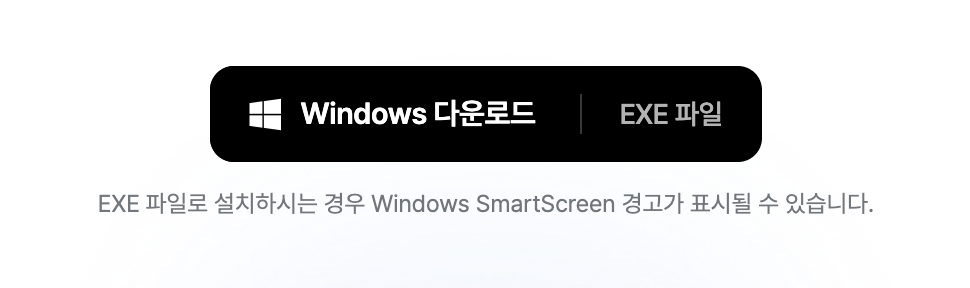
- Click Windows 다운로드 (Windows download). In the Desktop app list, choose 스토어에서 받기 beside Windows [Microsoft Store].
- On the product page, check the name Joint for Windows and click Microsoft Store에서 보기 (View in Microsoft Store). If your browser asks to open the Store, confirm.
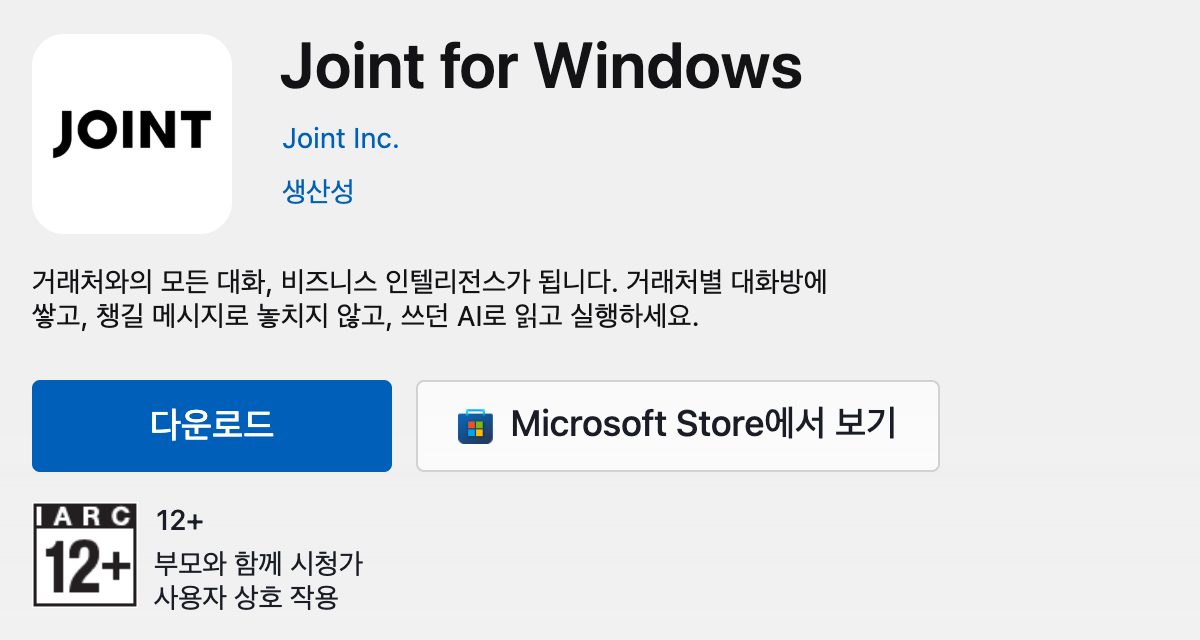
- In the Microsoft Store app, click Get or Install. When installation finishes, click Open to launch JOINT.
When the app opens, continue with 'Sign in and turn on notifications' below.
Windows: Install from a downloaded file
An EXE file is a Windows installer. Choose this method to download the file and install JOINT directly.
- Click EXE 파일 on the right of the Windows download button. In the full list, choose 다운로드 (Download) beside Windows [EXE].
- When the download finishes, open the file whose name starts with Joint and ends with .exe in your browser’s downloads list.

Windows may display a security warning (SmartScreen). Check that the file came from the official download page. If your company restricts installation, use Microsoft Store or contact your IT team.
- Follow the on-screen instructions to complete installation, then open Joint from the Windows Start menu.
When the app opens, continue with 'Sign in and turn on notifications' below.
Mac: Install the app
- Choose macOS 다운로드 · Apple Silicon or Intel x64 for your Mac. Files for another chip are available in the full list further down the page.
Not sure which button to choose? Open the Apple menu at the top left → About This Mac. Choose Apple Silicon if you see an M-series chip such as M1 or M2, or Intel x64 if you see Intel.
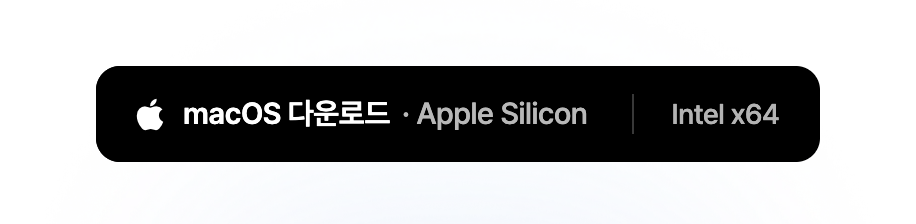
- When the download finishes, double-click the file whose name starts with Joint and ends with .dmg. A DMG file is used to install apps on a Mac.

- In the window that opens, drag Joint to the Applications folder.
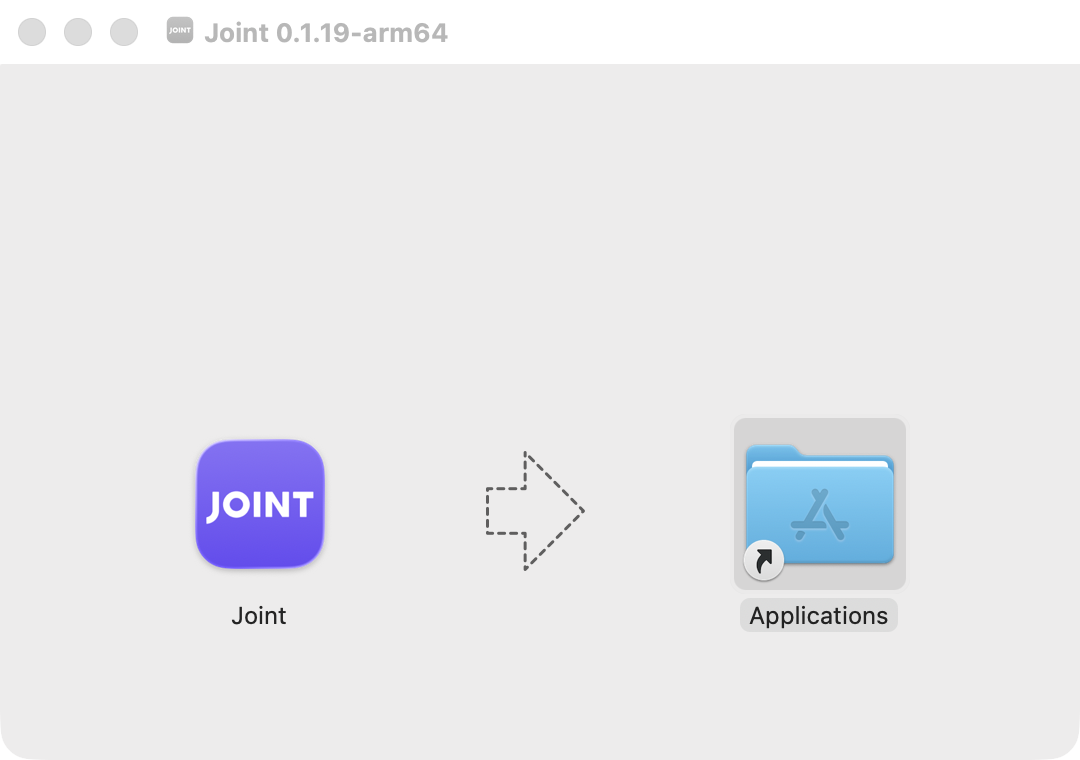
- After copying, open Joint from Finder → Applications. If macOS asks to confirm the first launch, check the app name and click Open.
You can eject the JOINT installation disk in Finder. Then continue with 'Sign in and turn on notifications' below.
Sign in and turn on notifications
- Open JOINT and sign in with your account. Enter your email address or choose Google 계정으로 로그인 (Sign in with Google).
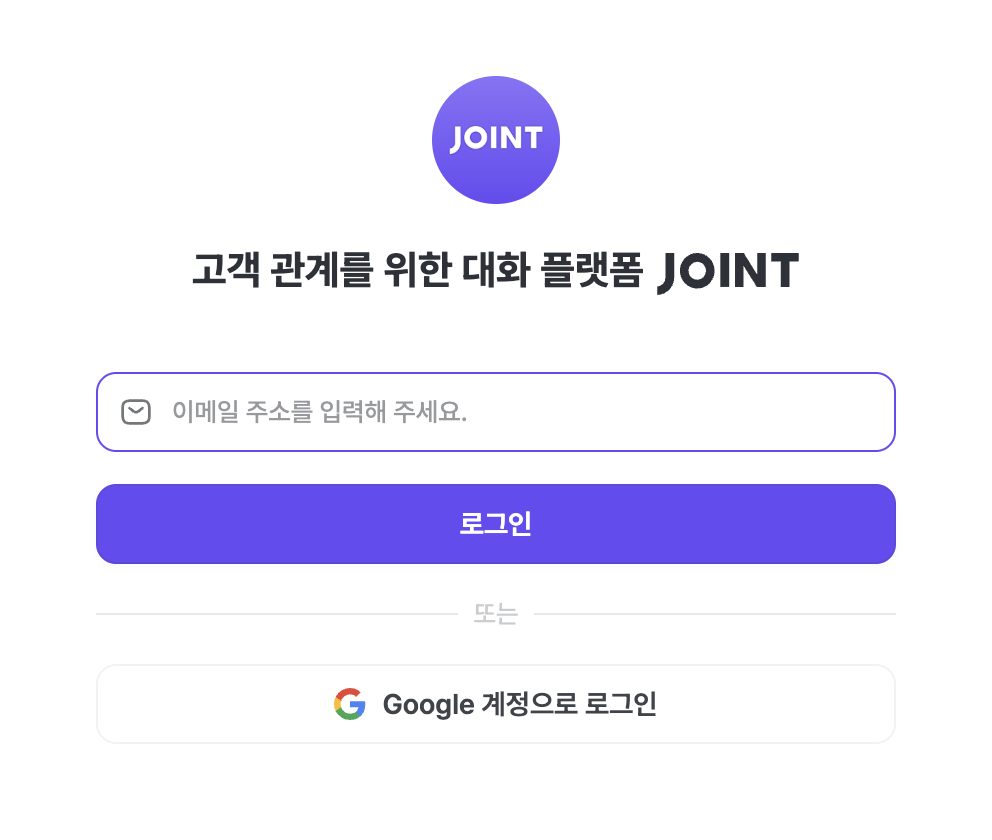
The image above shows the macOS sign-in screen.
- If a window asks whether JOINT can send notifications, click Allow. If notifications are missing or you want to change the setting, turn them on at the following location.
- Windows: Settings → System → Notifications → Joint
- macOS: System Settings → Notifications → Joint → Allow notifications
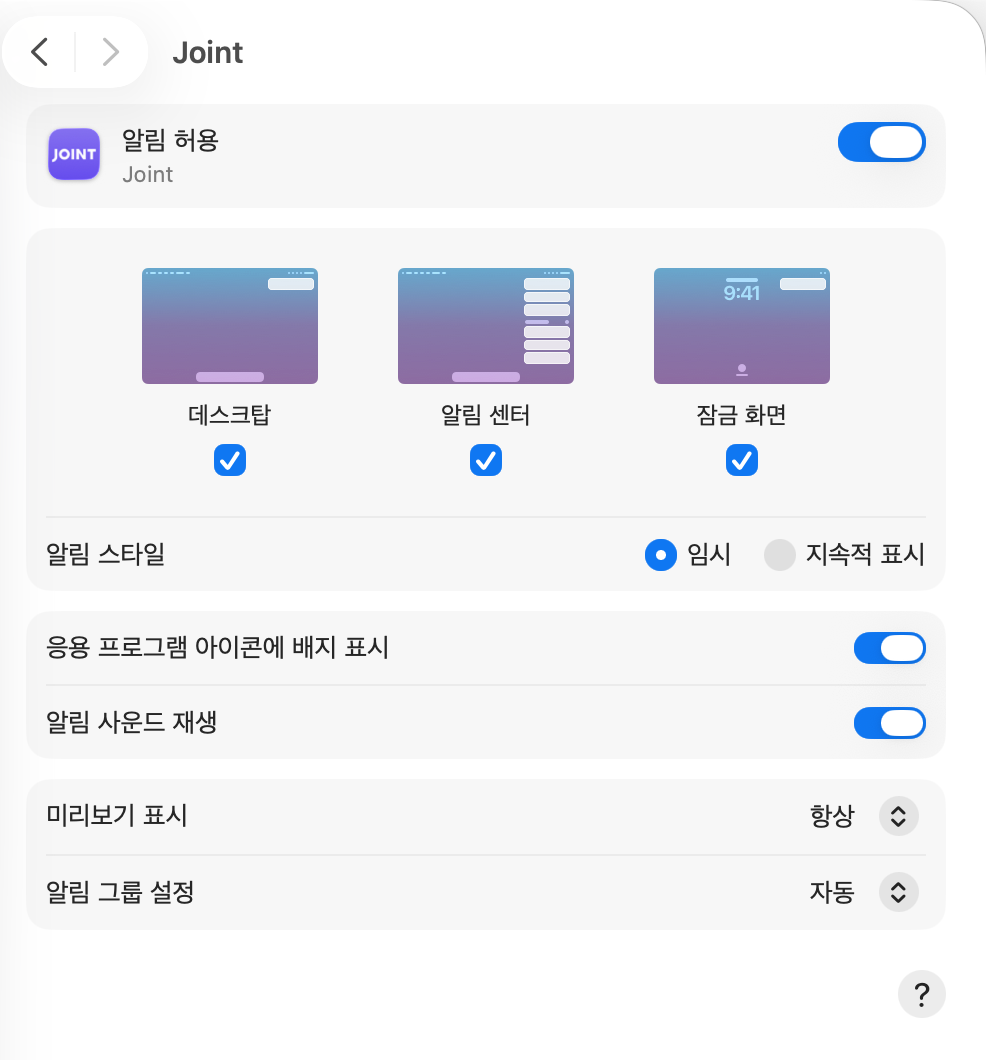
The image above is a macOS example. You can also choose the notification style and sound.
Mobile app installation
Recommended devices
JOINT runs best in the following environments.
-
Android
- Chrome browser
-
iPhone
- iPhone X or later
- iOS 16.4 or later
Android
- Open Chrome.
- Go to JOINT mobile web (https://mapp.joint.now).

- Sign in.
- Tap the [Install app] button at the top of the screen.
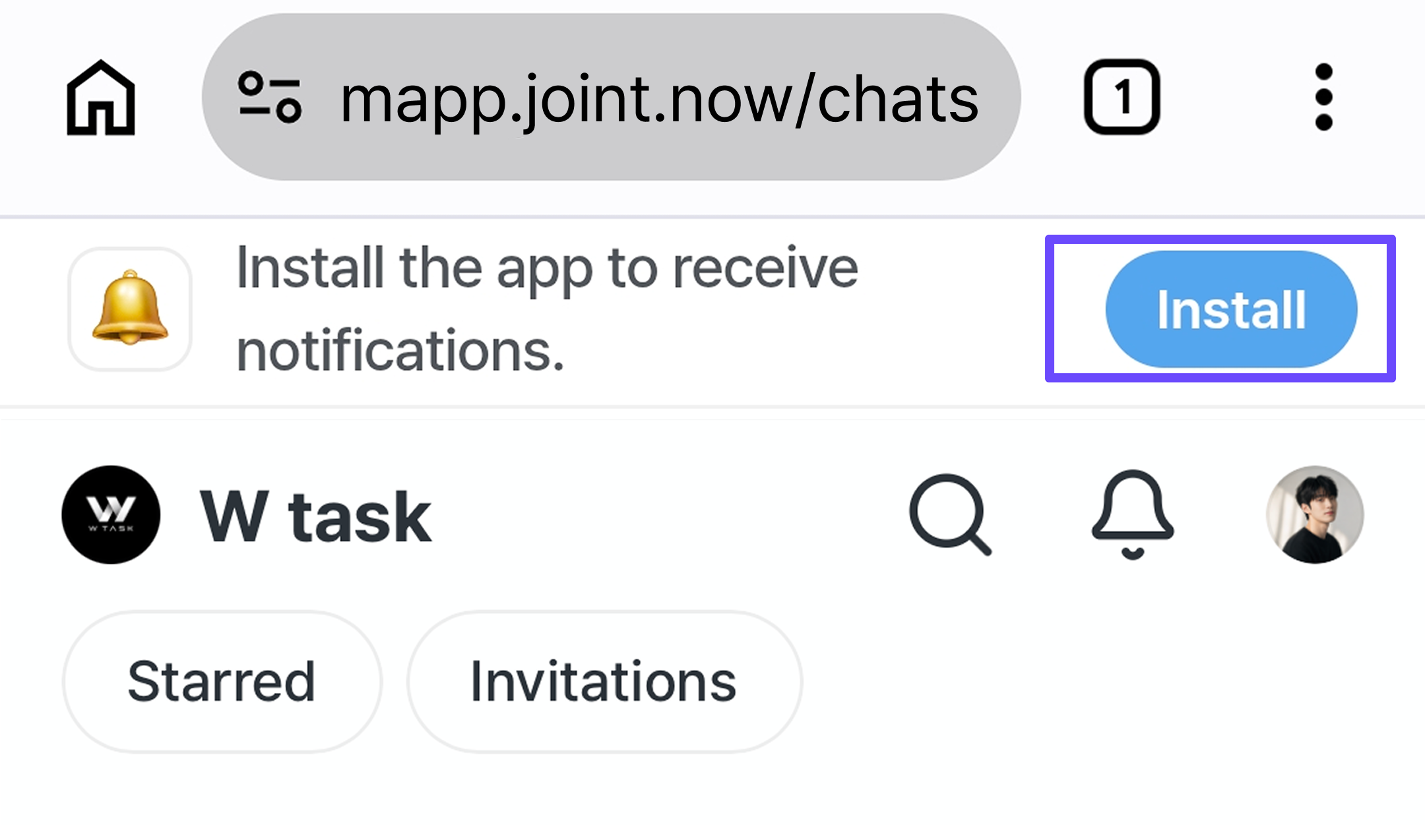
- Confirm the installation.
- Launch the app.
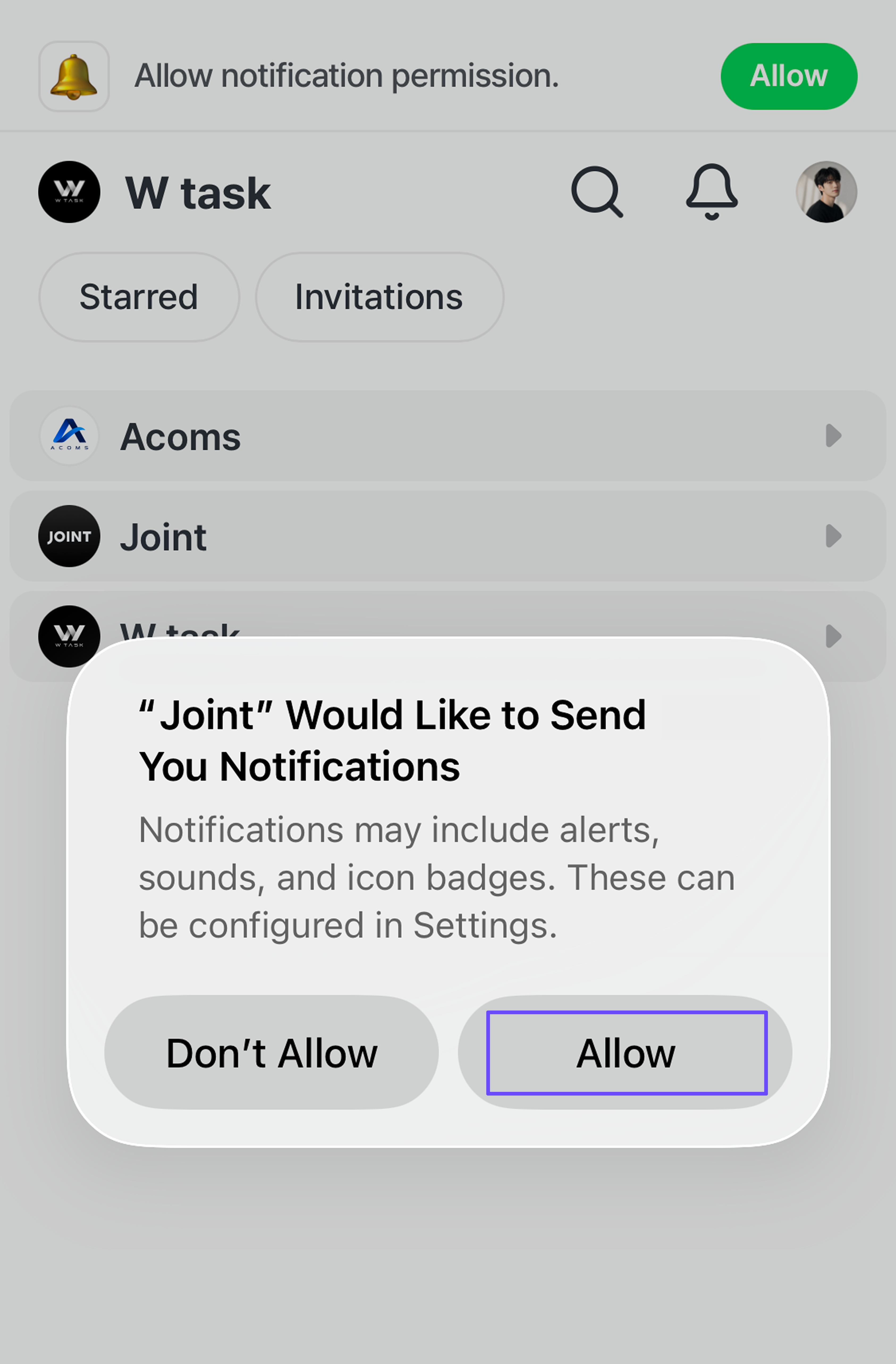
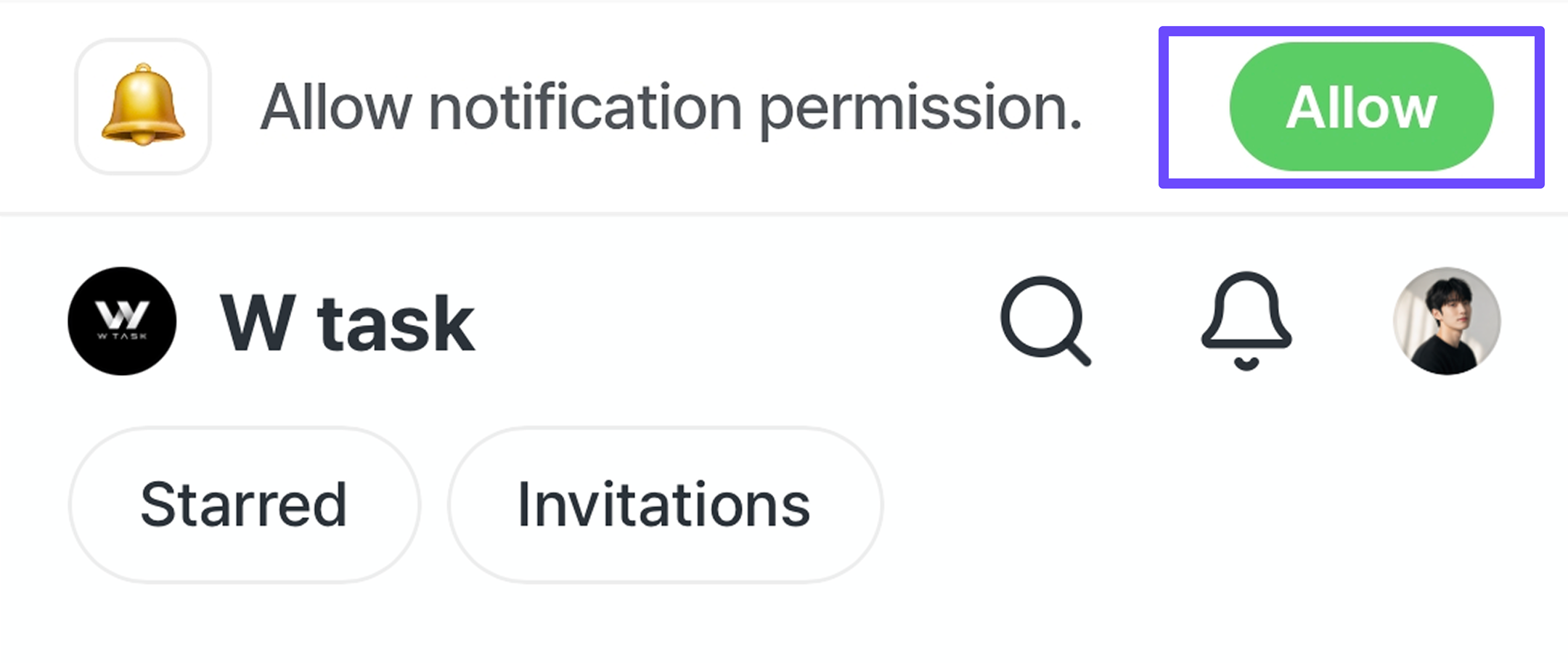
- Tap the [Enable notifications] button at the top of the app screen to allow JOINT notifications.
iPhone
iOS 18 or earlier
- Open Safari.
- Go to JOINT mobile web (https://mapp.joint.now).
- Tap the [Share] button at the top of the screen.
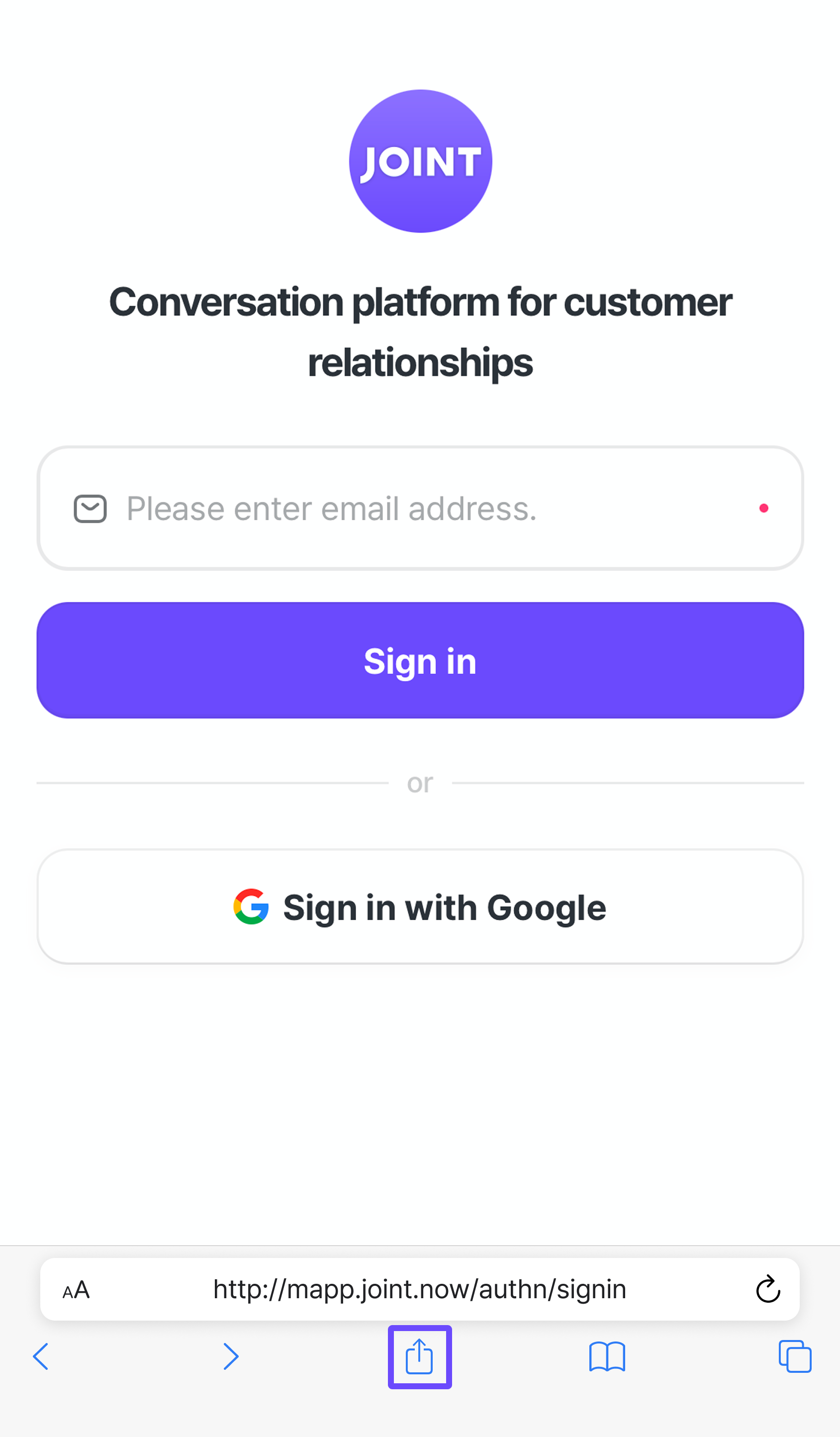
- Tap [Add to Home Screen] → [Add].
- Launch the app.
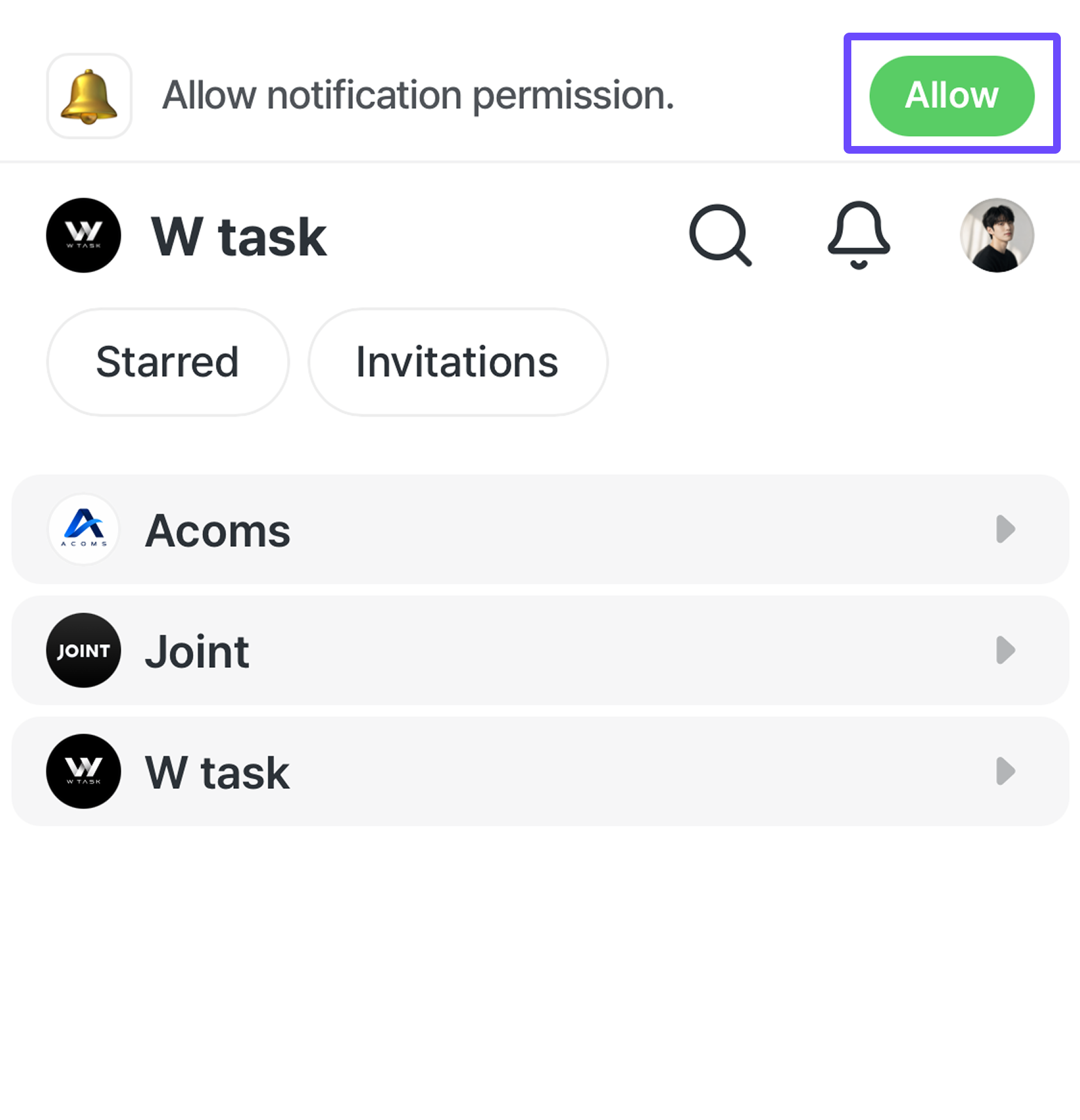
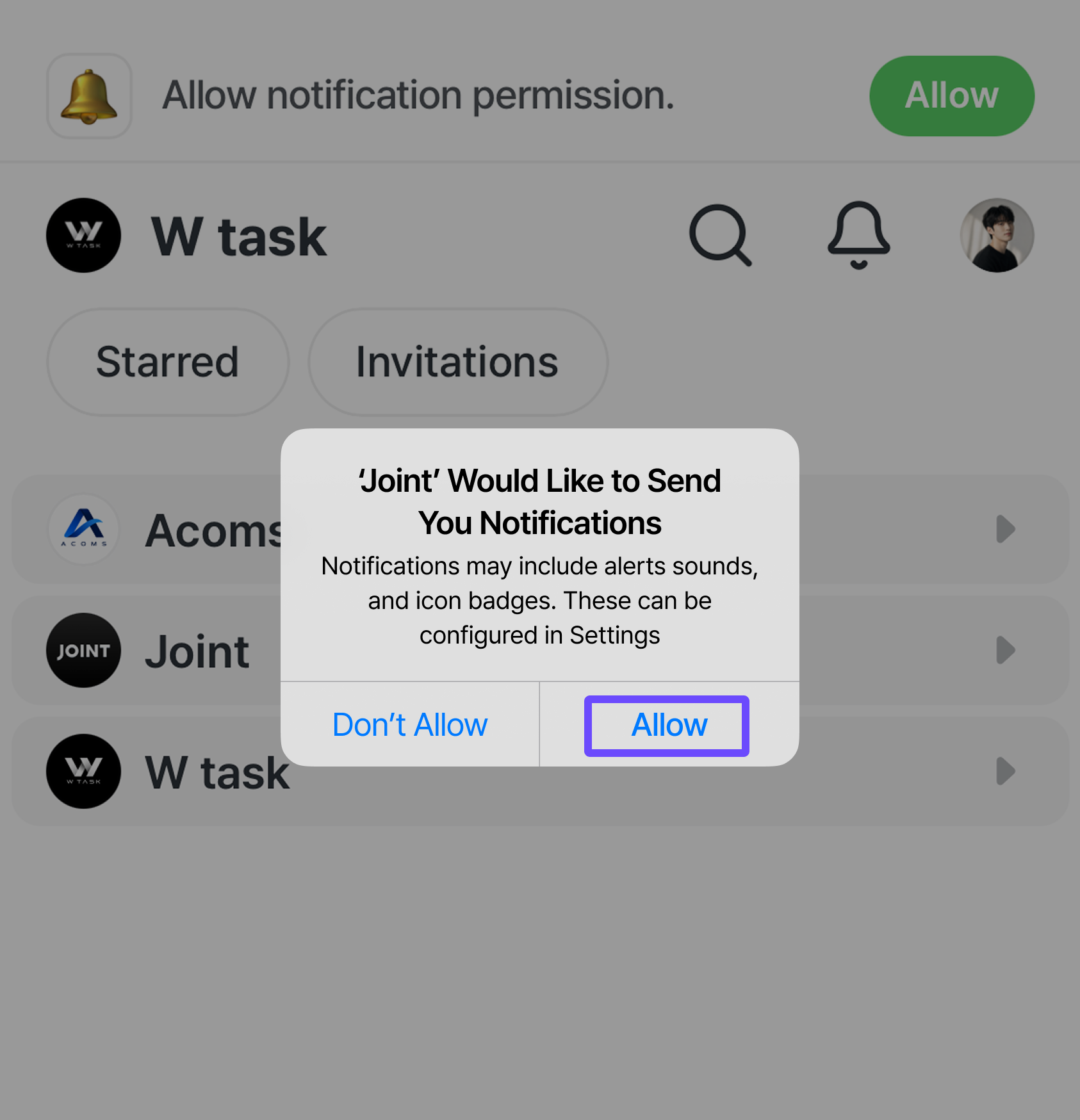
- Tap the [Enable notifications] button at the top of the app screen to allow JOINT notifications.
iOS 26 or later
- Open Safari.
- Go to JOINT mobile web (https://mapp.joint.now).
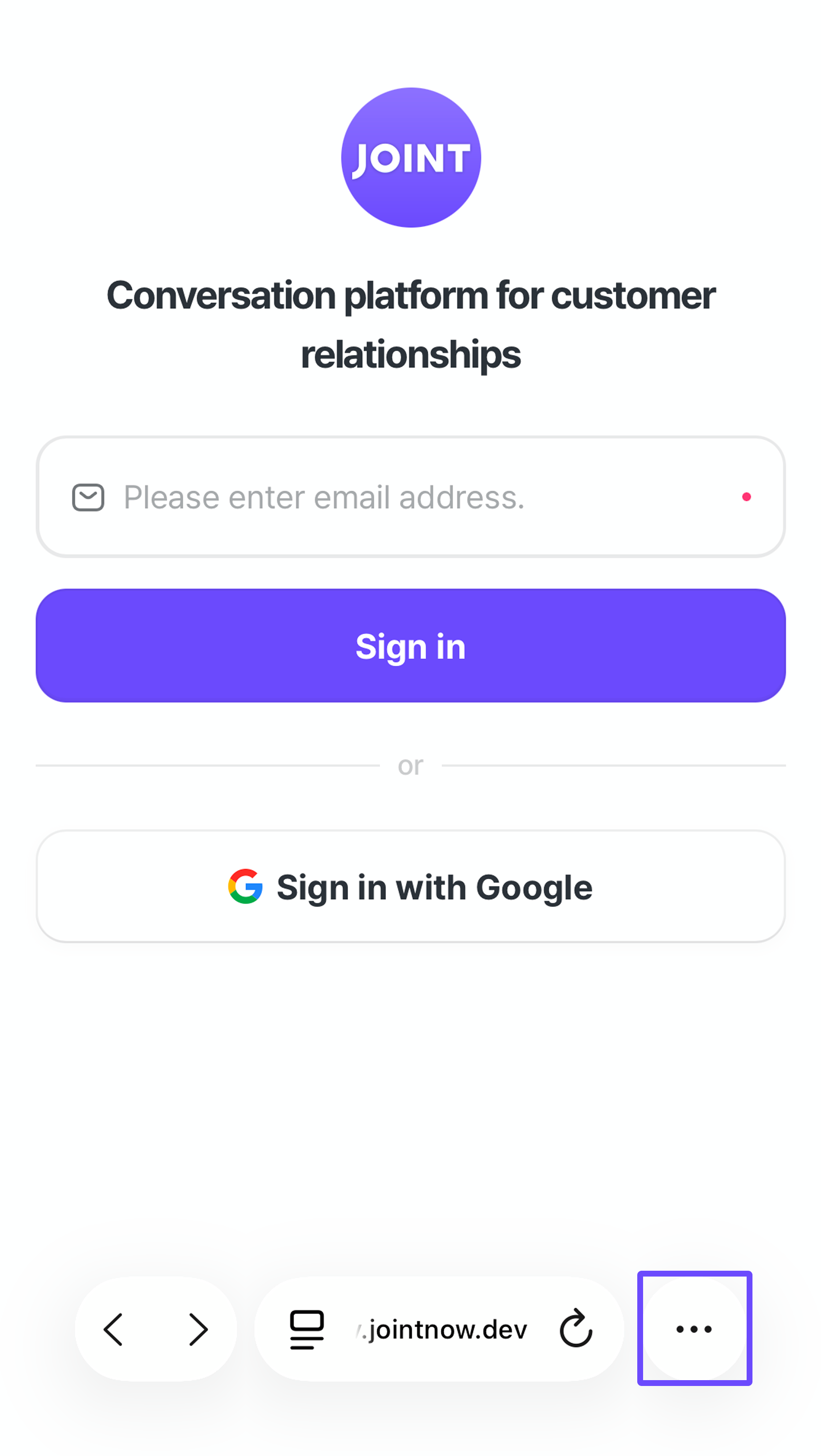
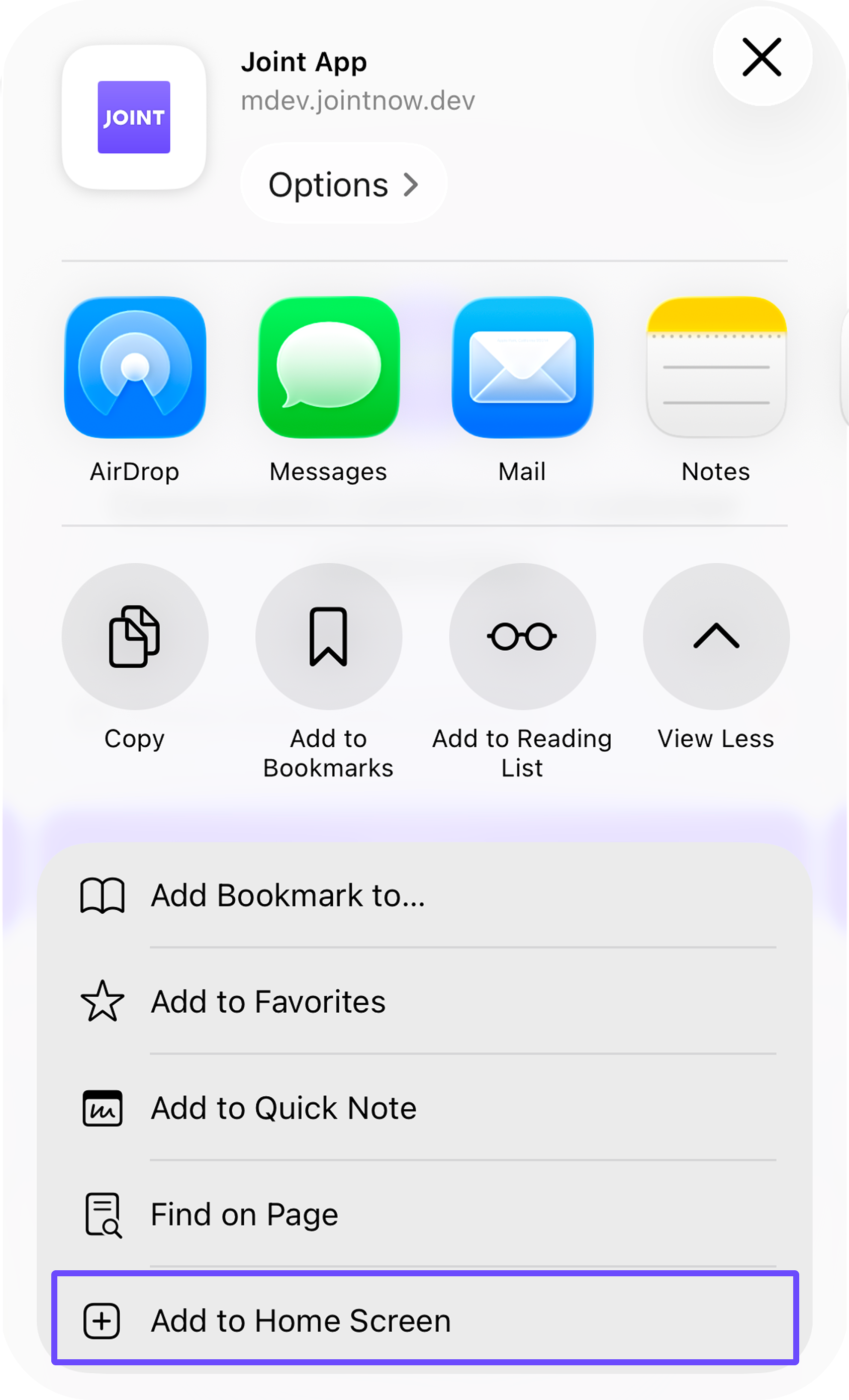
- Tap the [Share] button at the top of the screen (the screen may look different depending on your tab settings).
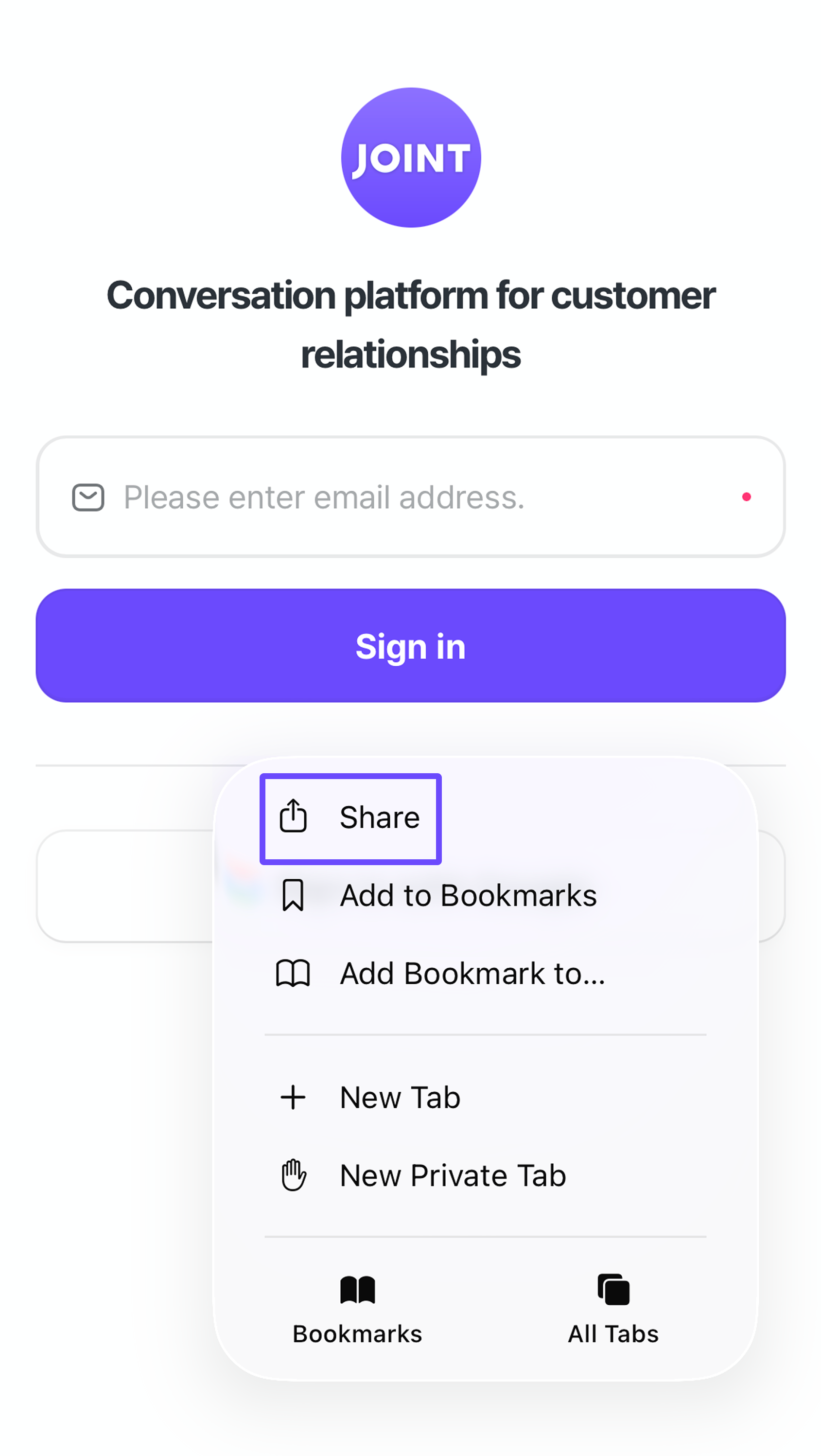
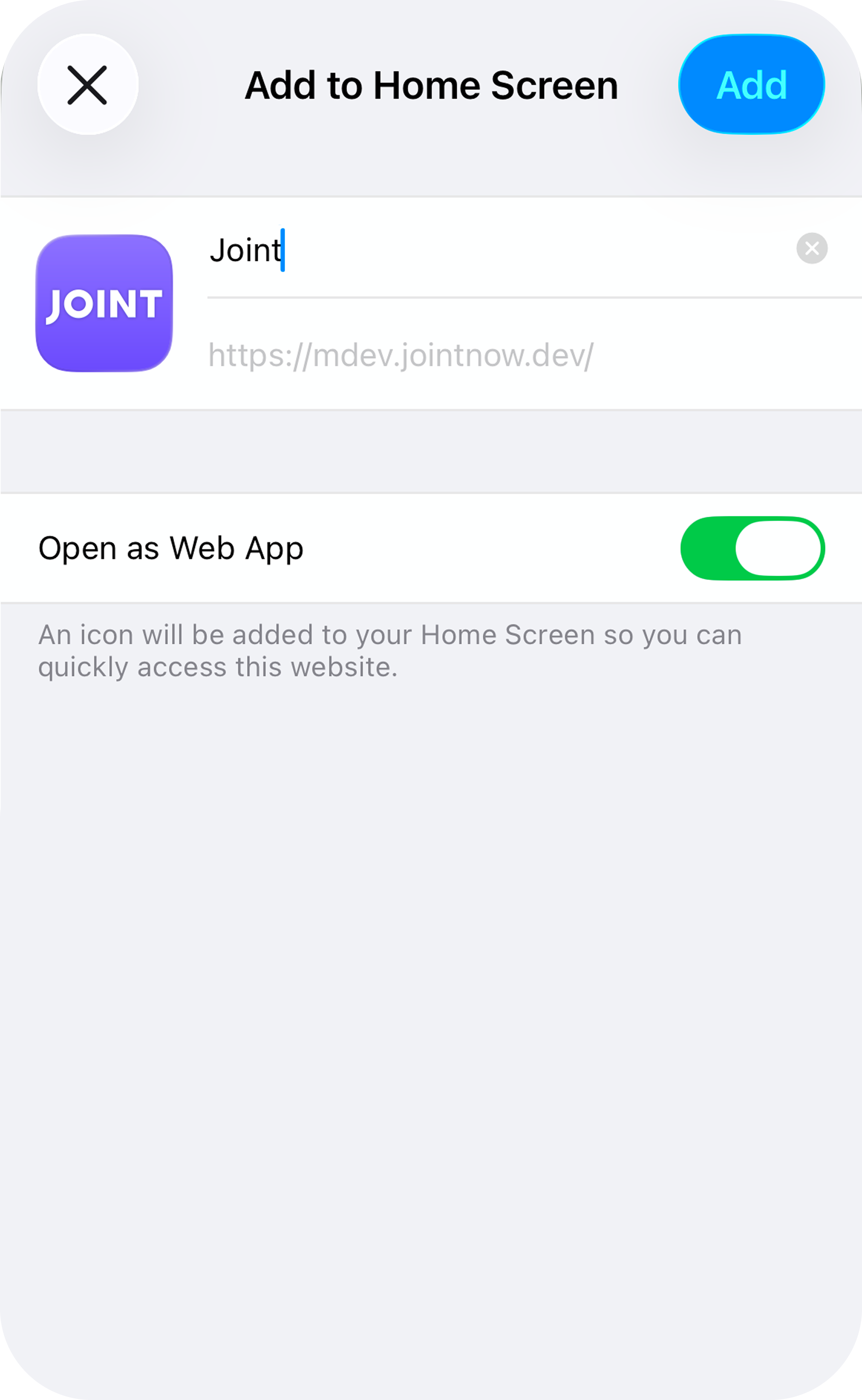
- Tap [Add to Home Screen] → [Add].
- Launch the app.
- Tap the [Enable notifications] button at the top of the app screen to allow JOINT notifications.