Quick Start
Desktop
Receive the invitation email
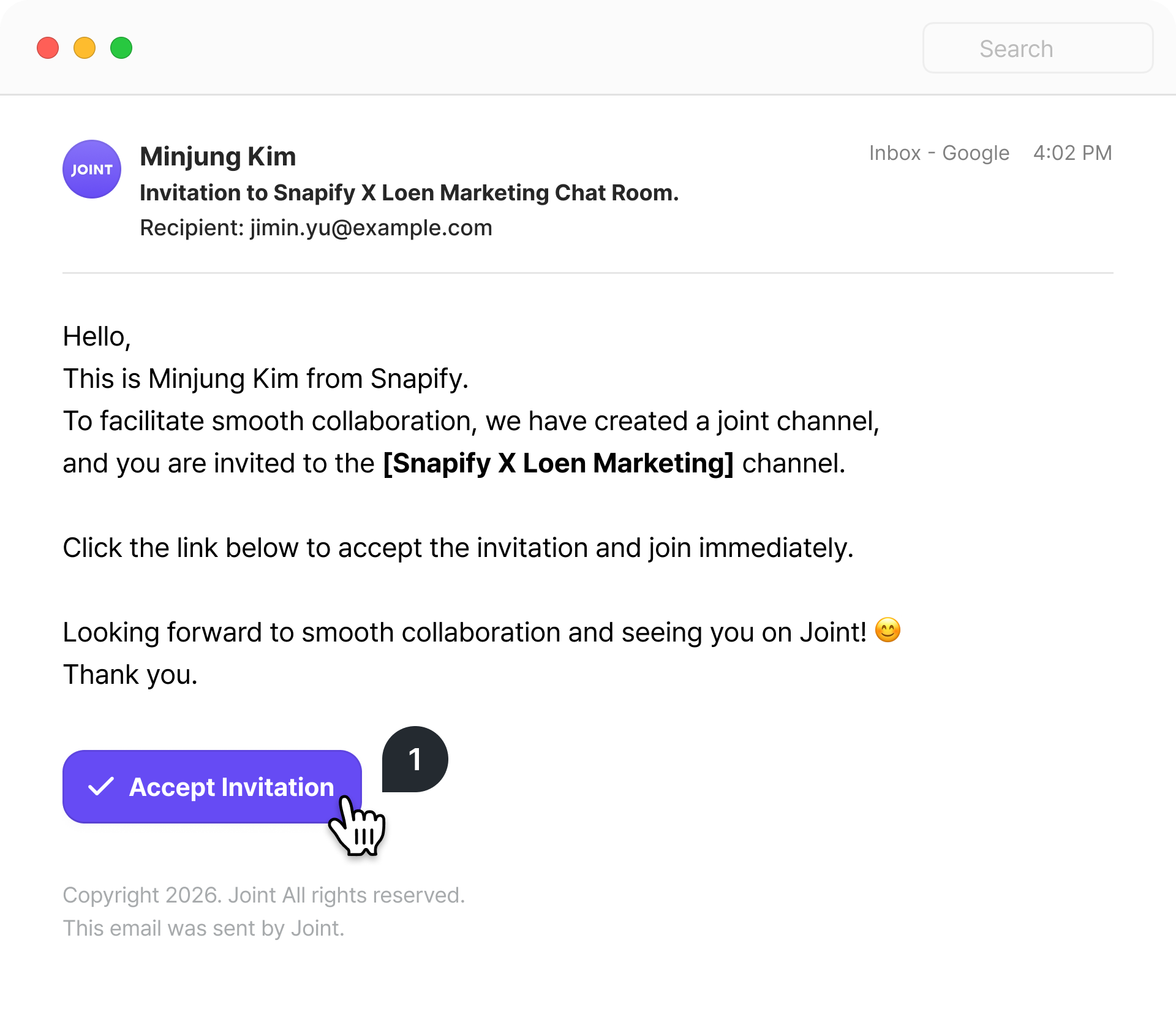
Open the invitation email and you’ll see an [Accept Invitation] button. Click it to enter Joint.
Confirm your workspace
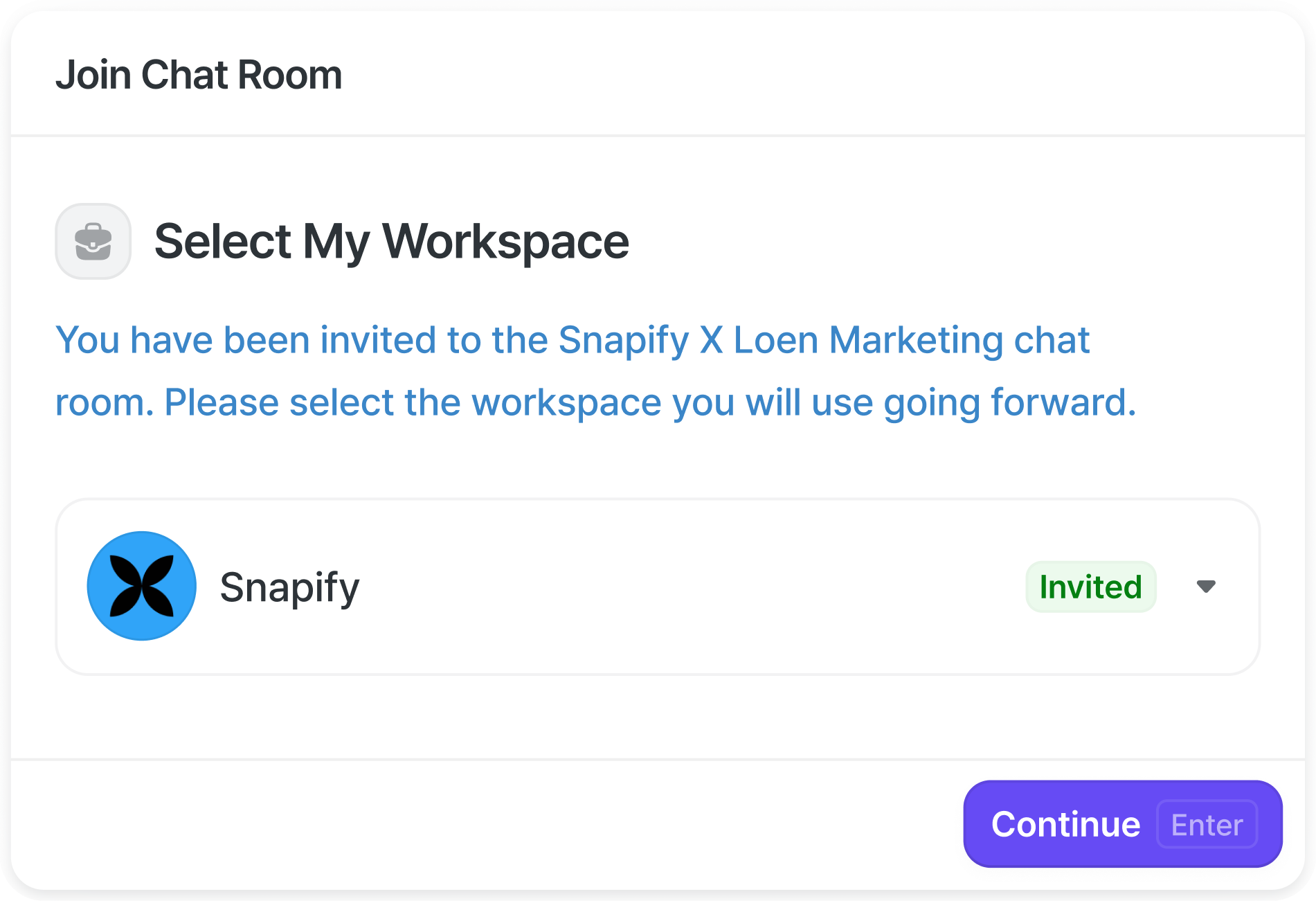


You’ll see the workspace you’ve been invited to. If everything looks right, click [Continue] to move on.
Enter as a guest
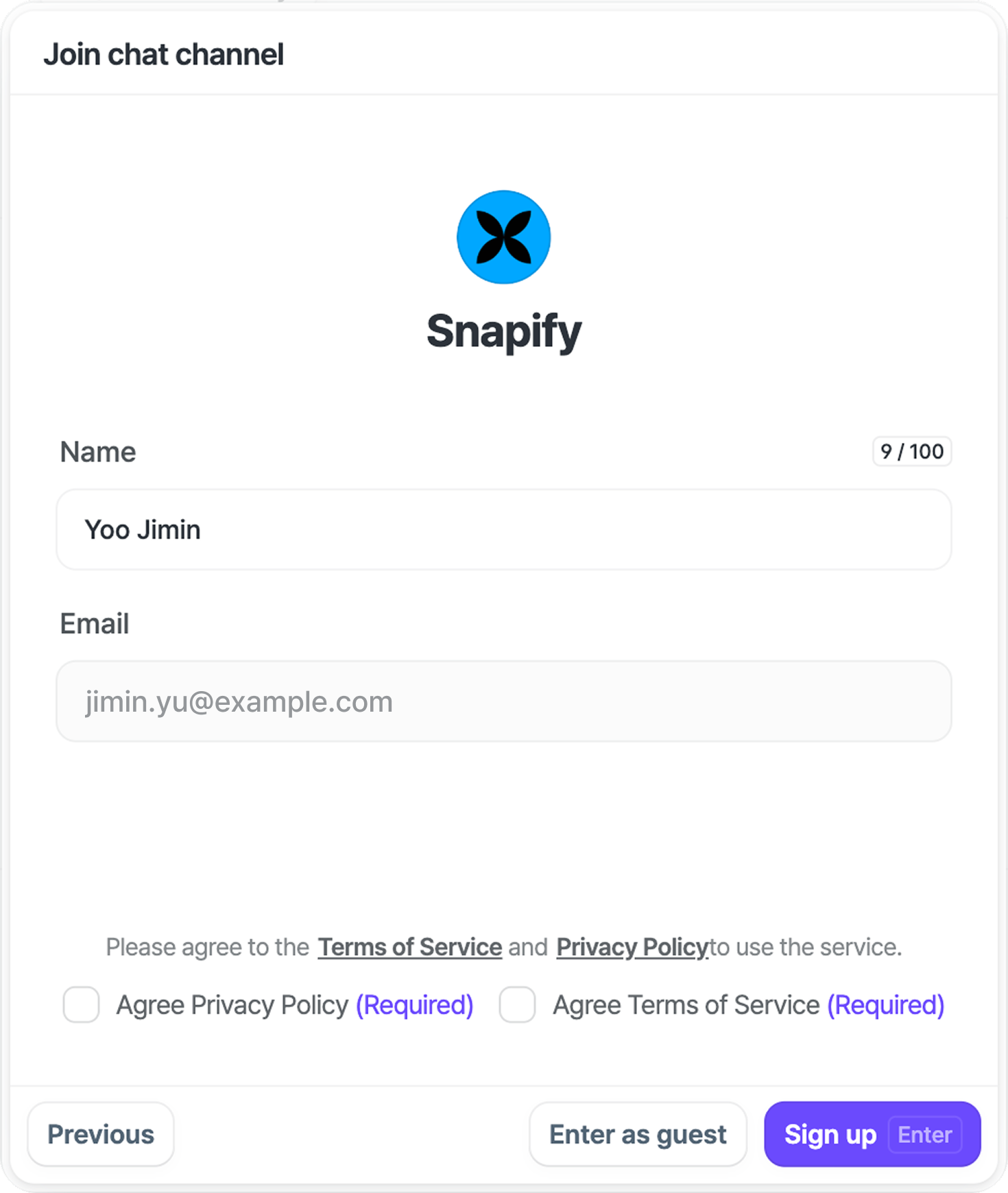

- Your name and email address — already filled in by the person who invited you — will be displayed.
- You can enter as a guest first, without signing up.
- Even as a guest, you can freely send and receive messages.
Sign up for Joint
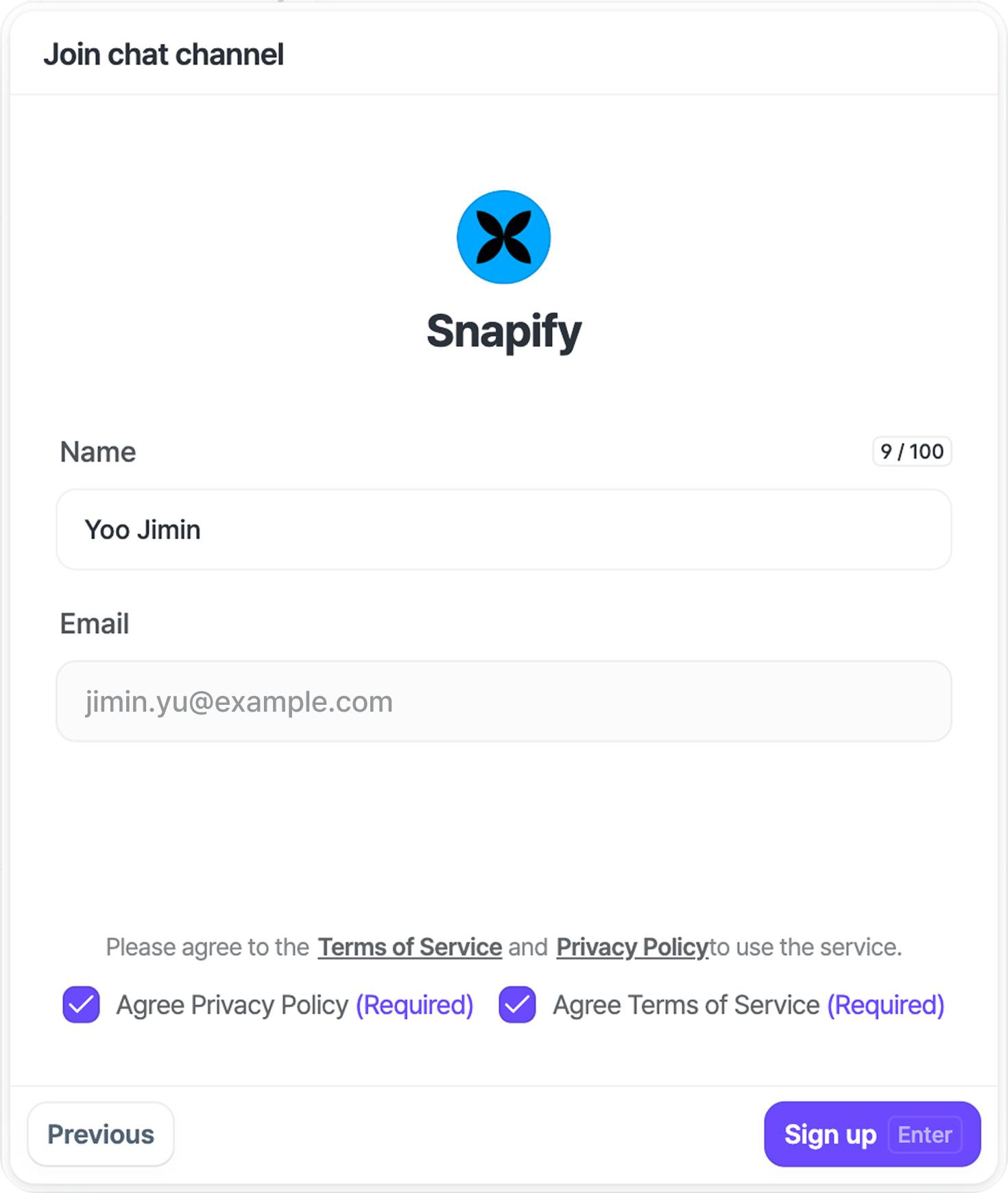

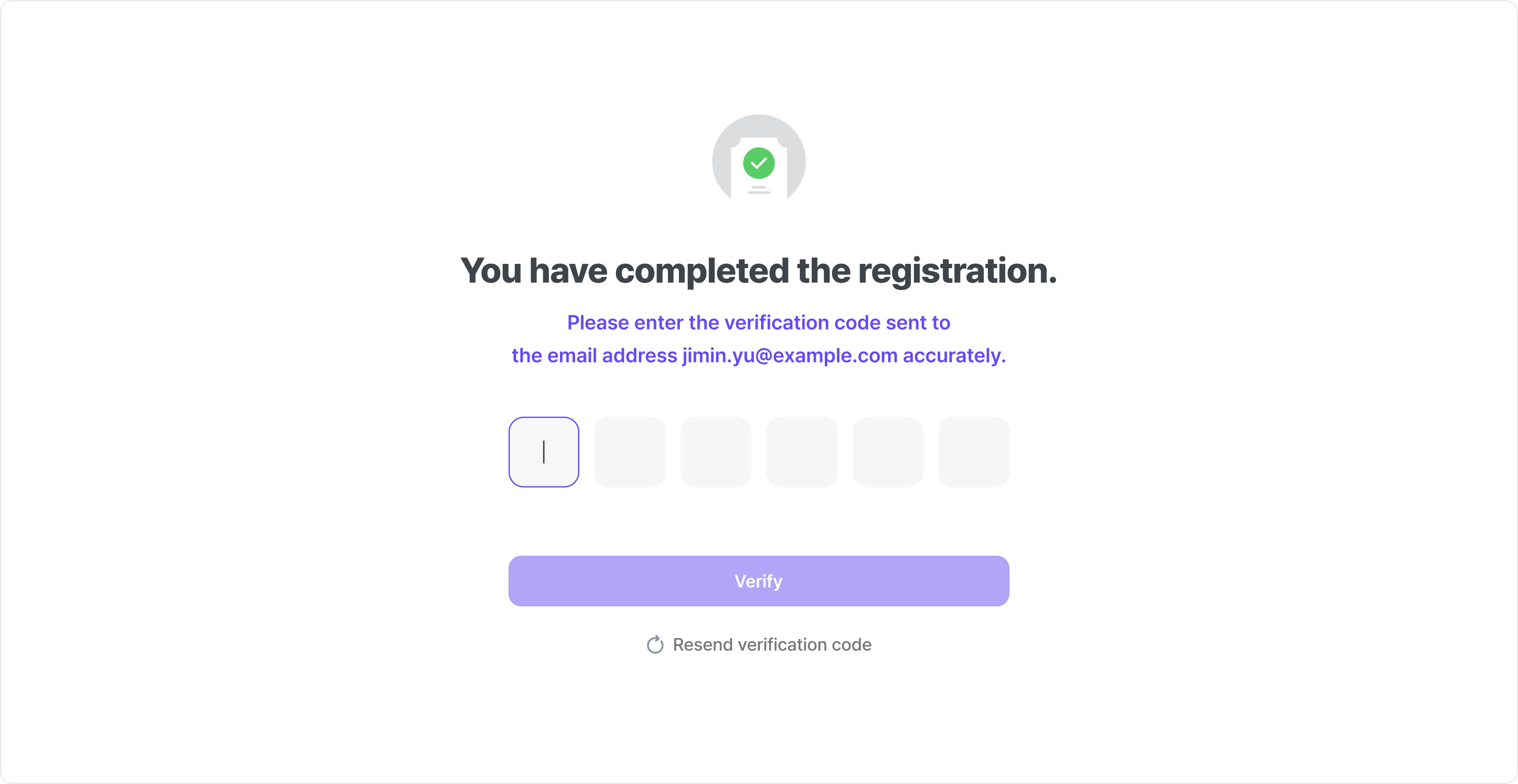
- After agreeing to the Terms of Service and Privacy Policy, you can complete sign-up.
- Once sign-up is done, you’ll go through email verification for the first time.
Start the conversation
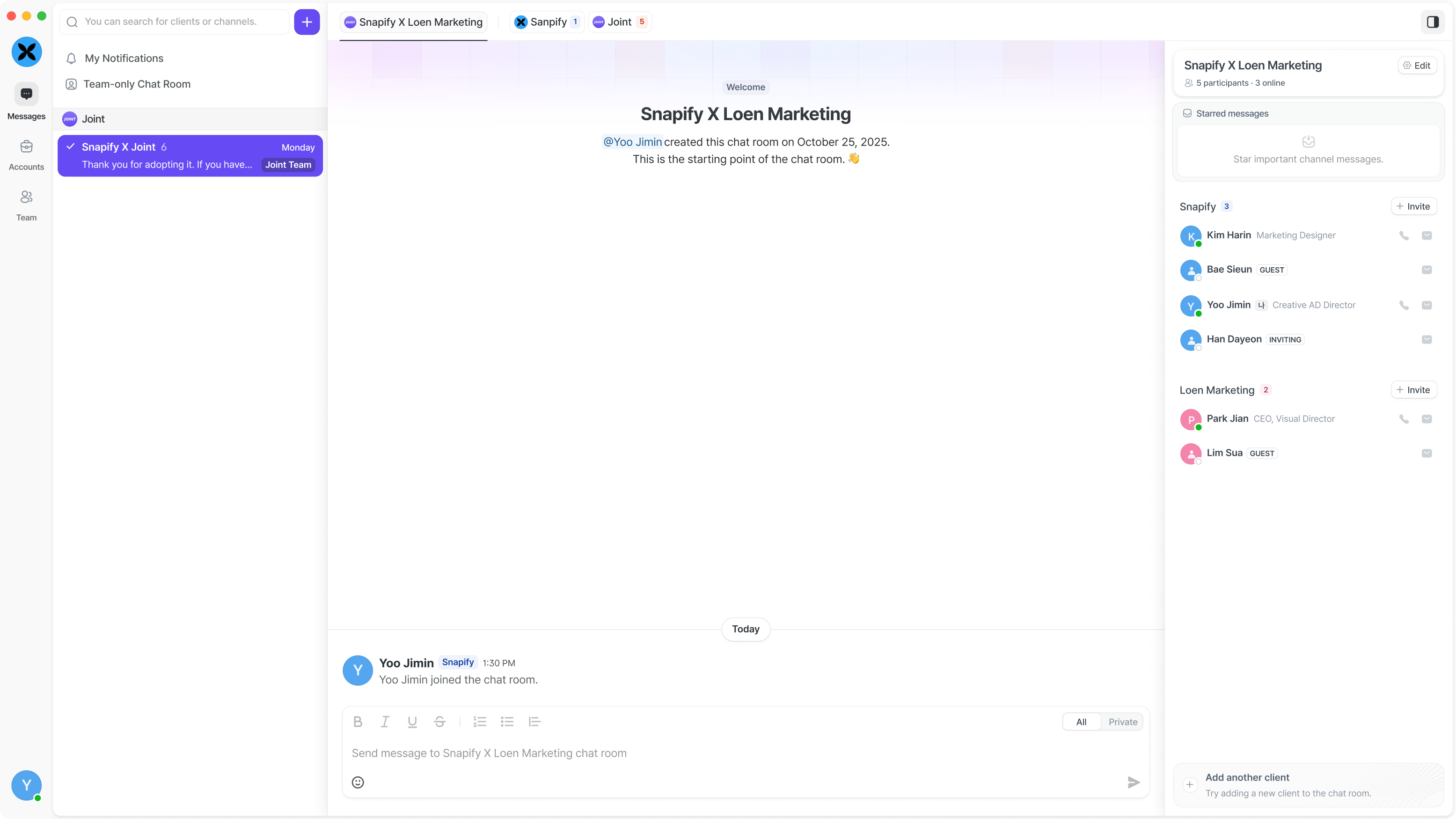

After verification, you can pick up the conversation right away in the channel you were invited to.
Invite your team members
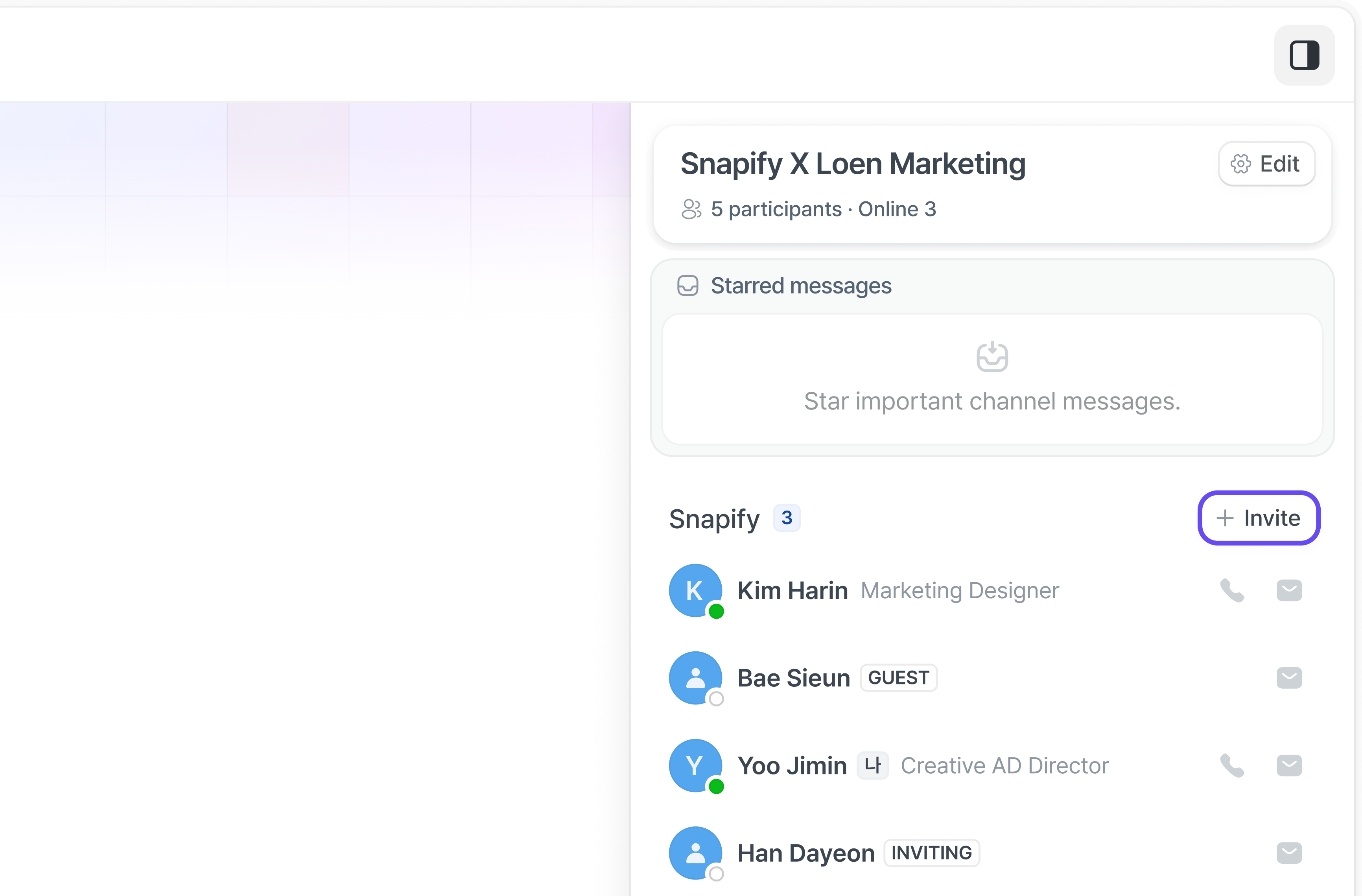

Invite team members from your own company to join you.
Invite account contacts
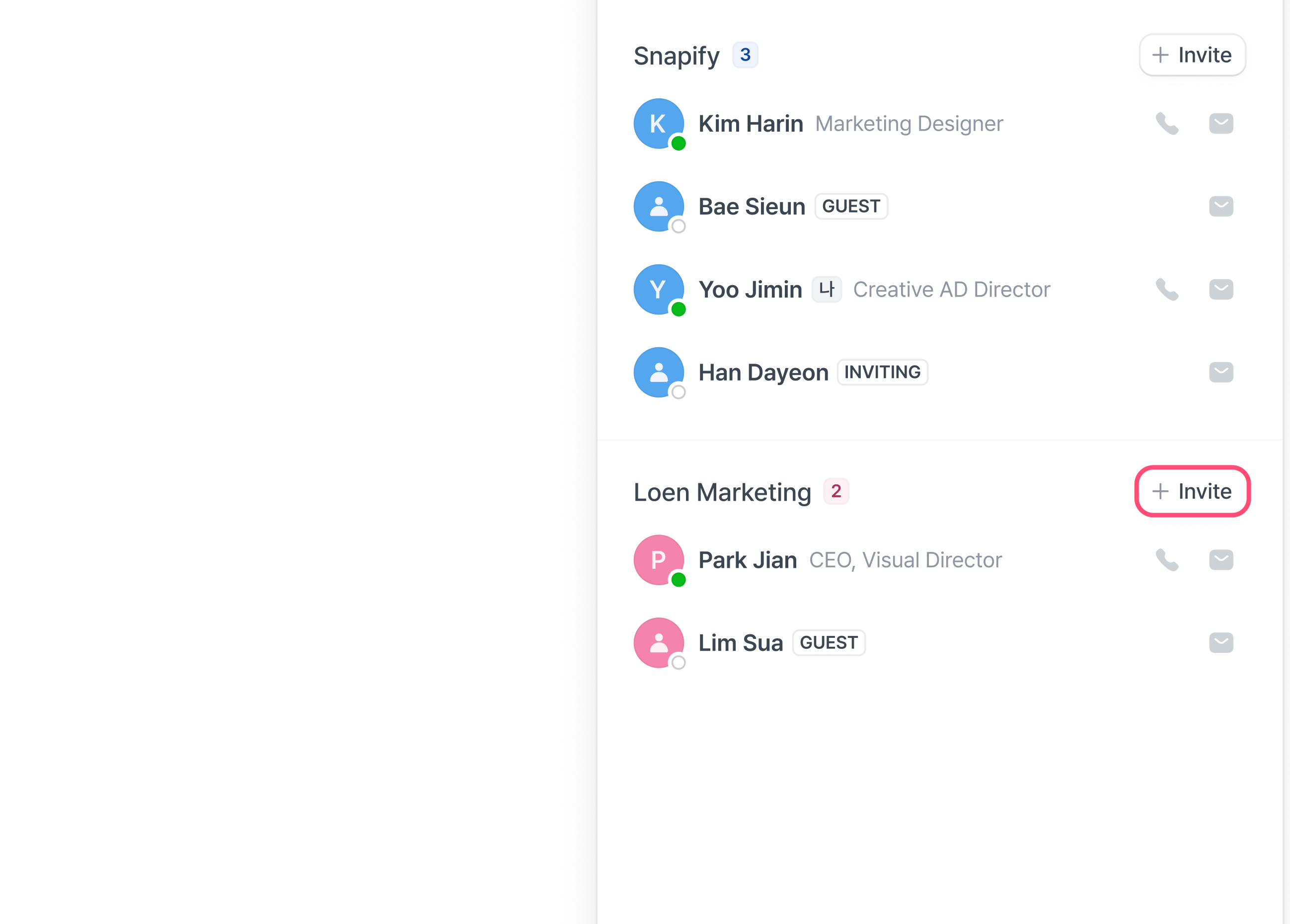

Invite account contacts from your external accounts to the channel as well.
Mobile
Receive the invitation email

Open the invitation email and you’ll see an [Accept Invitation] button. Tap it to enter Joint.
Confirm your workspace
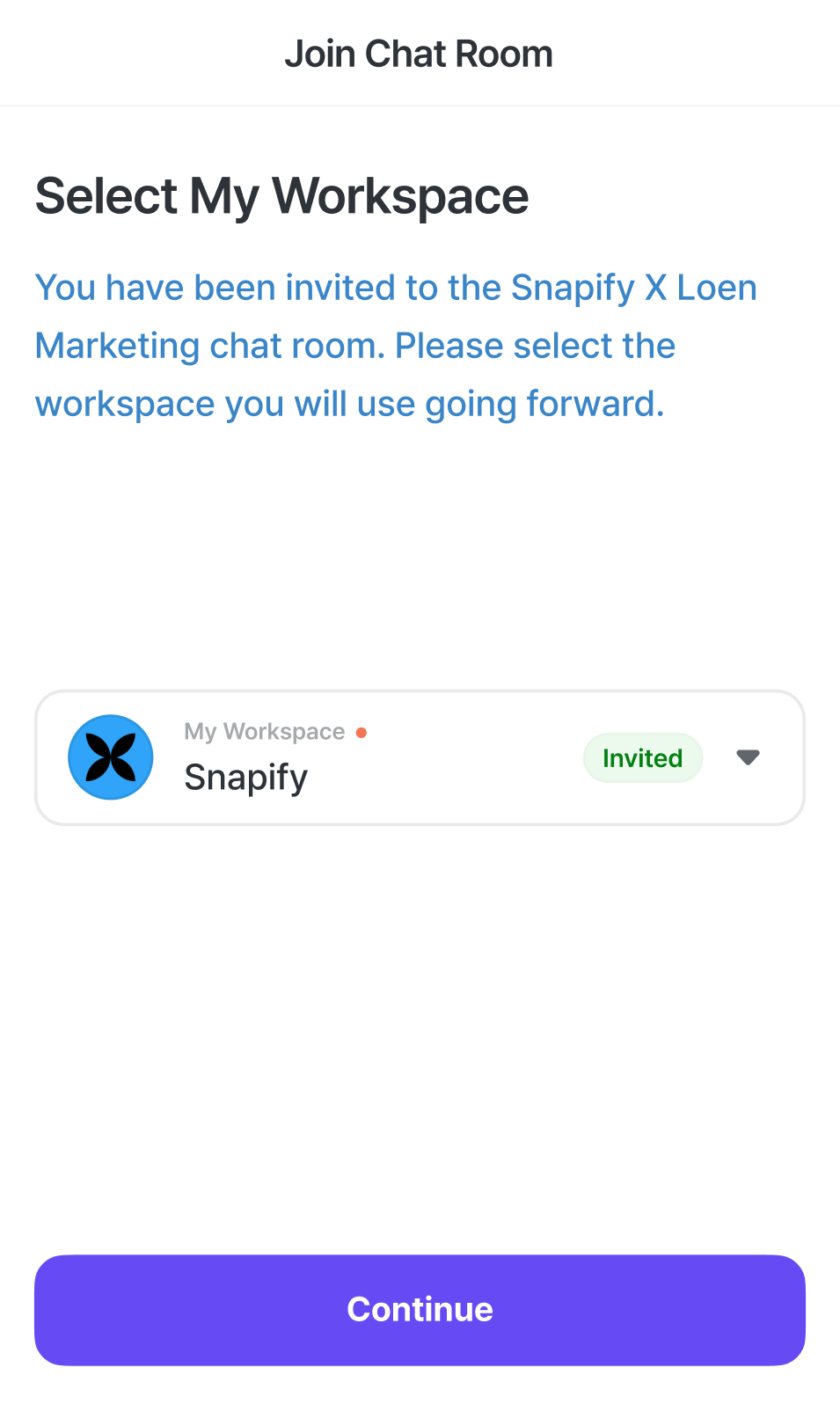

You’ll see the workspace you’ve been invited to. If everything looks right, tap [Continue] to move on.
Enter as a guest
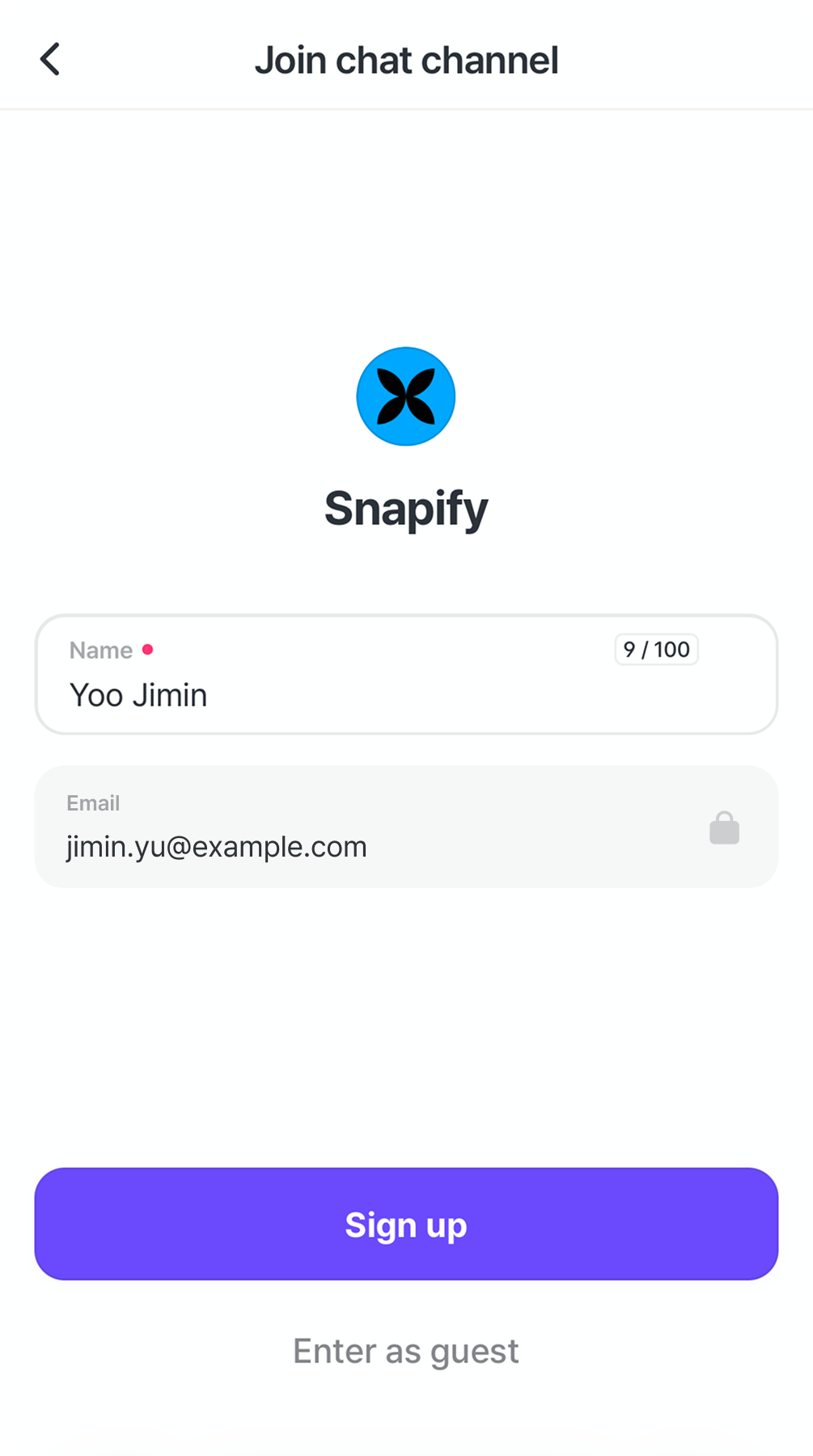

- Your name and email address — already filled in by the person who invited you — will be displayed.
- You can enter as a guest first, without signing up.
- Even as a guest, you can freely send and receive messages.
Sign up for Joint
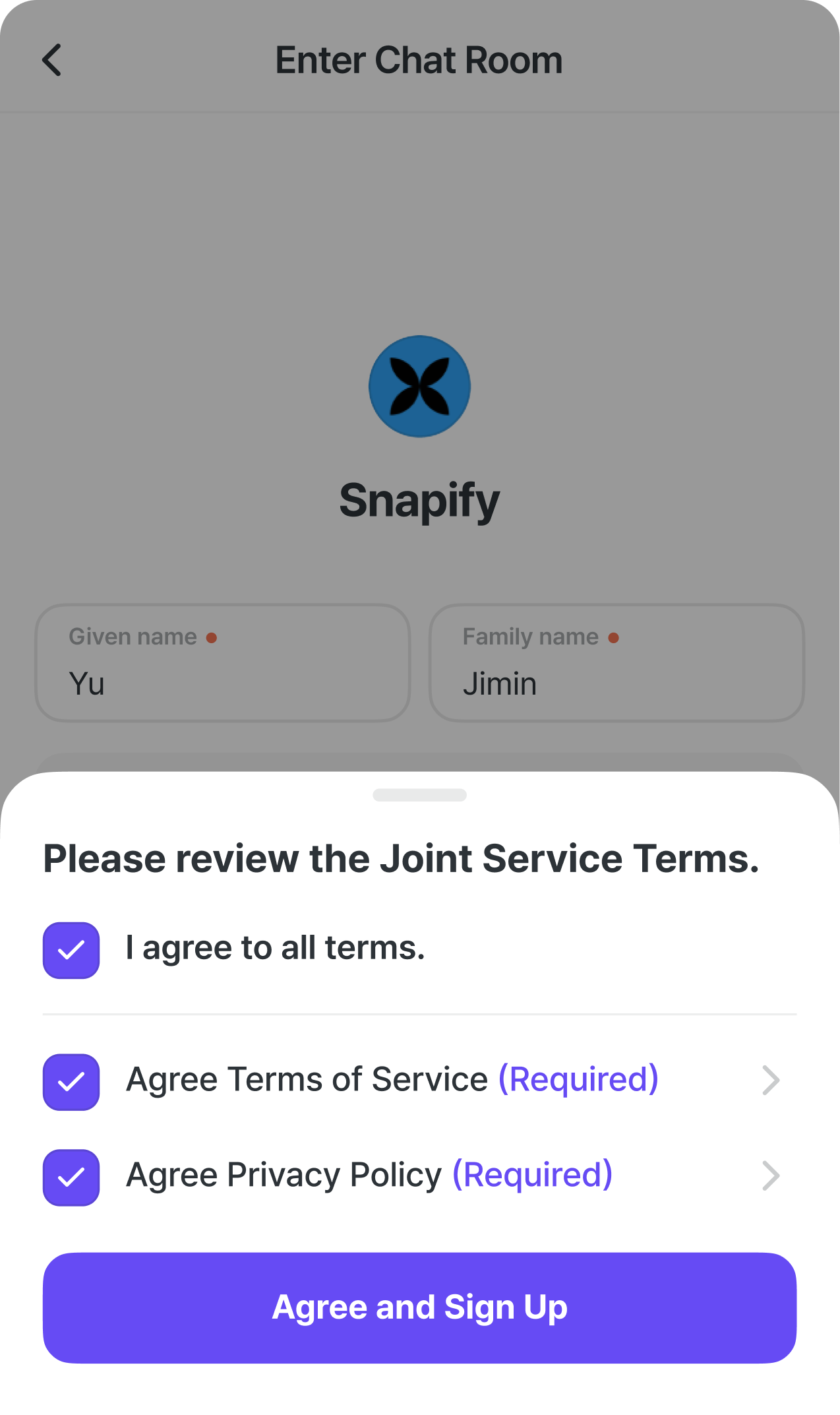
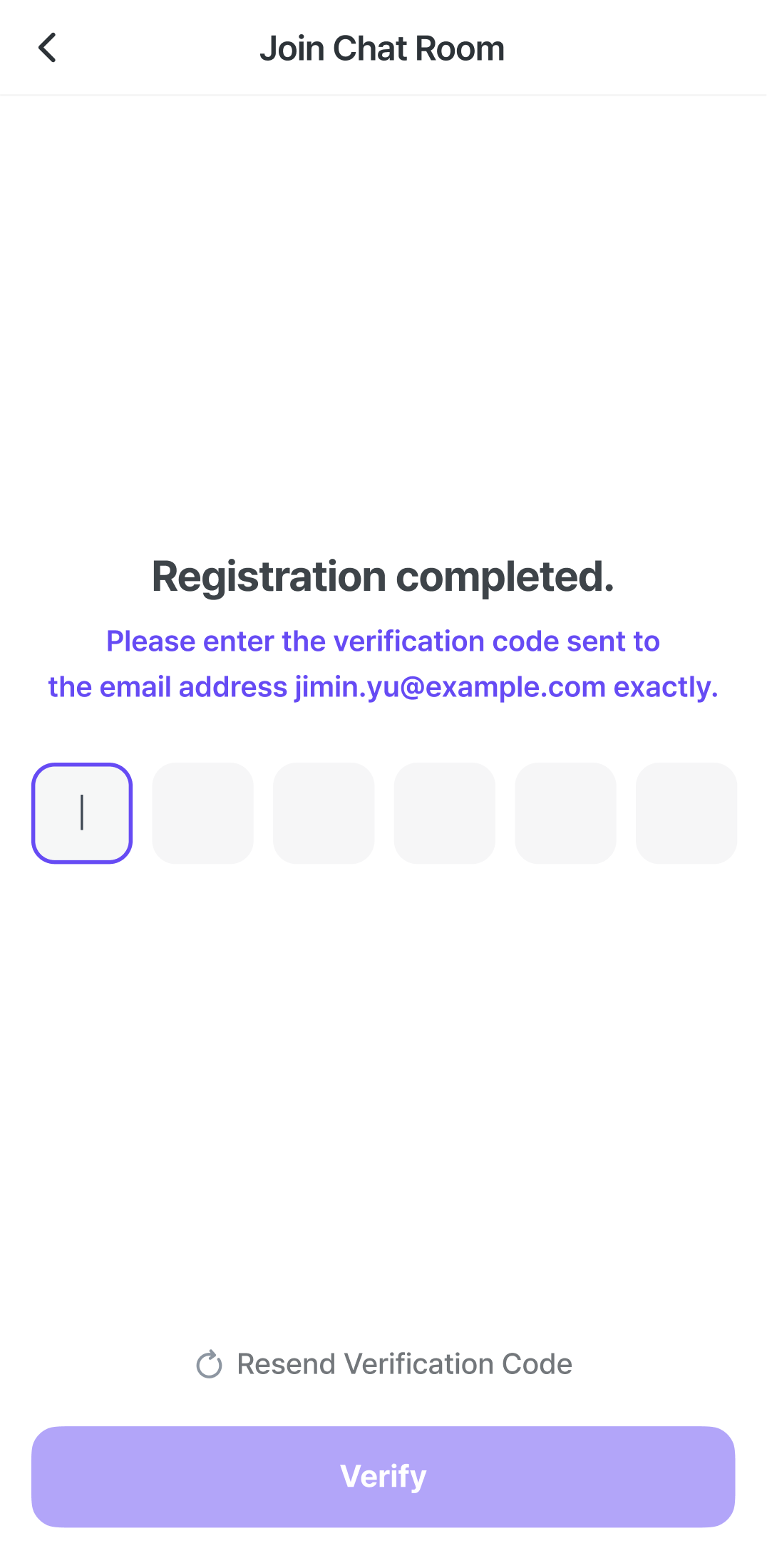
- After agreeing to the Terms of Service and Privacy Policy, you can complete sign-up.
- Once sign-up is done, you’ll go through email verification for the first time.
Start the conversation


After verification, you can pick up the conversation right away in the channel you were invited to.