Settings
My Profile and Workspace settings are currently available on desktop only.
You can access Settings by clicking your avatar at the bottom left of the desktop screen.
My Profile
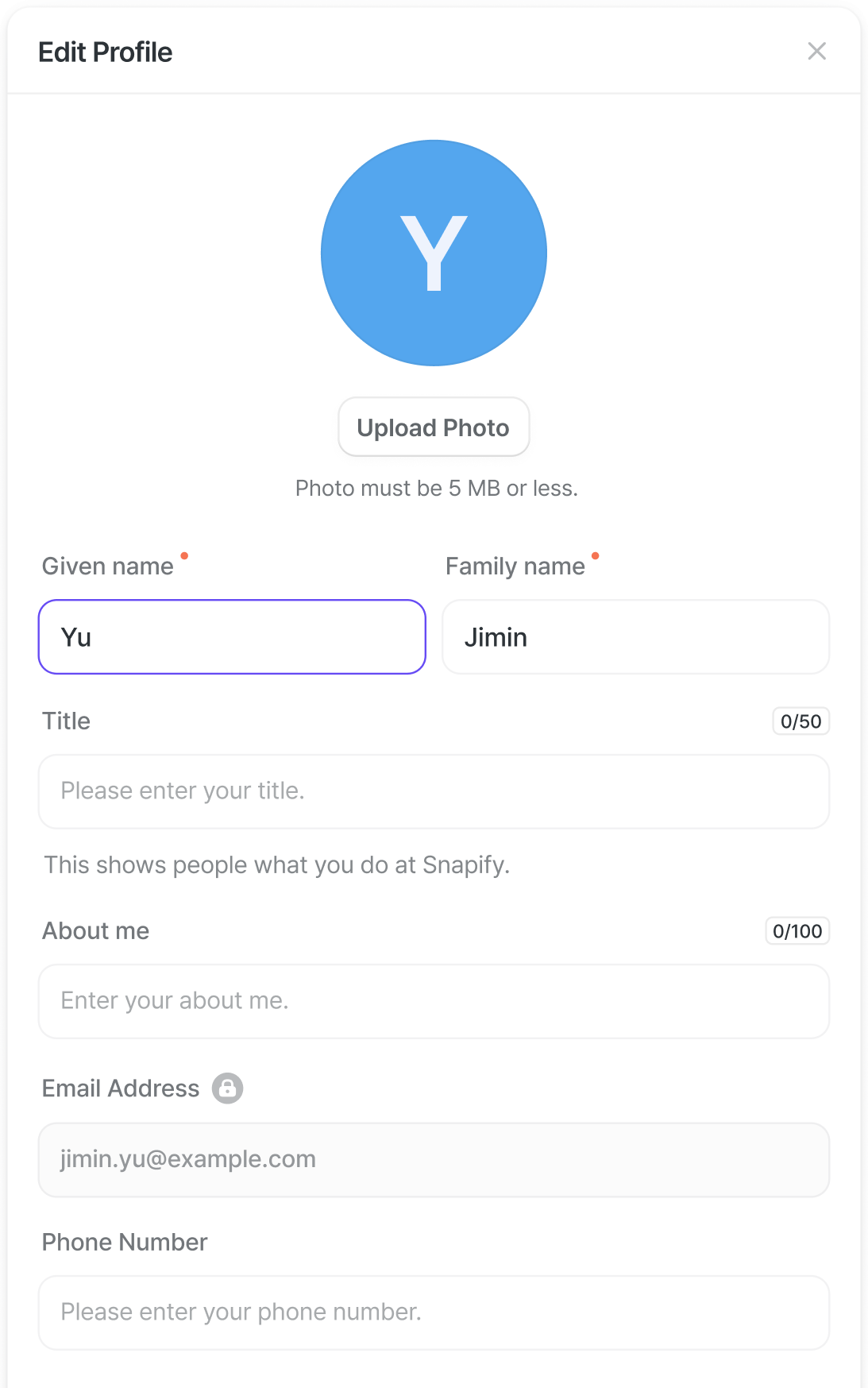
Every user can set the following in their profile:
- Profile image, Name, Job title, Bio, Phone number
Your email address can’t be changed.
Notifications
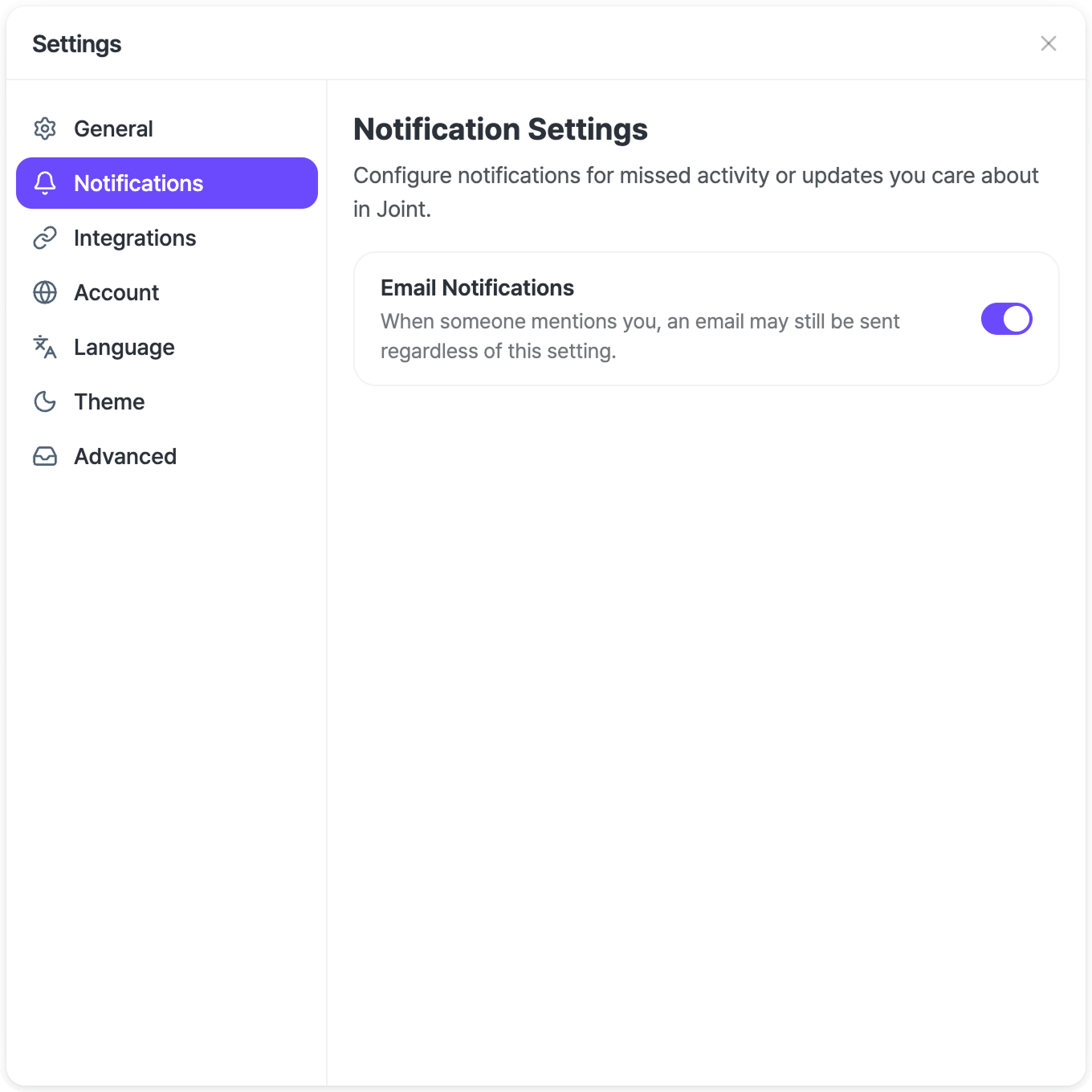

- In [My Profile] – [Settings] – [Notifications], you can choose whether to receive missed messages by email.
- Note that when someone mentions you, an email notification may be sent regardless of this setting.
Integrations
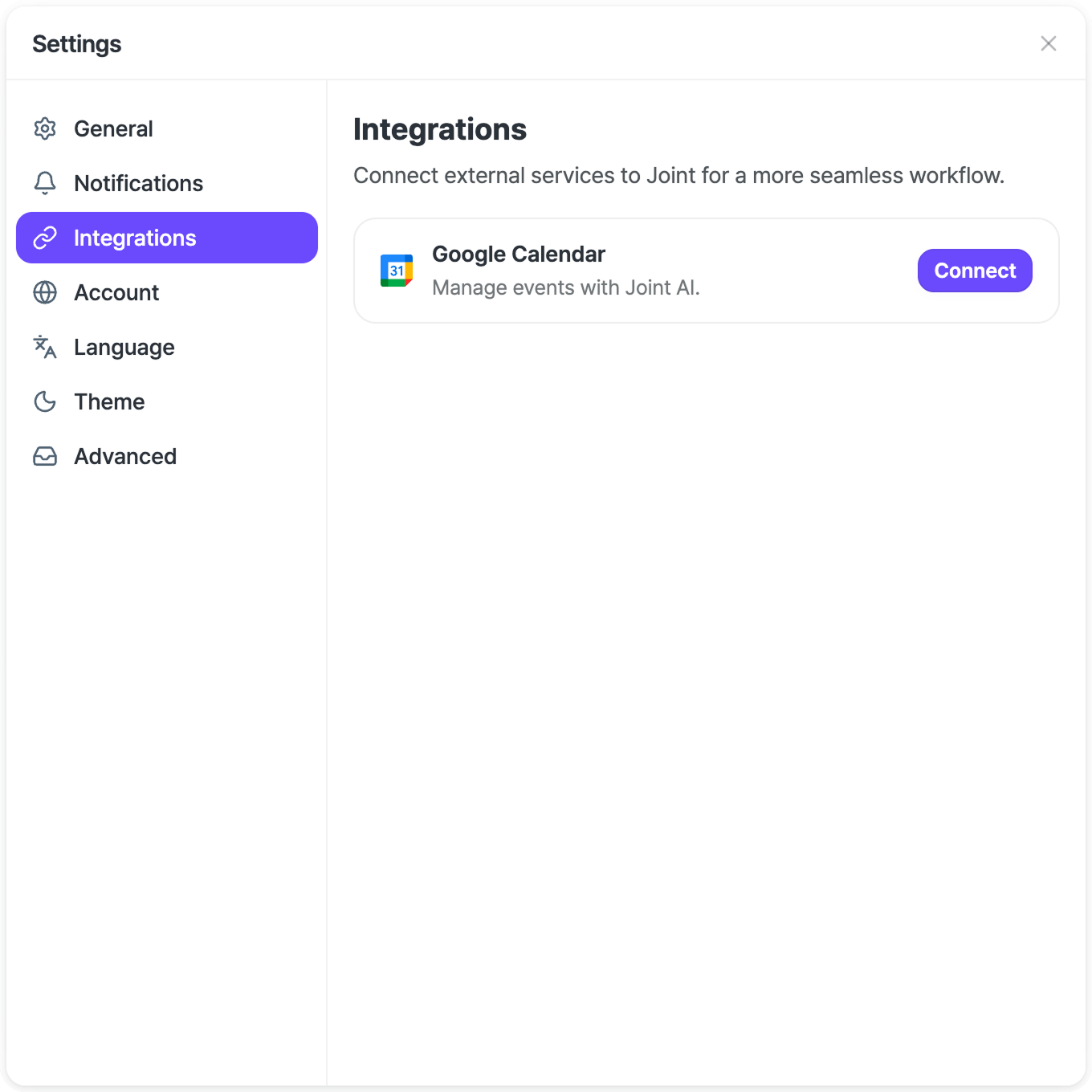
- Once Google Calendar is connected, Joint AI can read your schedule and walk you through it.
- Check today’s and this week’s events right in the conversation
- See your open time slots when scheduling a meeting with an account
- Start from [My Profile] – [Settings] – [Integrations] and click [Connect].
- Once you disconnect, Joint AI no longer reads your calendar.
Workspace settings
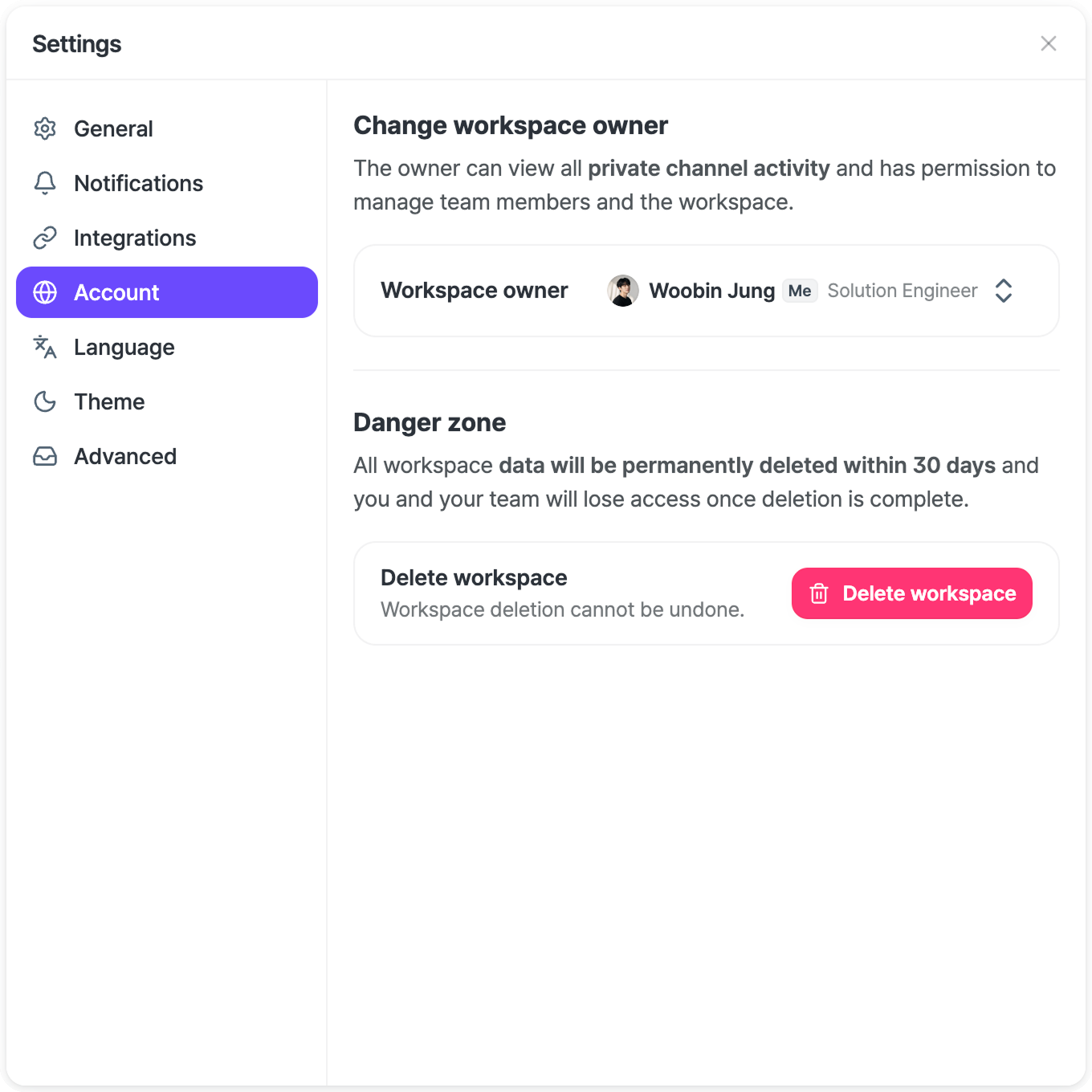


If you sign in as a [Workspace Owner], the [My Profile] – [Settings] – [Account] menu becomes available, where you can:
- Transfer workspace ownership to another team member.
- Delete your workspace and all data within it.
As a [Workspace Owner], you can also:
- Remove team members
- Leave an account channel as a team
- Change the workspace company name
- Upload a workspace logo
Language
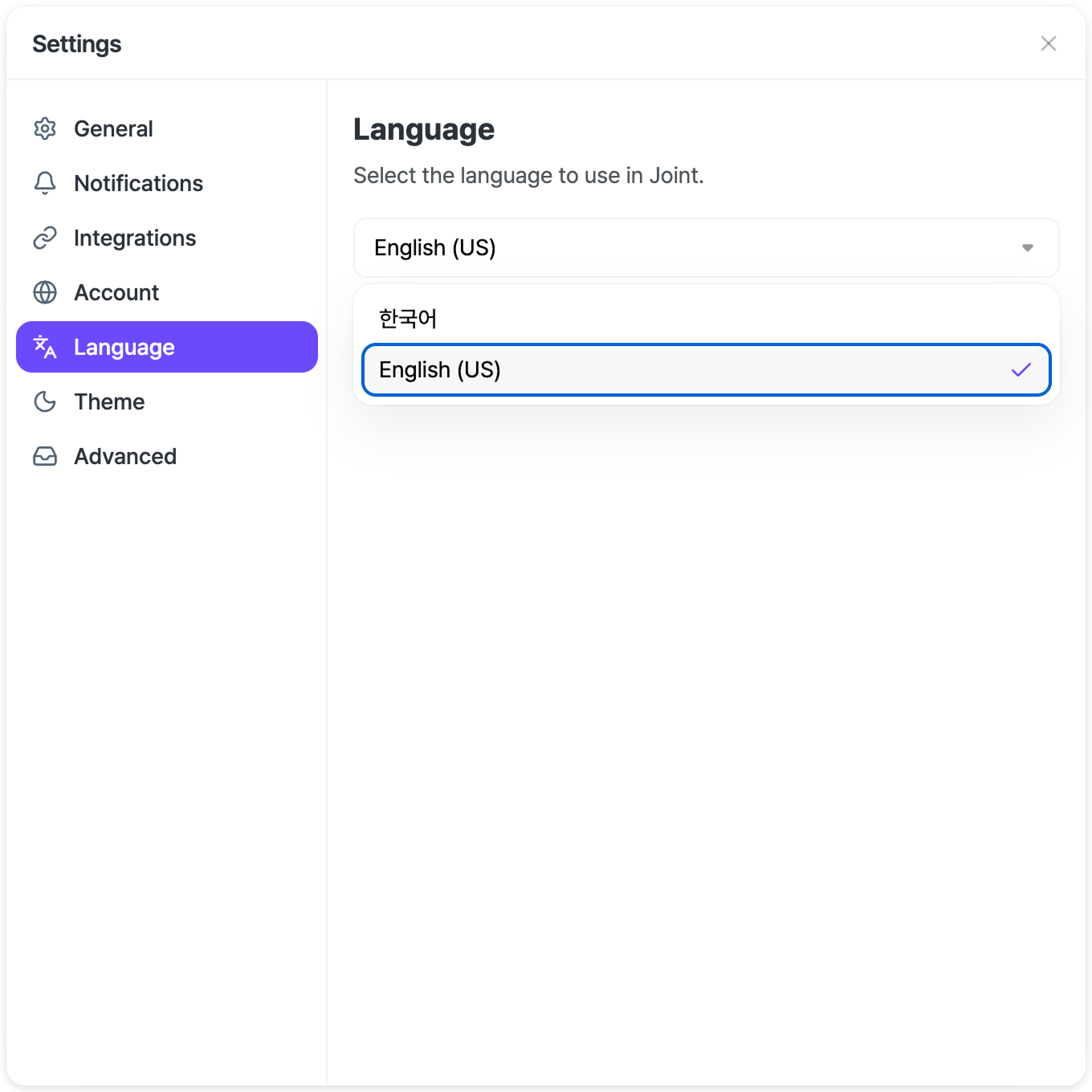
- In [My Profile] – [Settings] – [Language], choose the language Joint is displayed in.
- Currently 한국어 and English (US) are supported.
Theme
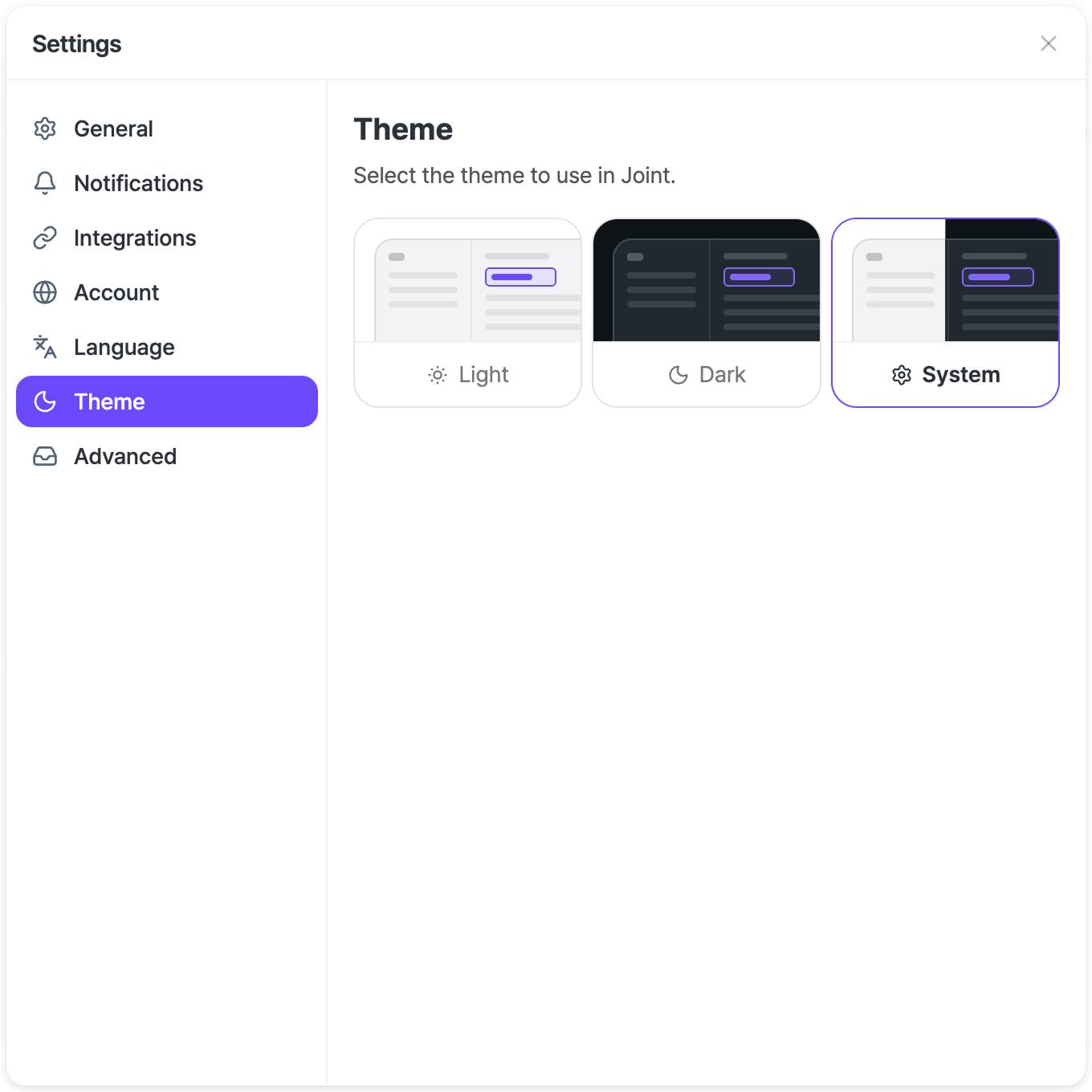
- In [My Profile] – [Settings] – [Theme], choose how bright the Joint screen is.
- Light — always a light screen
- Dark — always a dark screen
- System — follows your device setting automatically
- The setting is saved per device, so desktop and mobile can differ.
Advanced settings
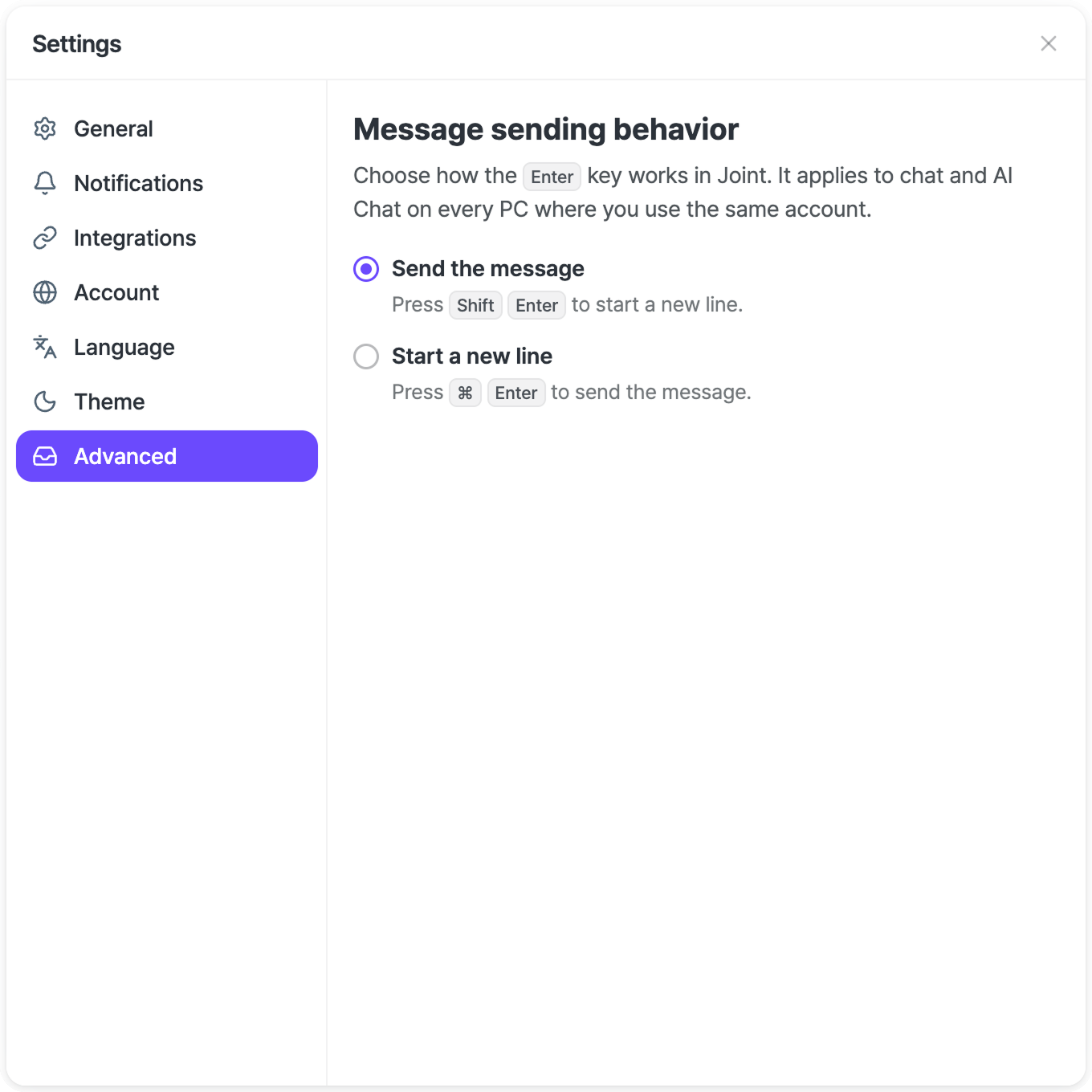
- In [My Profile] – [Settings] – [Advanced], choose what happens when you press Enter while typing a message.
- Send message — Enter sends the message, and Shift + Enter starts a new line.
- New line — Enter starts a new line, and ⌘ + Enter sends the message.
- This setting is saved to your account, so it applies to chat and AI Chat on any PC signed in with the same account.